










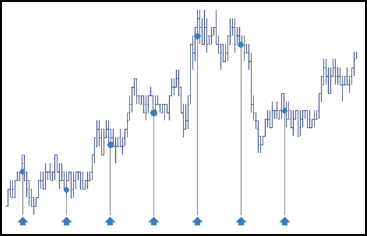
A TT Time Sliced order slices a large quantity order into smaller disclosed quantity orders. Child order portions are sent to the market at fixed time intervals. The resting portion might not be filled before it is time to disclose the next portion.
Behaviors
The following examples illustrate how you can configure a TT Time Sliced order with different behaviors for the child and parent orders. Also, each example shows how the order will appear in MD Trader.
- Defining the behavior of each child order slice
- Specifying the price at when child orders are entered
- Setting preconditions for the parent order
Setting the interval and quantity for each child order
When configuring a TT Time Sliced order, you need specify how frequently you want the parent order to submit a child order and at what quantity. Based on the specified interval, display quantity and the parent order quantity, the TT Time Sliced parent order, calculates the number of child order slices it will need to submit. It divides the total parent order quantity by the slice display quantity to determine the number of slices; then it submits each sliced order at the specified interval.
To specify the inverval and quantities of child orders:
-
Enter the length of time for each interval and select the time unit from the dropdown. You can chose the following
time units:
- Min (minutes)
- Sec (seconds)
- ms (milliseconds)
-
Enter the Display quantity and select the type of quantity (Qty or
%) from the dropdown.
If you entered a 50-lot order with these settings, the TT Time Sliced parent order would submit one 5-lot order every 30-seconds for a total of 10 order slices.
Varying the quantities of the child order
Instead of submitting a fixed quantity for every child order you can use a variance to increase or reduce the quantity of each child order by a random amount. This amount uses a percentage of the disclosed quantity as its threshold.
To vary the disclosed quantity by a percentage of the order size:
- Set the desired Display quantity. This quantity becomes the base quantity for calculating variance.
-
Set the Variance from the dropdown. This example sets the variance
to 50%, so each child order could have an order quantity within 50% (+/- 5) of the base disclosed quantity.

-
To see a proposed distribution of the child orders, click
 . Note: You must specify the order quantity to see the
distribution.
A flyout shows the quantity of each child order that will be sent when you submit the parent order.
. Note: You must specify the order quantity to see the
distribution.
A flyout shows the quantity of each child order that will be sent when you submit the parent order.
If you want to change the proposed distribution, you can continue to click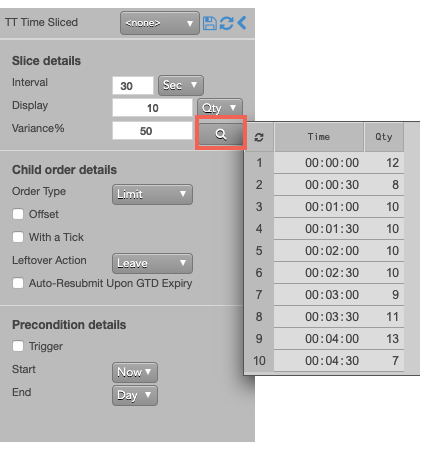
 until you see a distribution you like.
Note: If you do not display the variance, or if you make any order change after displaying the variance distribution, the TT Time Sliced parent order will submit its child orders with random quantities within the specified variance until the total order quantity has been filled.
- Submit the order at the desired side and price. If you entered a 100 lot oder with these settings, the TT Time Sliced parent order would submit an order for the first quantity (10). Then, a new child order would be entered at the indicated time and quantity until all of the slices were submitted.
Setting the type and price of the child order
At the specified intervals, the TT Time Sliced parent order will submit native child orders to the market at a specified type and price. You can choose the following types of native order to use when entering child orders at the specified interval.
- Market order
- Limit order You can choose to use same price as the parent order for each child order or to use a price offset based on the market at the time each child order is entered.
To configure the type and price of each child order:
- In the Slice details section, configure the slices as desired.
-
In the Order Type dropdown, select the desired order type for the child orders.
If you select Limit, you can optionally enter a child order at a relative price using an offset.
With this setting, each child order will be entered at a price level three ticks away from the LTP at the beginning of the slice interval.
Setting a leftover action to handle unfilled orders when a slice ends
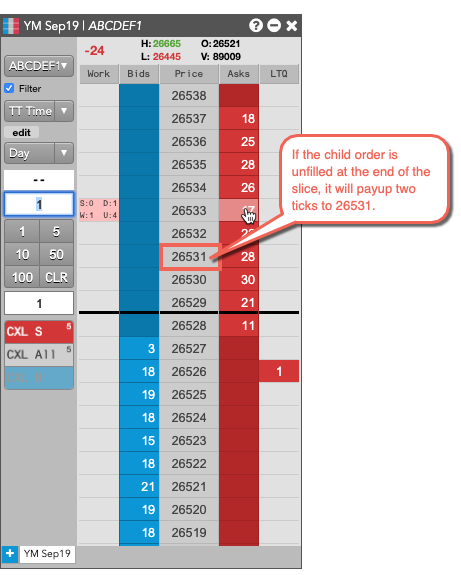
When it is time to enter the next child order slice, the TT Time Sliced parent order needs to know what to do if the current child order slice is not fully filled. When you submit child orders with the Limit order type, you can specify a leftover action, which lets you either reprice the resting order using payup ticks or leave the resting child order portion in the market.
- Configure the Slice details as desired.
-
From the Order Type dropdown, select Limit.
The Leftover Action section is exposed in the flyout.

- Choose one of the leftover settings.
The following example illustrates using payup ticks.

Aggressing the price of a working child order based on market conditions
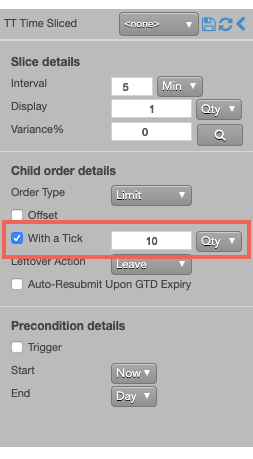
You can also apply With A Tick functionality to the child orders. This feature gives you the ability to work an order at one price and automatically pay up one tick when the quantity available at the opposite side drops below a user-defined threshold.
To configure With a Tick behavior:
- Specify the desired quantity and price settings.
-
Enable With a Tick and set the quantity threshold.
-
Enter the order at the desired price level.
If you entered a Buy order at the inside market, the TT Time Sliced parent order will reprice its child order one tick when the quantity for the inside Ask falls below 20.
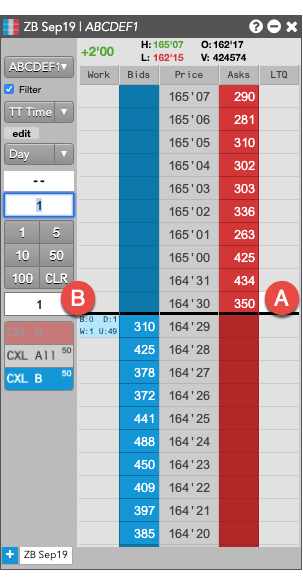
- A – When the quantity at this level falls below 20…
- B – The TT Time Sliced parent order will reprice its child order one tick higher.
For this order:
TT gives users the option to set the With a Tick functionality with a percentage instead of a fixed quantity. For example, if you set With a Tick equal to 20%, instead of to a quantity, then:
- When the quantity on the opposite side of the market drops below 20% of your order’s quantity…
- Your order will aggress into the market by one tick.
Triggering a TT Time Sliced parent order at a specific price level
A TT Time Sliced order type supports triggers that let you manage when to submit the parent order, which will then enter its child orders. You can set a trigger price, which puts the TT Time Sliced parent order on hold until a trade occurs at a specific price level. When the market reaches that price level, the TT Time Sliced parent order changes to Working state and submits its first child order. The TT Time Sliced order type supports the following types of triggers:
- If-Touched: Triggers when a trade occurs at the specified price level or better
- Stop: Triggers when a trade occurs at the specified price level or worse.
After selecting the type of trigger, set a trigger price and trigger price type. The following trigger price types are supported:
- LTP: Any trade occurs at the specified price level.
- Bid/Ask: A trade on the selected side occurs at the specified price level.
- Same/Opposite Side: A trade occurs at the specified price on the specified side of the market relative to the TT Time Sliced parent order.
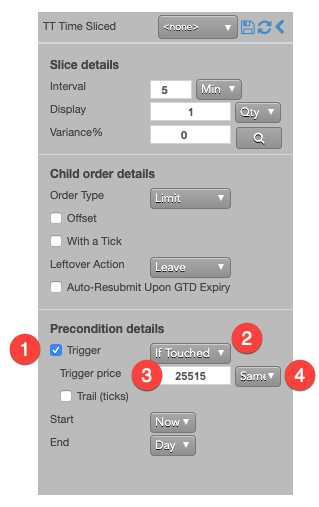
To set a trigger for the TT Time Sliced order to begin working when the market trades at a specific price on the same side as your Buy or Sell order, add a same-side If-Touched trigger as follows:
- Enable Trigger to set a trigger for the order.
- Select If Touched from the dropdown to trigger the TT Time Sliced order when a trade occurs at the specified price or better.
- For the Trigger price, enter the desired price at which to trigger the order.
- Select Same Side from the drop-down to indicate the trade must occur at the inside market for the same side as the TT parent order. For example, if you enter the order as a Bid, the order will be triggered if a Buy order executes at the specified price.
If you clicked at any price level on the Buy side, the TT Time Sliced parent order would resemble the following.
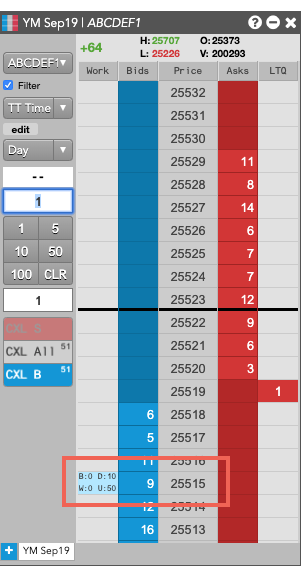
Based on the specified parameters, the TT Time Sliced parent order is entered into the market as follows:
- The TT Time Sliced parent order is placed at the specified trigger price of 25515.
- The working quantity of the order you entered is 0 and will remain so until the order is triggered.
- When a Bid is filled at the 25515 trigger price, the TT Time Sliced parent order will begin working its child orders at that price level.
Using Stop and If-Touched trailing triggers to enter a TT Time Sliced parent order at a price level that trails the market
Instead of entering your TT Time Sliced parent order at a specific price level, you can configure the TT Time Sliced parent order to trail the market by setting the number of ticks away from the market to set your trigger.
- If the market moves away from your trigger, the trigger will reprice to remain the set number of ticks away from the market.
- If the market moves towards your trigger, the trigger will remain at its price level.
Adding a trailing component to a trigger causes it to behave as follows:
-
Trailing If-Touched triggers
- A Buy-side trigger is set a specified number of ticks below the market. When the market moves higher, the trigger follows the market and maintains its ticks away value; when the market moves lower, the trigger’s price does not move.
- A Sell-side trigger is set a specified number of ticks above the market. When the market moves lower, the trigger follows the market and maintains its ticks away value; when the market moves higher, the trigger’s price does not move.
-
Trailing Stop triggers
- A Buy-side trigger is set a specified number of ticks above the market. When the market moves lower, the trigger follows the market and maintains its ticks away value; when the market moves higher, the trigger’s price does not move.
- A Sell-side trigger is set a specified number of ticks below the market. When the market moves higher, the trigger follows the market and maintains its ticks away value; when the market moves lower, the trigger’s price does not move.
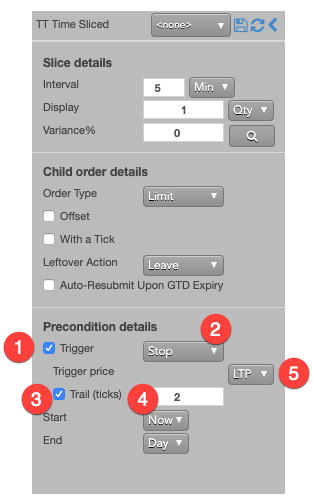
To set a trailing trigger for the TT Time Sliced parent order:
- Enable Trigger to set a trigger for the order.
- From the dropdown, select the type of trailing trigger.
- Enable the Trail (ticks) parameter to have the trigger trail the market.
- Enter the desired number ticks away to trail the trigger price.
-
From the Trigger price drop-down, select the price type to trail.
If you clicked any price level on the Buy side, the TT Time Sliced parent order would resemble the following.

Based on the specified parameters, the TT Time Sliced parent order is entered into the market as follows:
- The TT Time Sliced parent order is placed at the trigger price of 26855.
- The working quantity of the order you entered is 0 and will remain so until the order is triggered.
- When a Bid is filled at the 26855 trigger price, the TT Time Sliced parent order will begin working its child orders at that price level.
Setting start and end times for a TT Time Sliced parent order
By default, a TT Time Sliced order begins working immediately after submission and continues to work until canceled. You can, however, customize when a TT Time Sliced parent order begins working and when it stops.
To set start and stop times for a TT Time Sliced parent order:
-
For the Start setting, click the dropdown arrow and select the desired start time option.
In this example, you select Time.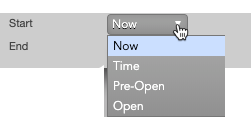
-
Set a start date and time in the calendar selector, and click Apply.
Tip: Use the “tab” key to navigate to the right between time edit boxes. Use “Shift + tab” to navigate left to an edit box.
Note: If you specify a future start time, the Order Book will show the TT Time Sliced parent order Status as Working and its SynthStatus as Waiting.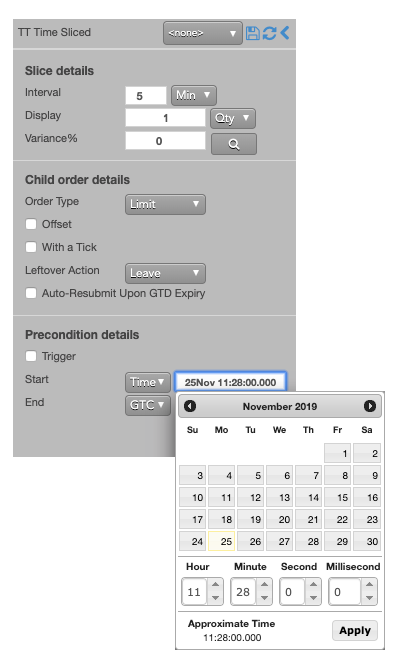
-
For the End setting, click the dropdown arrow and select one of the following:
- GTC: Keeps the TT Time Sliced parent order working until it is canceled.
- Time: Sets a time and date for when the TT Time Sliced parent order ends.
- Day: Cancels the TT Time Sliced parent order at the end of the trading session.
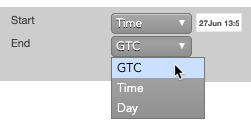
Note: When creating or using an order template and using the Time option, the Start and End dates automatically adjust if originally set in the past.
-
Enter the order at the desired price level.
If you placed the order with a future start time, the TT Time Sliced parent order would appear in MD Trader and the Order Book similar to the following.
The Order Book shows the status of the future order.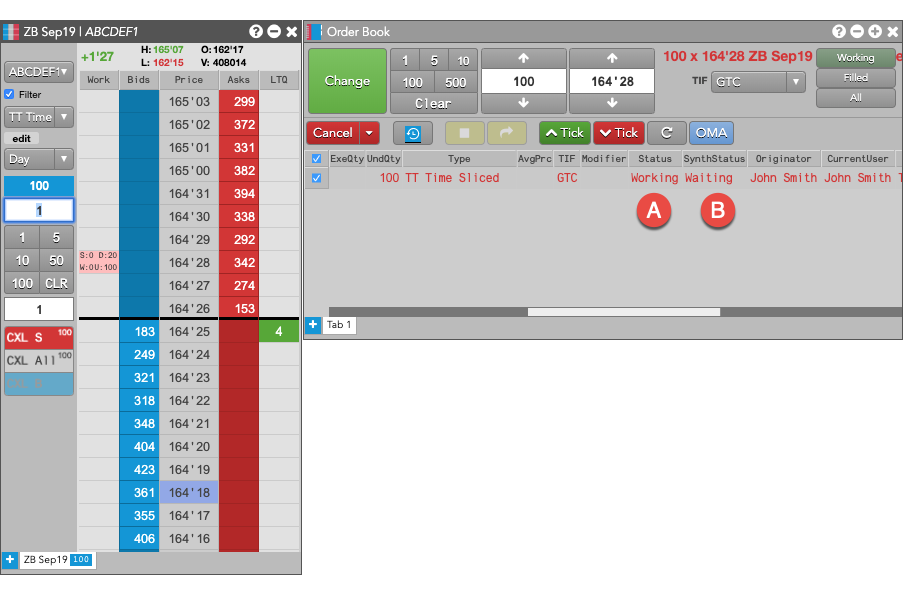
- A – The Status is Working, which indicates the TT Time Sliced parent order is working on the Algo Server.
- B – The SynthStatus is Waiting, which indicates the order has not yet started working in the market. When the start time is reached, the SynthStatus will also change to Working.
TT Time Sliced order parameters
Slice details parameters
- Interval: Sets the length of the slice.
Valid time units include:
- Min (minutes)
- Sec (seconds)
- Ms (milliseconds)
- Display: Sets the displayed quantity, or the amount that is visible in the market.
The displayed value can represent:
- Qty for a specific number of contracts
- % for a percentage of the total order
- If the quantity is less than 1, the quantity rounds up to 1.
- If the fractional portion is less than .5 (e.g. 3.2), the quantity rounds down.
- If the fractional portion is greater than .5 (e.g. 3.7), the quantity rounds up.
- If the fractional portion is exactly .5, the quantity rounds up.
Child order details
- Child order type: Sets the type of exchange-native order to use for the order. Possible values include:
- Limit
- Market
- Offset — Sets the number of ticks away from the specified price to submit the order.
This parameter is optional if the order type is “Limit”.
The offset can be based on one of the following prices:
- LTP
- Ask
- Bid
- Same Side: Uses the inside market price in the Buy/Sell direction of the order:
- Best Bid for Buys
- Best Ask for Sells
- Opposite Side: Uses the inside market price in the opposite Buy/Sell direction of the order:
- Best Ask for Buys
- Best Bid for Sells
- With a Tick: Sets the threshold for the With A Tick behavior that reprices the child order one tick toward the market when available quantity at the opposite inside market is at or below the specified quantity threshold.
The quantity can be specified as:
- Qty for an absolute number of contracts
- % for a percentage of the initial quantity for this order
- Leftover action to specify how to handle any existing unfilled order quantities when it is time to send the next portion. Options include:
- Leave to leave the resting child order portion in the market.
- Market to cancel the resting child order portion and submit a market order for the remaining quantity.
- Payup to change the price based upon the buy/sell direction of the order and the Payup Ticks value.
- Go to Market: Cancels the resting Limit order and sends a Market order based on the following setting:
- At End: Go to market at the end of the volume interval (default setting).
- At Half Life: Go to market after half of the interval.
- Mkt Order Limit: Sets the number of ticks from LTP to submit a Limit order through the opposite inside market.
- Merge: Merges unfilled child orders into a single order after each interval.
- Payup Ticks: Sets the number of ticks to add or subtract from your Bid or Offer to determine the price of the Limit order. The Limit price is based on the Buy/Sell direction of the order. Optionally, select one of the following:
- At End: Executes Payup ticks at the end of the volume interval (default setting).
- At Half Life: Executes Payup ticks after half of the volume interval.
- Auto-Resubmit Upon GTD Expiry: Valid only when the child order TIF is Day (GTD). If any child orders are not completely filled by the session close, the exchange will expire the child orders; when the market reopens, the parent order will then resubmit the child orders with the same parameters as when they expired.
Precondition details
- Trigger: Sets the type of order trigger for the parent synthetic order
Possible types include:
- Stop
- If-Touched
- Trigger Price: Sets the price at which to trigger the parent synthetic order.
Possible values include:
- LTP: Last Traded Price
- Ask: Best Ask
- Bid: Best Bid
- Same Side: Evaluates the trigger using the inside market price in the Buy/Sell direction of the order:
- Best Bid for Buys
- Best Ask for Sells
- Opposite Side: Evaluates the trigger using the inside market price in the opposite Buy/Sell direction of the order:
- Best Ask for Buys
- Best Bid for Sells
- Stop
- If-Touched
Values include:
- Now to start the order immediately
- Time to display a date/time picker for you to indicate when to start the order
- Pre-open to enter the order at the pre-open state defined by an exchange
- Open to enter the order when the exchange opens its trading session
- GTC, which leaves the order working until canceled
- Time, which displays a date/time picker for you to indicate when to stop the order
- Day, which leaves the order working until the market closes
Possible values include:
- Cancel — Cancels all child orders and stops the order type.
- Go to Market — Cancels the resting Limit order and submits a Market order. When selected, the “Mkt Order Lmt ticks” option is displayed.
- Mkt Order Lmt ticks — Sets the number of ticks from LTP to submit a Limit order through the opposite inside market. If the checkbox is checked: all child orders are canceled, a Limit order is submitted for the unfilled quantity at a price that’s a set number of ticks from LTP, and the order type is stopped. If the checkbox is unchecked: all child orders are canceled, a Market order is submitted for the unfilled quantity, and the order type is stopped.