










Using the workspace windows functionality, you can add windows and switch between multiple monitors in a single workspace. After adding a window, you can also rename it, delete it, or set it as your default window.
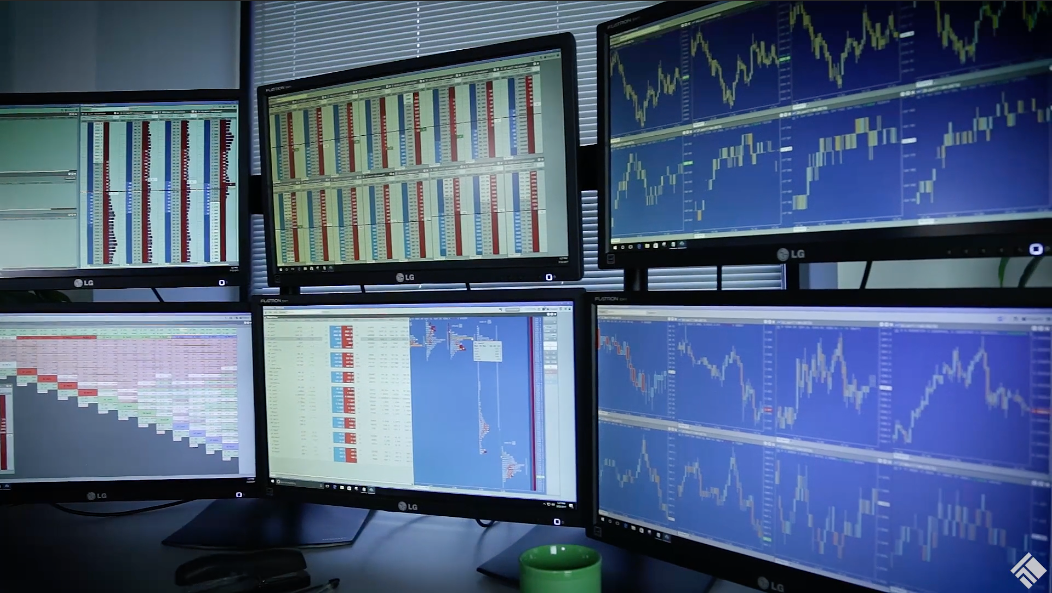
When you reopen a saved multi-monitor workspace, the windows will automatically return to the same location or monitors they were at when the workspace was previously saved and closed.
After you create a multi-monitor workspace in TT Desktop, you can:
- Add, edit, or delete windows
- Send widgets from one window to another window.
- Move one or more windows to different monitors.
Adding a window
To add a window:
-
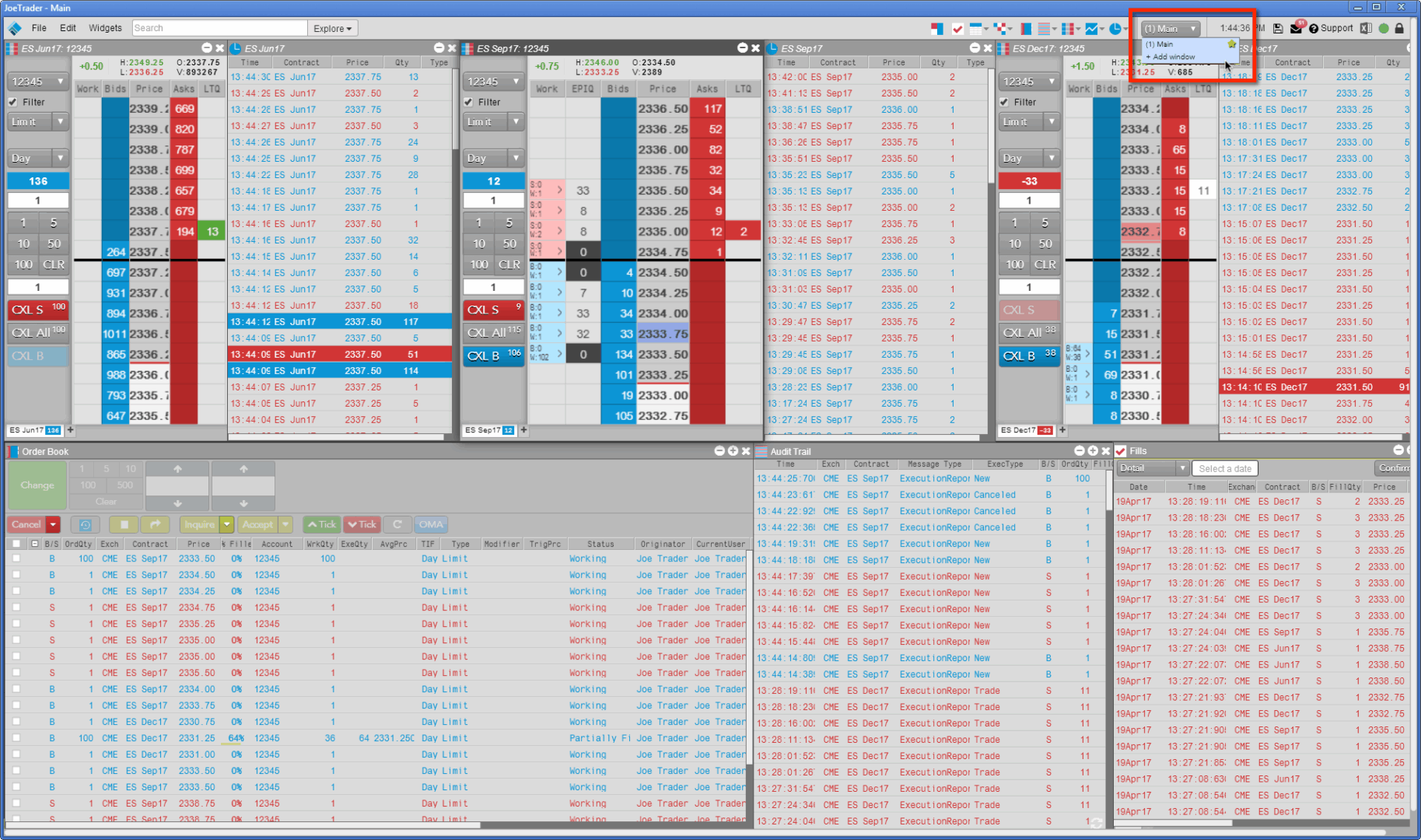
From menu bar, click the Windows drop-down selector and click +Add window.
-
Enter the name for the window, and click Save.
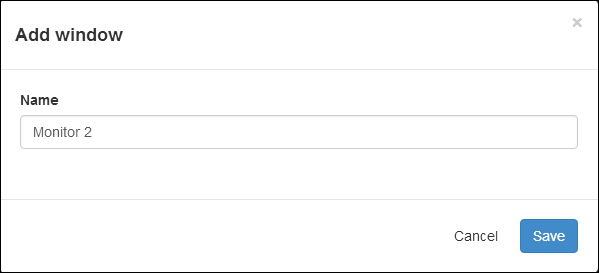
The new window opens and is added in the same monitor as the main window.

-
Optionally, from the Windows drop-down selector, you can change the default window, change the name of a window, and delete a window.

Sending widgets to other windows
Widgets can be sent to other windows either in the same monitor or a different monitor.
To send a widget to another window:
- Right-click in the widget’s title bar to display its context menu.
-
From the Send to submenu, select the desired target window.
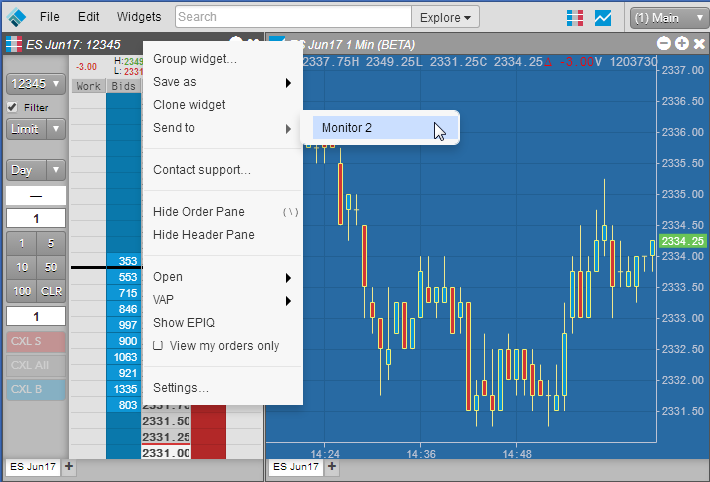
- Switch to the selected window monitor to see the moved widget.
Moving a window to another monitor
To move a window to another monitor:
- Click-and-hold in the title bar of the window you are moving.
- Drag the window to another monitor and release.

Optionally, you can move the window to the top of the monitor or double-click the title bar to fit the window to the entire monitor.
