










Note: Before you begin configuring a third-party connection, please contact the TT Onboarding Group at [email protected].
Use the Connections tab to add and configure a FIX Order Gateway connection to a third party system or algo provider.
The third party or algo provider may also require user or account identification for routing orders to their system. If needed, you can select Accounts | Exchanges | FIX Order Gateway or Users | Exchanges | FIX Order Gateway to configure the necessary fields per account and user. These fields will map to the FIX tags sent to the exchange via the FIX Order Gateway.
To configure a FIX Order Gateway connection:
- Click Connections in the left navigation pane and click New Connection.
-
In the General Settings section, select a FIX Order Gateway connection type in the Type field. Examples:
- (Private Bank 1) — The name of the private bank destination for accessing and executing algos and submitting native orders.
In the Exchange Specific Settings section, configure the following:
- Primary IP — Sets the primary IP address for connecting the order session to the algo provider.
- Primary Port — Sets the primary port for connecting the order session to the algo provider.
- Sender Comp — Identifies TT in FIX Tag 49 in all outbound messages sent via the connection. Required for connecting the session.
- Target Comp — Identifies the algo provider in FIX Tag 56 in all inbound messages sent via the connection. Required for connecting the session.
- Password — A user password for logging in the session to the algo provider.
- Restrict To Markets — Restrict access to only the selected markets. Click in the field to scroll through and select an exchange. Click + to add markets. Click X next to each field to remove a market.
- Max Order Rate (orders/sec) — (Additional Settings section:) Sets the maximum number of orders per second that a user can enter per connection. This limit cannot exceed the exchange-defined order rate maximum. This field is optional.
- Click Save Changes.
Configuring a FIX Order Gateway account
- Click Accounts in the left navigation pane and select an account in the data grid.
- Click Exchanges | FIX Order Gateway.
The “Exchange Properties” section is displayed.

- Configure the following fields:
- Custom Field 1 — A free-form text field sent to the exchange in FIX Tag 17001. Up to 255 characters are supported.
- Custom Field 2 — A free-form text field sent to the exchange in FIX Tag 17002. Up to 255 characters are supported.
- Custom Field 3 — A free-form text field sent to the exchange in FIX Tag 17003. Up to 255 characters are supported.
- Custom Field 4 — A free-form text field sent to the exchange in FIX Tag 17004. Up to 255 characters are supported.
- Custom Field 5 — A free-form text field sent to the exchange in FIX Tag 17005. Up to 255 characters are supported.
- Trading Capacity — Indication of dealing on own account (DEAL), matched principal (MTCH), or any other trading capacity (AOTC). Valid values:
- Deal
- Match
- Any other capacity
- CTI — Sets the type of user who is placing orders with this account. This is a required field.
The value is sent as FIX Tag 9702. Select one of the customer type identifier (CTI) values from the drop
down menu:
- Member Trader (CTI 1)
- Proprietary Account of a Member Firm (CTI 2)
- On Behalf of Other Traders (CTI 3)
- Customers (CTI 4)
Note When this account is assigned to an iLink 3 Market Segment Gateway (MSGW) connection in Setup, this value is sent to the exchange as Tag 582, Customer Order Capacity.
- Member Trader: 582=1
- Proprietary Account of a Member Firm: 582=2
- On Behalf of Other Traders: 582=3
- Customers: 582=4
- Clearing Account — Overrides the TT routing account value in FIX Tag 1 on order actions sent to the exchange. Enter a user-defined account name up to 12 characters. By default, the user’s routing account is sent as Tag 1.
- Customer Order Handling Instruction — Available values include:
- Desk
- Electronic (Default)
- Vendor-provided Platform, billed by Executing Broker
- Sponsored Access via Exchange API or FIX, provided by Executing Broker
- Premium Algorithmic Trading Provider, billed by Executing Broker
- Other, including Other-provided Screen
- TT SMP ID — A user-defined, alphanumeric identifier used to tag orders so the TT system can match potential crossed trades. For more information on TT Self Match Prevention, refer to the TT Self Match Prevention By ID section in the Setup help.
- TT SMP Instruction — Sets the TT Self Match Prevention (TT SMP) behavior and determines which order is canceled (resting or aggressing) if self-match prevention occurs. For more information on TT Self Match Prevention, refer to the TT Self Match Prevention By ID section in the Setup help.
- Direct Electronic Access — Sets whether or not the order is sent from direct/sponsored access, or from another source. Valid values:
- None
- Yes
- No
Sent to the exchange as FIX Tag 1724.
- Liquidity Provision — Indication of market making. Valid values:
- None
- Yes
- No
- Commodity Derivative Indicator — Indication of whether the order is for hedging purposes to reduce risk. Valid values:
- None
- Yes
- No
- Investment Decision ID — User or firm who made the trading decision. Enter a registered ID/Short Code. Sent to the exchange as FIX Tag 452=122 + 448.
- Investment Decision Qualifier — Determines if the trading decision was made manually by a user or automatically by an automated trading application using this account. This is an optional field. Select one of the following:
- Manual: Indicates the trading decision was made by a person.
- Automatic: Indicates the trading decision was made by an automated trading application.
- Execution Decision ID — User or firm that submitted the order. Enter a registered ID/Short Code. Sent to the exchange as FIX Tag 452=12 + 448.
- Execution Decision Qualifier — Determines if the user or firm sent the order manually or automatically using an automated trading application with this account. This is an optional field. Select one of the following:
- Manual: Indicates the order was sent manually.
- Automatic: Indicates the order was sent automatically.
- Secondary Execution Decision ID — Secondary user or firm associated with the order. This field can be used for trading on behalf of clients and used for internal reporting purposes. Enter a registered ID/Short Code.
- Client ID — Customer identification. Enter the customer’s legal entity identifier (LEI/Short Code). Sent to the exchange as FIX Tag 452=3 + 448.
- Secondary Client ID — Secondary customer identifier associated with the order. This field can be used for trading on behalf of clients and used for internal reporting purposes. Enter the customer’s legal entity identifier (LEI/Short Code).
- Client ID Type — Identifies the type of client submitting the order. Select either “Firm” or “Natural Person”.
- Execution Firm — Identifies the firm or user managing the account. Enter a user-defined value. Sent to the exchange as FIX Tag 452=1 + 448.
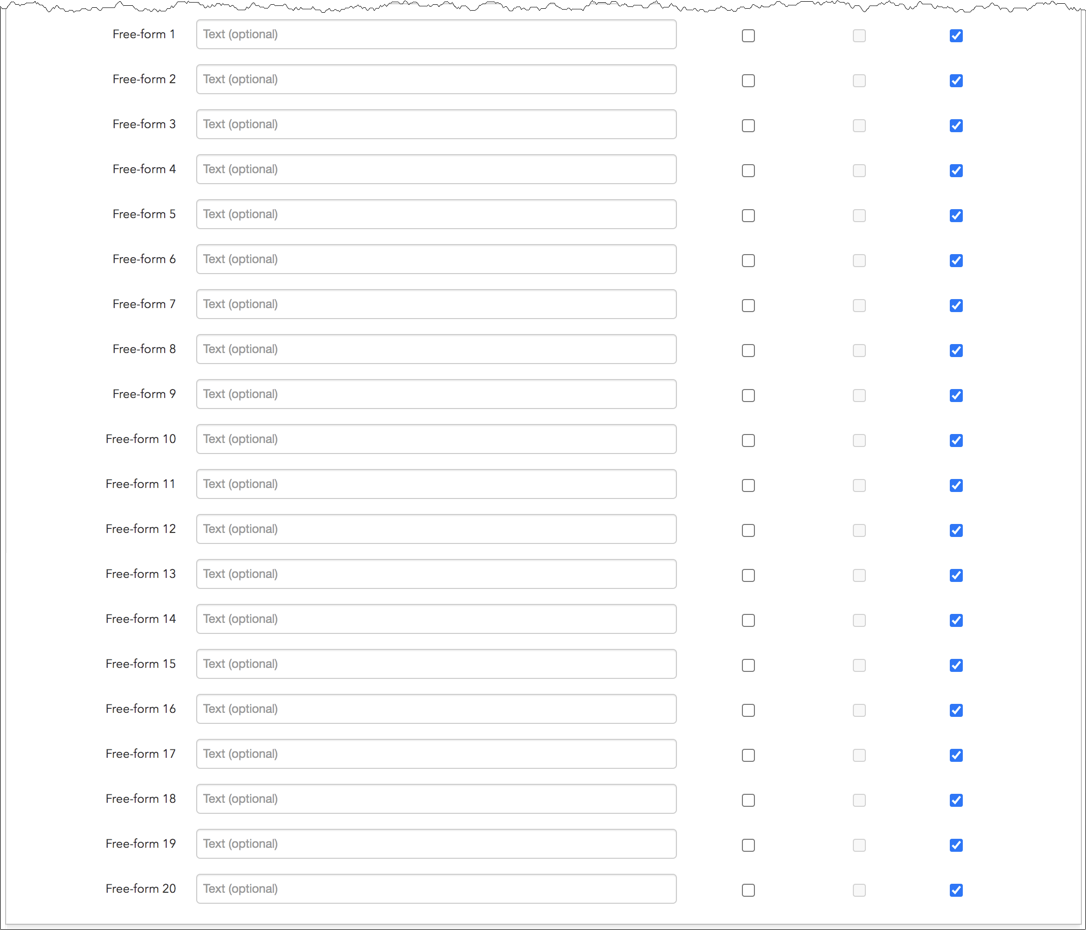
- Free-form 1-20 — Optional, user-defined text fields that can be populated for TT and FIX client application users. These values are not sent to the exchange, but are visible in the Order Book, Fills, and Audit Trail widgets and on FIX Drop Copy records.
- Apply to all sub-accounts — Allows a company creating a sub-account or sharing an account with another company to apply the parent account exchange field to the sub-account. This ensures that any sub-accounts added to the shared parent account cannot have a different value in this field and that the value is sent to the exchange. Check the checkbox next to each field to apply its value as needed. When checked, the value cannot be changed on any sub-accounts added by your company or a shared company.
- Lock sub-accounts — Allows a company creating a sub-account or sharing an account with another company to lock the value in a sub-account exchange field even if the sub-account is configured with a more specific order tag default match. This ensures that any child accounts (sub-accounts) created from the shared parent account cannot have a different value in this field and that the value is sent to the exchange. When checked, the value cannot be changed on any sub-accounts added by your company or a shared company. Note: The Apply to all sub-accounts setting must be enabled for the field in order to enable the Lock sub-accounts setting.
- Client Can Override — Determines if a user can override the value in this field when submitting orders from trading applications or APIs. Check the check box to unlock the field and allow a user to override the value. When unchecked, the field is locked and the user cannot change it.
Note: The FIX Order Gateway account fields can also be configured as Order Tag Defaults.
- Click Save Changes.
Configuring a FIX Order Gateway user
- Click Users in the left navigation pane and select a user in the data grid.
- Click Exchanges | FIX Order Gateway.
The “Order Routing” tab is displayed.
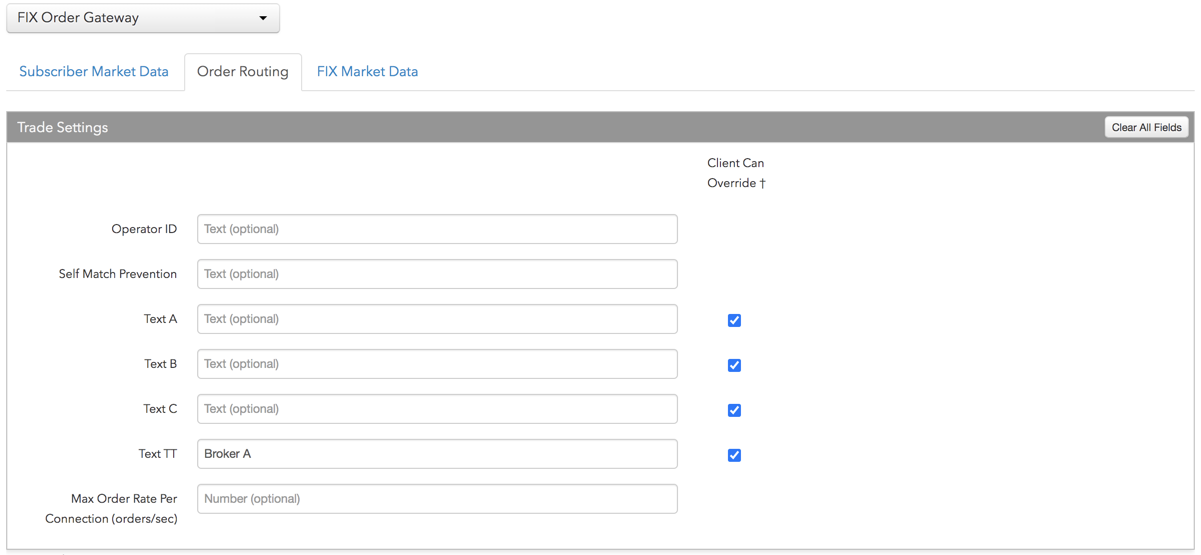
- Configure the following fields:
- Operator ID — Identifies the user on order actions sent to the exchange via the third party system. Sent to the exchange as FIX Tag 50. Enter a user-defined value of up to 20 characters. This is a required field.
- Self Match Prevention — Sets the identifier for using an exchange’s self match prevention service. Enter the “SMP ID” provided or registered by the exchange. Sent to the exchange as FIX Tag 7928. This field supports up to 12 characters.
- Text A — A user-defined text field that is mapped to FIX Tag 16556 and sent to the exchange on each order action. This is a required field for third party connections.
- Text B — A user-defined text field that is mapped to FIX Tag 16557 and sent to the exchange on each order action. This is a required field for third party connections.
- Text B — A user-defined text field that is mapped to FIX Tag 16558 and sent to the exchange on each order action. This is a required field for third party connections.
- Max Order Rate — Sets the maximum number of orders per second that a user can enter per connection. This limit cannot exceed the exchange-defined order rate maximum.
Note: The FIX Order Gateway user fields can also be configured as Order Tag Defaults.
- Click Save Changes.