





The Blocktrader widget supports entering the following OTC trades on ICE and ICE_L exchanges on TT:
- Cross — Prearranged trades with either a party within the trading firm itself or with a specified party outside the firm.
- Exchange for Swap — Prearranged swap trade with either a party within the trading firm itself or with a specified party outside the firm. Supported on ICE only.
- Basis Trades — Strategies for long-term bond markets that include a Futures leg and an underlying (cash) leg. Supported on ICE_L only.
- Block — High volume trades in any outright or strategy product. Supported on ICE_L only. The following types of Block trades are supported:
- Asset Allocation: allows the trader to enter one side (buy or sell) of a wholesale order. Alternatively, one trader can enter the entire Asset Allocation. Supported on ICE_L only.
Before You Begin
Before submitting an OTC trade, complete the following:
- Ensure that wholesale trading is enabled for your user in Setup on TT.
- Contact ICE to enable the wholesale trading functionality.
Blocktrader display for ICE
Blocktrader consists of the components needed for submitting OTC trades on ICE and ICE_L.
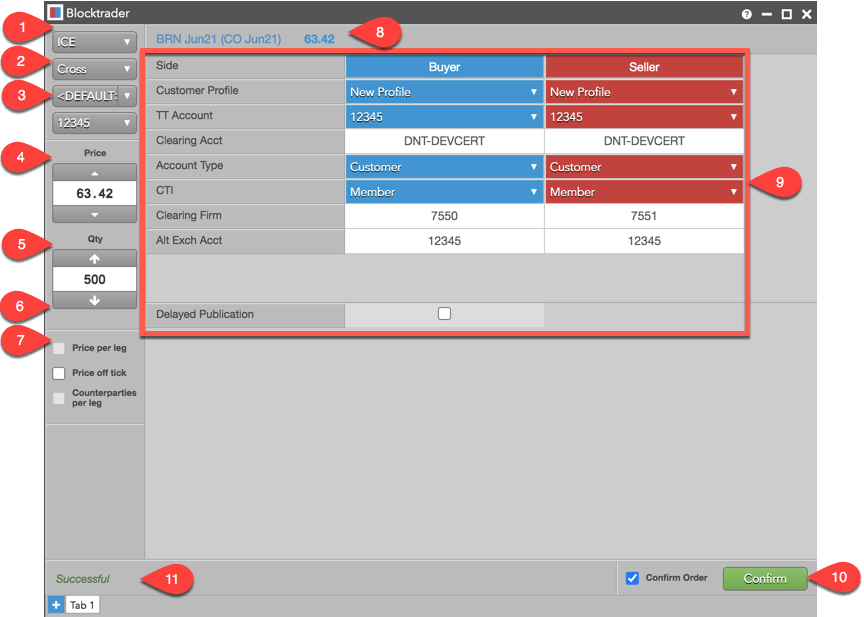
The image shows the following:
- Exchange selector — Lists the exchanges with OTC trade reporting supported on TT®
- Trade type selector — Lists the OTC trade types supported for the selected exchange.
- Account selector — Sets the account used for submitting the trade for both the Buyer and Seller.
- Price — Used for entering a price for the transaction. You can also use the up and down arrows to set the price. This field is grayed out for multi-leg instruments.
- Quantity column: Used for entering the buy or sell quantity for the trade. You can also use the up and down arrows to set the quantity.
- Price per leg — When checked, allows you to set a price for each leg of an exchange spread or strategy. When a native exchange spread or strategy is selected in Blocktrader, this checkbox is checked by default.
- Price off tick — When checked, allows you to enter an off tick price per leg for instruments that support tick sizes smaller than what is displayed.
- Instrument search — Allows you to search for and select the instrument being traded.
- ICE OTC fields — Allows you to complete the fields required by the exchange. Fields are displayed based on the trade type.
- Confirm Order and Submit — Allows you to confirm the order before submitting. When Confirm Order is checked, the Submit button changes to “Confirm”. When you click Confirm, the button flashes three times and shows as “Submit”. The Message indicator shows “Confirm order before submitting” and the trade will not be sent to the exchange until you click Submit. When Confirm Order is unchecked, the Submit button is active and you can click it to send the trade to the exchange. Order confirmations are enabled by default.
- Message indicator — Indicates whether the trade was successfully sent to the exchange. Also shows if the order needs to be confirmed before submitting.
Blocktrader display for ICE OTC trades with multi-leg instruments
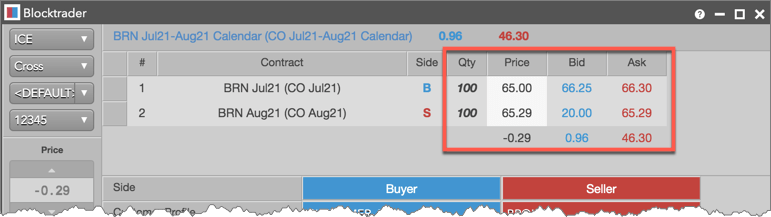
For Block and Cross trades with multi-leg instruments, Blocktrader displays each leg of the instrument to allow you to set a custom price for each leg. The best Bid and Ask are displayed for the selected instrument, and the price per leg is checked by default.
Blocktrader displays the net price based on the custom price you enter for each leg. The quantity, best Bid, and best Ask are also displayed per leg.
Submitting ICE OTC Trades
To submit an ICE OTC Trade:
- Open the Blocktrader widget and select ICE or ICE_L from the exchange selector.
- Search for and select the instrument being traded. You can also use the Explorer to find an instrument.
For spreads and strategies, refer to Submitting ICE OTC trades with multi-leg instruments.
- Select an OTC trade type from the trade type selector, and set the quantity and price for the trade.
- Select an account from the account selector.
- Complete the required fields in Blocktrader for both sides of the trade.
For Basis trades, refer to Blocktrader Fields for Basis Trades on ICE_L.
- Click the Submit button.
If Confirm order is checked, confirm the order before submitting it to the exchange.
Cross trades: Upon receiving the order, the exchange broadcasts a “request to cross” message that appears in the Audit Trail. After the exchange-defined time period (e.g., 10 seconds), the order is submitted.
Submitting ICE OTC trades with multi-leg instruments
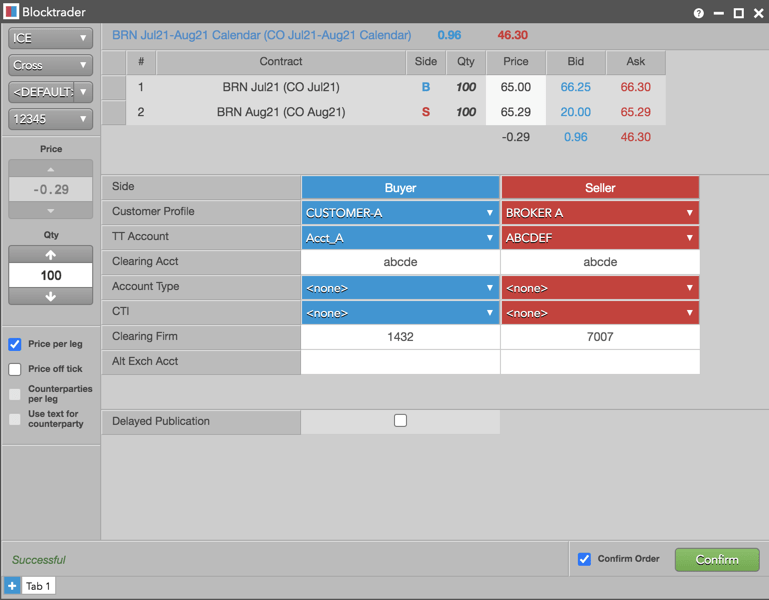
Blocktrader supports ICE and ICE_L OTC trades submitted with exchange-traded spreads and strategies. When submitting a Cross or Block trade on ICE, you can set a custom price per spread or strategy leg and submit the net price of the transaction to the exchange.
To submit an ICE OTC trade with multi-leg instruments:
- Open the Blocktrader widget and select ICE or ICE_L from the exchange selector.
- Search for and select the spread or strategy being traded. You can also use the Market Explorer to find an instrument.
Each leg of the selected instrument is displayed.
Note: The Price per leg setting is checked by default.
- Select “Block” or “Cross” from the trade type selector, and set the quantity of the trade.
- Select an account from the account selector.
- Enter a price and quantity for each leg. The net price of the transaction is displayed.
- Complete the required fields in Blocktrader for both sides of the trade.
- Click the Submit button.
If Confirm order is checked, confirm the order before submitting it to the exchange.
Cross trades: Upon receiving the order, the exchange broadcasts a request to cross message that appears in the Audit Trail. After the exchange-defined time period (e.g., 10 seconds), the order is submitted.
Blocktrader Fields for ICE and ICE_L
The table below lists the common fields for submitting OTC trades for ICE and ICE_L.
| Blocktrader Field | Value | Description |
|---|---|---|
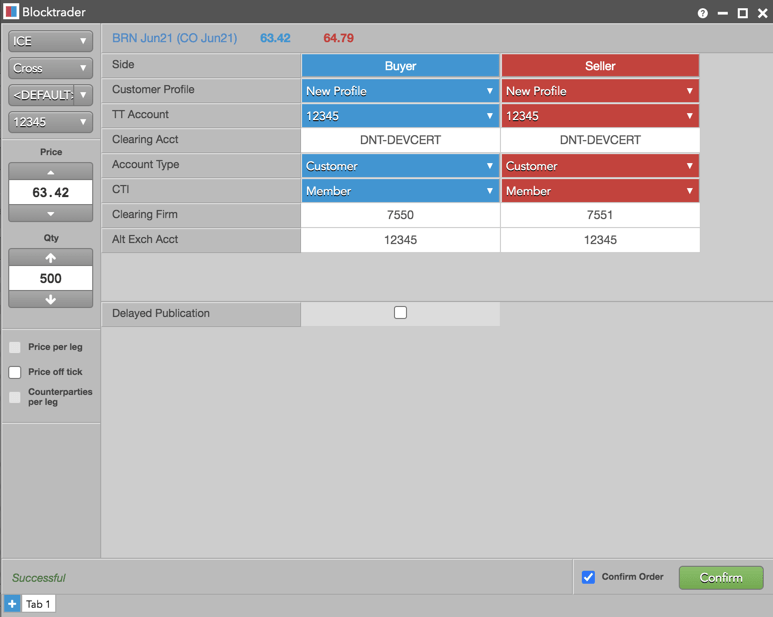
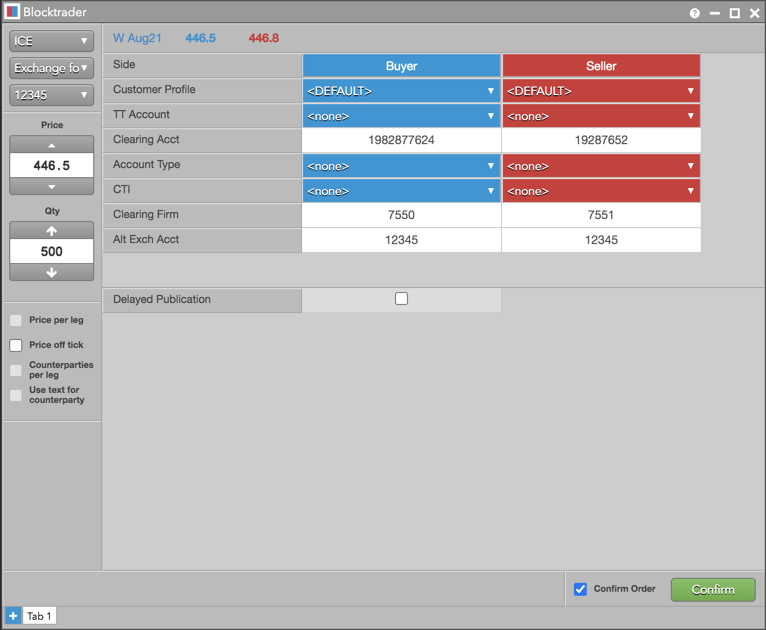
| Side | Sets the Buyer or Seller | Click a cell to determine the Buyer or Seller in each side of the trade. |
| Customer Profile | A drop-down list of available Customer order tag defaults. | Only customers with Order Profiles defined in Setup appear in the Customer Profile list. This is an optional field. |
| TT Account | Sets a specific account for the Buyer or Seller. | This account will be used for the Buyer or Seller instead of the account selected in the order panel. All accounts assigned to the user are listed in the drop-down menu. Required for both sides of the cross trade. |
| Clearing Account | Enter the Buyer’s or Seller’s exchange clearing account value. | Sets the a unique or shared back office ID generated by the trading company and/or clearing firm. This ID is created on the fly and contains a maximum of 12 characters. Firms can assign a unique ID to each trader, share an ID between multiple traders, or assign multiple IDs to a single trader. Sent to the exchange as Tag 9207. The customer account reference ID is optional for SMA, and required for LMA. |
| Account Type | Select an ICE exchange account code from the drop-down menu. | Defines the type of account used for order routing and clearing. Select one of the exchanged-defined account management codes from the drop down menu. Required for an LMA account. Sent to the exchange as FIX Tag 9195. |
| CTI | Sets the type of user who is placing orders with this account. | This value is sent to the exchange as FIX Tag 9208. Select one of the customer type identifier (CTI) values from the drop down menu. Required for LMA-US/Canada. |
| Clearing Firm | Enter the Give-up account information for each side. | The clearing firm identifiers entered for each side of the Give-up trade are numeric values created by ICE and assigned to the appropriate clearing firm. Some firms may consist of different regional entities with each assigned a unique ID. This field is required for both sides of the trade. |
| Alt Exch Acct | Enter the clearing account for the buyer or seller. | This field allows you to define the Tag 440 value to override the “Exchange Account” value configured in Setup for ICE and ICE_L. This value populates Tag 440 and is sent to ICE and ICE_L exchanges. |
| Delayed Publication | Submits the order as “delayed publication”. | Allows you to submit wholesale orders on ICE and ICE_L that are not published immediately by the exchange. The duration of the delay is set by the exchange. |
The following example shows an ICE Cross trade (the same fields are also populated for a Guaranteed Cross):
The following example shows an ICE Exchange for Swap trade:
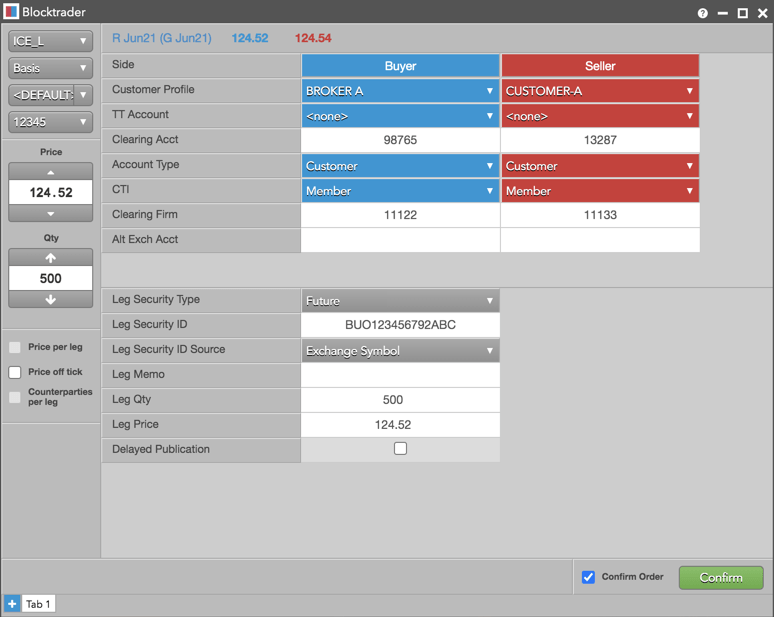
Additional Fields for Basis Trades on ICE_L
Note: To submit Basis trades, you must first complete the fields listed in Blocktrader Fields for ICE and ICE_L. For Basis trades, you must also complete the additional fields listed in the following table.
| Blocktrader Field | Description |
|---|---|
| Leg Security Type | Optionally, select one of the following product types: Future, Option, or Spot |
| Leg Security ID | Optional if a leg security type is selected. |
| Leg Security ID Source | The ISIN code for the underlying cash leg. Optional if a leg security type is selected. |
| Leg Memo | Optional if a leg security type is selected. |
| Leg Qty | Optional if a leg security type is selected. |
| Leg Price | Optional if a leg security type is selected. |
The following example shows a Basis trade reported in Blocktrader.