










The TT platform allows users to easily share a configured workspace as a single file. This allows you to save workspaces to your system. You can also give the file to others who can them import it to their workspaces.
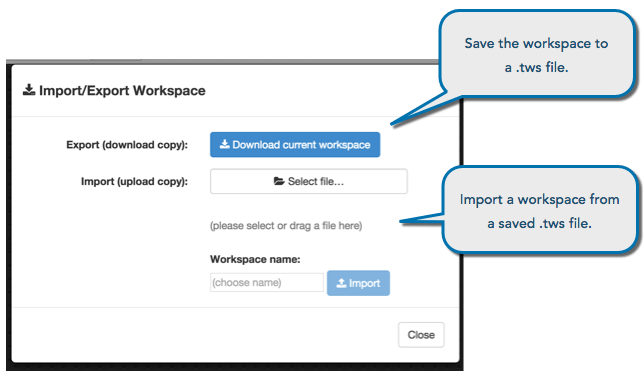
To export a workspace:
-
Save all changes in your workspace by clicking the Save icon.
-
Click the File button to open the menu.
-
With the File menu open, press and hold the Shift key and select Import/Export.
-
Click Download to save a copy of the workspace as a file with the extension .tws.
To import a workspace:
-
Save all changes in your workspace by clicking the Save icon.
-
Click the File button to open the menu.
-
With the File menu open, press and hold the Shift key and select Import/Export.
-
Click Select File to choose a .tws workspace file to upload.
You can also drag and drop a *.tws file under the Select File button.
-
Click Import.
Note: Refresh your browser to access the imported workspace.