










Creating an algo template
To create an algo template:
-
Click Pick Algo, and select the desired algo from the list of deployed algos.
-
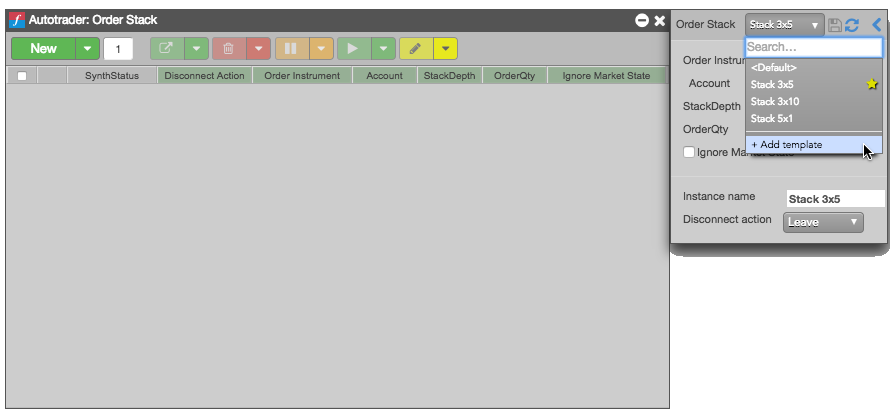
Select Manage templates from the New drop-down menu.
-
Select Add template.
-
In the Add template dialog, enter a Name for the template, and click Save.
The template is added to the drop-down.
-
Specify the desired algo parameter values, and click the
 icon.
icon.
Using an algo template
To use a template for an algo:
-
Select an algo from My Algos in the Autotrader widget.
-
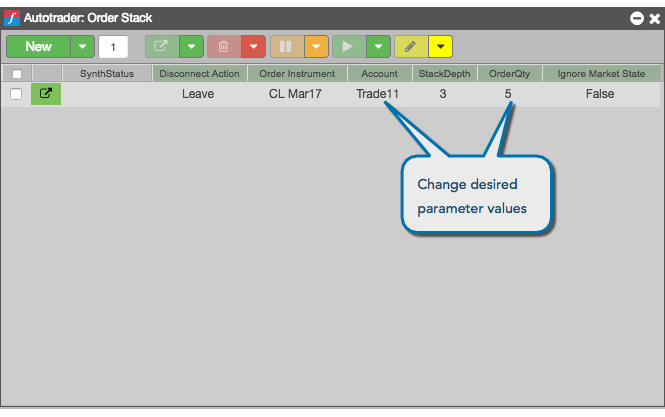
Enter the number of instances of the algo template you want to instantiate.
-
From the New drop-down menu, select the template use.

-
Make any desired changes to the algo parameters.
-
Click
 to launch the selected algo templates.
Modifying an algo template
To modify an algo template:
-
Click Pick Algo, and select the desired algo from the list of deployed algos.
-
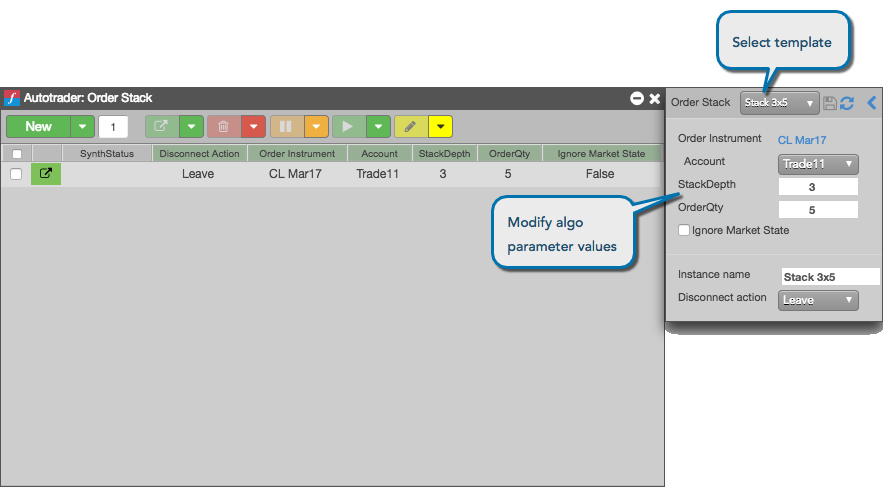
Select Manage templates from the New drop-down menu.
-
From the Template drop-down, select the template you want to modify.
-
Update the desired algo parameter values, and click the
 icon.
icon.
Setting a default algo template
You can select a default template to use in Algo Dashboard.
To set a default template for an algo in Algo Dashboard:
-
Select an algo from My Algos in the Autotrader.
-
Select Manage templates from the New drop-down menu.
-
Click the Templates drop-down menu.
-
Click the
 icon for the template you want to make the default.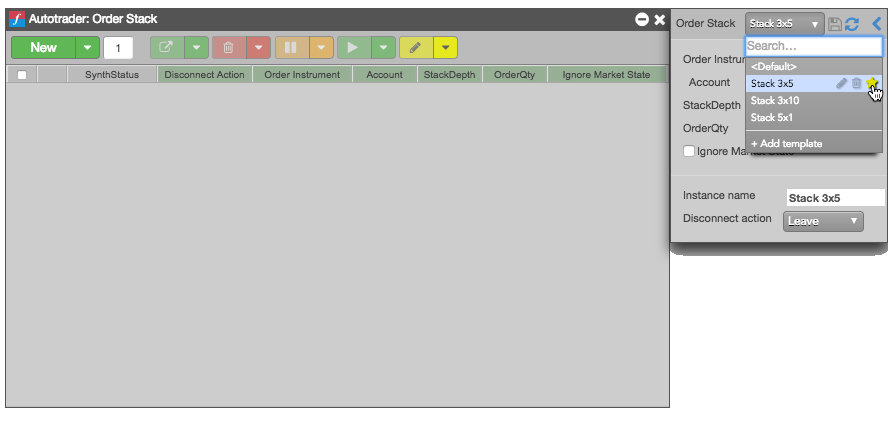
Deleting an algo template
To delete an algo template:
-
Select an algo from My Algos in Autotrader.
-
Select Manage templates from the New drop-down menu.
-
Click the Templates drop-down menu.
-
Click the Delete icon for the template you want to delete.