


Use this guide to map functionality in the Coinbase trading interface to the same functionality provided in your TT® workspace.
For the items labeled in the following Coinbase trading interface…
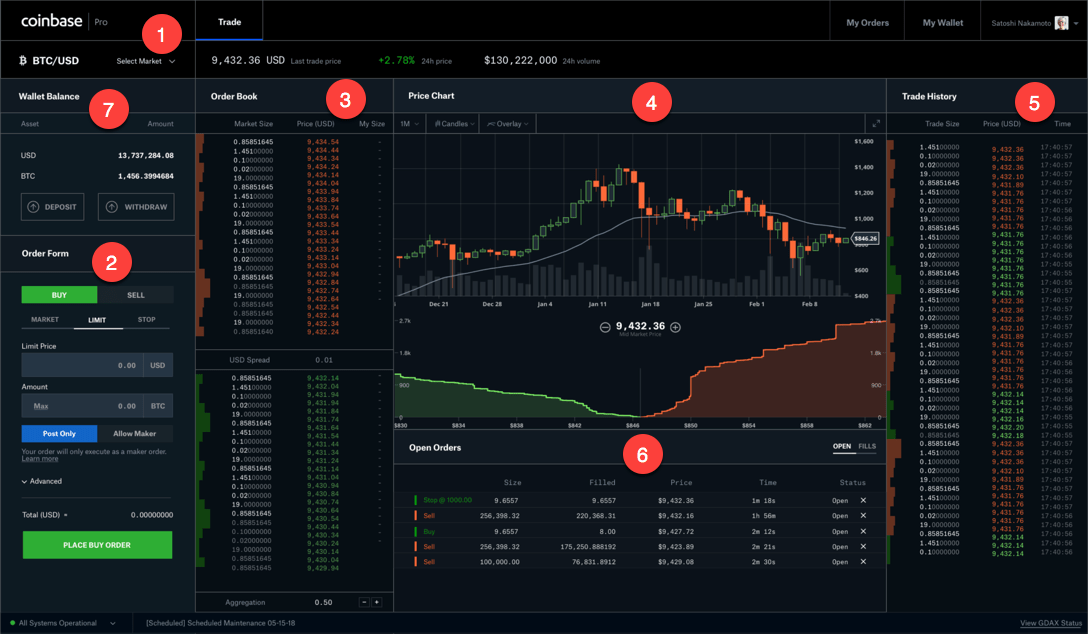
…the widgets that provide the same trading functionality and more are labeled in the following TT workspace.
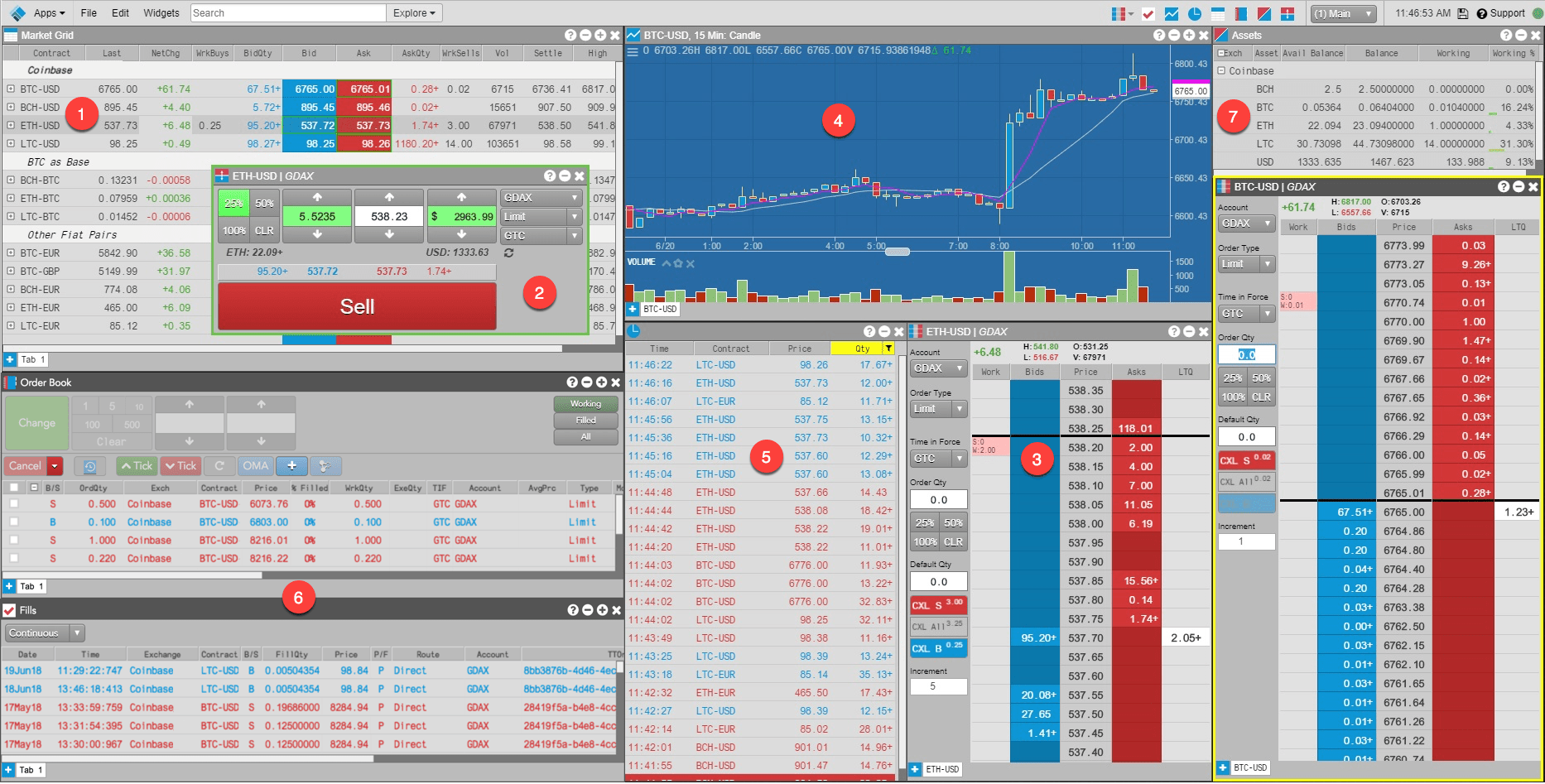
The following widgets are labeled in the TT workspace above (equivalent Coinbase trading interface name is in parenthesis):
- Market Grid (Coinbase Title bar) — Displays market and pricing data for a user-defined list of currencies.
- Order Ticket (Order Form) — Used for entering orders from the Market Grid widget.
- MD Trader® (Order Book) — Displays prices in a vertical price ladder and shows working quantities on both sides of the market at each price level. You can also enter orders from MD Trader.
- Charts (Price/Depth Chart) — Displays the historical price data for an asset at specific time intervals.
- Time and Sales (Trade History) — Shows the trade history of an asset. You can view the trade history of the cryoptocurrency you are trading, as well as add cryptocurrencies to the widget to view trade history for multiple instruments.
- Order Book (Open Orders) — Shows your working orders. Click on a working order to change it’s price or quantity and resubmit it in the market. The Fills widget (Fills) shown below the Order Book shows your partially filled and fully filled orders.
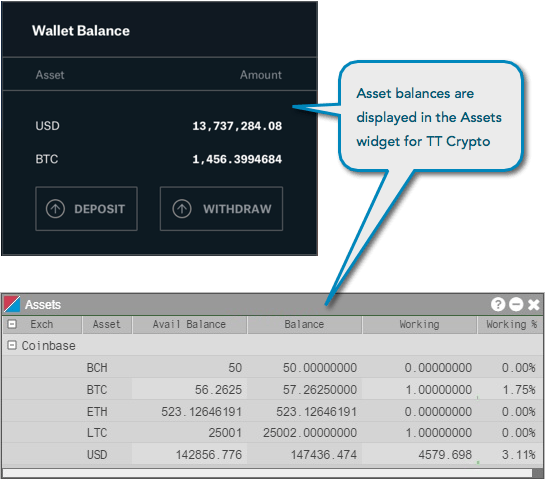
- Assets widget (Wallet Balance) — Shows the balance of each asset in your Coinbase wallet.
There are a few key differences between the Coinbase and TT workspaces:
- TT’s workspace allows you to add and arrange widgets into whatever configuration fits your trading style.
- TT displays market data and allows you to trade multiple currencies within the same workspace.
- You must still log in to Coinbase to move funds between your Coinbase wallet and your Coinbase account in order to make currencies available for trading on Coinbase using TT.
Market Grid (Coinbase Title Bar)
The Market Grid widget displays volume and pricing information for a list of selected instruments similar to the Coinbase Title Bar, which displays trading volume and price information for a selected product.
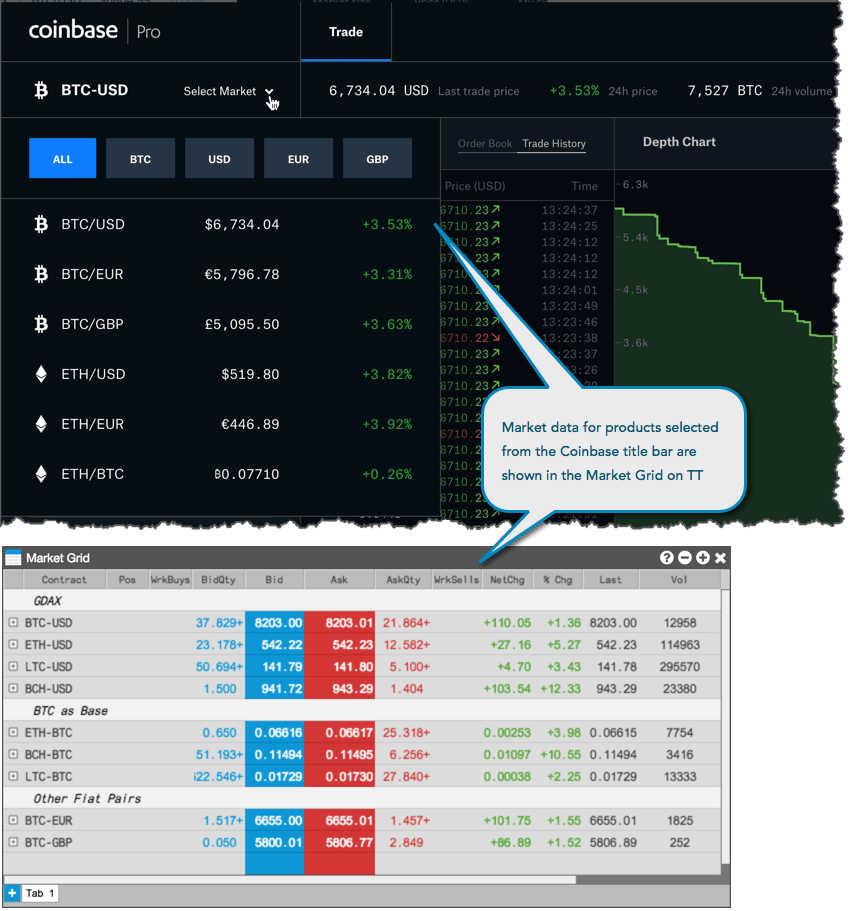
Similar to using the Coinbase Title Bar, you can use the Market Grid to:
- View market data for your selected product.
- View the Last Traded Price, 24-hour price change, and the 24-hour volume.
In addition, you can also use TT’s Market Grid to:
- Launch the order ticket widget and quickly place orders for the selected currency.
- Configure the display of your list of currencies and add label rows.
- Add columns for additional pieces of market data.
- Add additional tabs to your Market Grid to organize the display of different currencies.
Order Ticket (Order Form)
The Order Ticket can be launched from the Market Grid widget. Select an order type and Time-In-Force, then enter an order quantity and price and click “Buy” or “Sell” to submit the order.
Note: You must log into Coinbase to move funds between your Coinbase wallet and your Coinbase account to make these funds available for trading in TT.
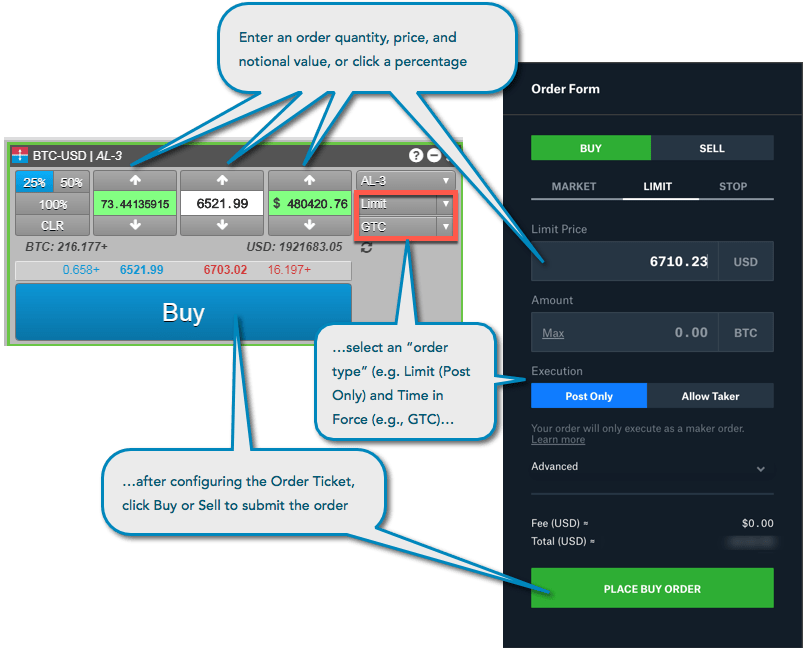
Similar to using the Order Form, you can use the Order Ticket to:
- Define the parameters of your order.
- Auto-populate the price parameter of your order by clicking a price in the market grid.
In addition, you can also use TT’s Order Ticket to:
- Place orders using a wide variety of TT Order types.
- Create custom order type templates to pre-populate custom order parameters.
- Launch a linked Order Ticket which will switch to whichever currency you have selected in the Market Grid.
- Group the Order ticket with a Market Grid to create a widget group.
MD Trader (Order Book)
The Coinbase Order Book provides users with “market size” or market depth and the “spread” or inside market between the best Bid and Ask, as well as the volume at each price level. In TT, this information is provided in the MD Trader widget.
Similar to using the Coinbase Order Book, you can use MD Trader to:
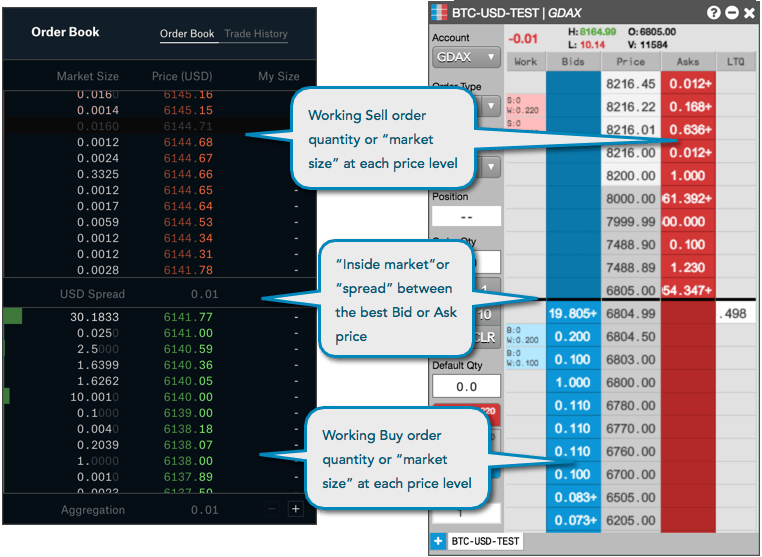
MD Trader order entry on TT
With MD Trader you can place an order with a single click directly at each price level. You can also see any orders you have working in the market.
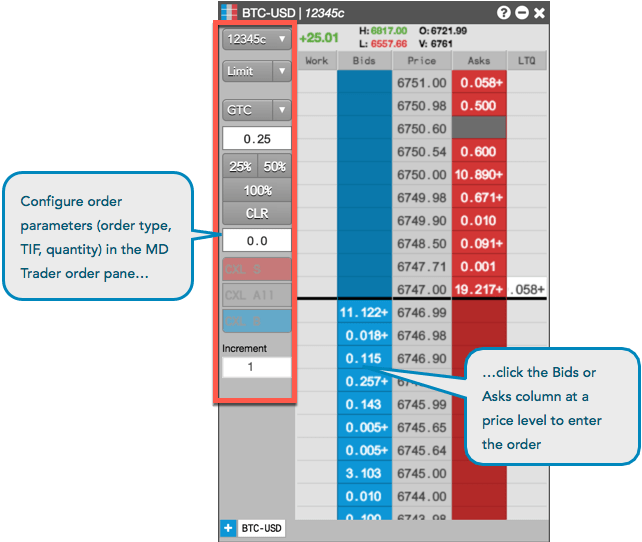
In addition to placing an order with a single click, you can use TT’s MD Trader to:
- Place orders using a wide variety of TT Order types.
- Create custom order type buttons to quickly access commonly-used order types.
- Create custom order quantity buttons.
- Add a tab to your MD Trader to switch between different currencies.
Charts (Price Chart)
TT’s Charts widget also fully integrates charting and analytics into TT Cryto by blending historical time series data with continuous real-time market data updates.
On Coinbase, the Price Chart shows historical price data at user-defined time intervals. In addition, you can also view the Depth Chart, which graphically displays the market depth from the Coinbase Order Book.
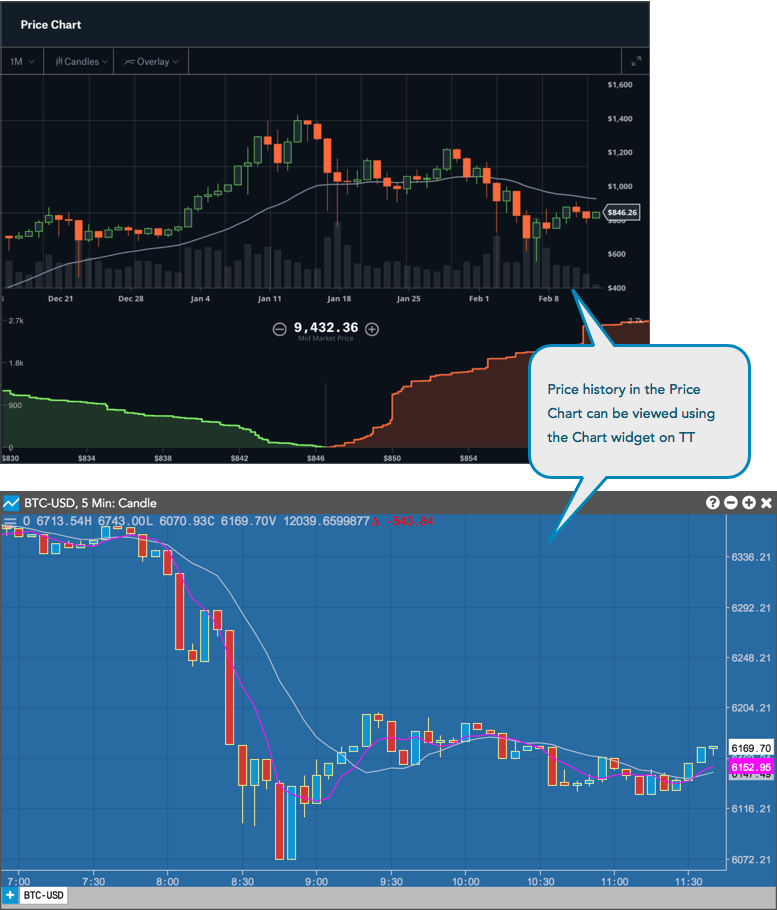
Similar to using the Coinbase Price Chart, you can use the Charts widget to:
Using TT’s Charts widget, you can also:
- Create multiple Charts in your workspace.
- Place orders directly on the Chart.
- Select from a whole library of comparisons, overlays, studies and other technical indicators.
- Use drawing tools to annotate your charts.
- Add multiple tabs to your Chart to switch between different currencies.
Order Book Widget (Open Orders)
Similar to the Coinbase Open Orders section, TT’s Order Book widget shows your working (open) orders in the market and provides you with the ability to cancel each working order.
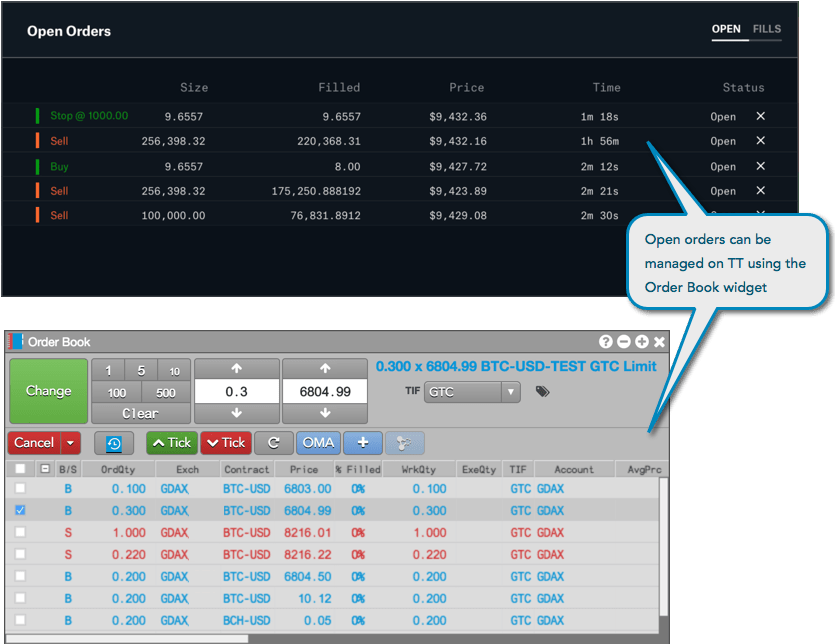
With TT’s Order Book widget, you can also:
Fills Widget (Fills)
Similar to the Fills displayed in the Coinbase trading interface, the Fills widget on TT shows the time and price of all fully or partially filled orders.
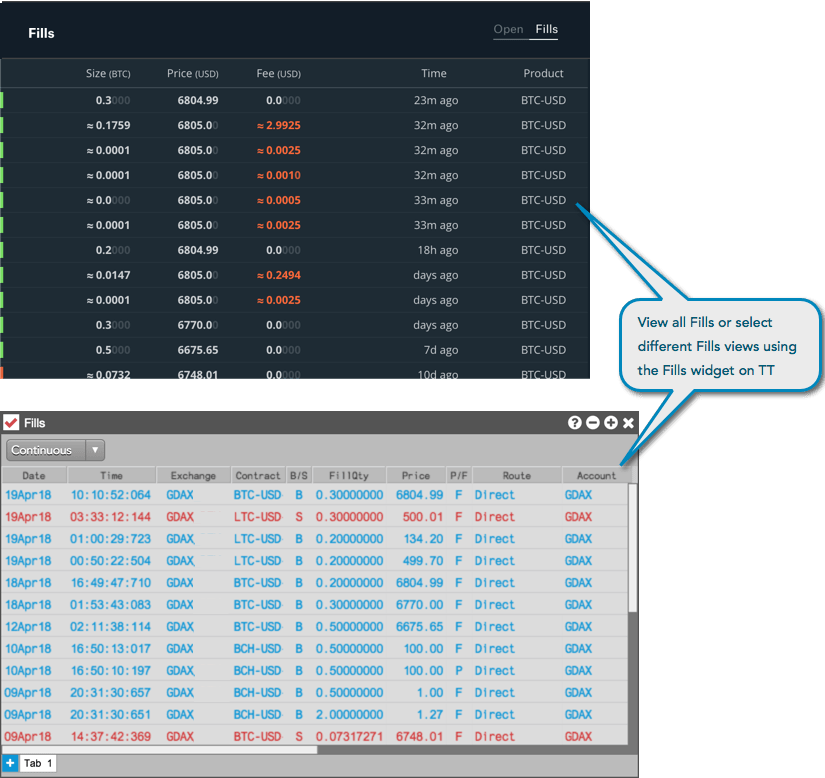
With TT’s Fills widget, you can also:
- Set your view of fills to a specific day and organize them in chronological or reverse chronological order..
- Filter the display of your fills by price or by partial fills that constitute an order.
Time and Sales (Trade History)
The trades executed in the market for an individual currency are shown under Trade History in the Coinbase trading interface. In TT, these are displayed using the Time and Sales widget. Users can access historical Time and Sales data by scrolling to the bottom of the widget screen. The Time and Sales widget on TT maintains and displays a history of trade data from all of your sessions and not just for the current session.
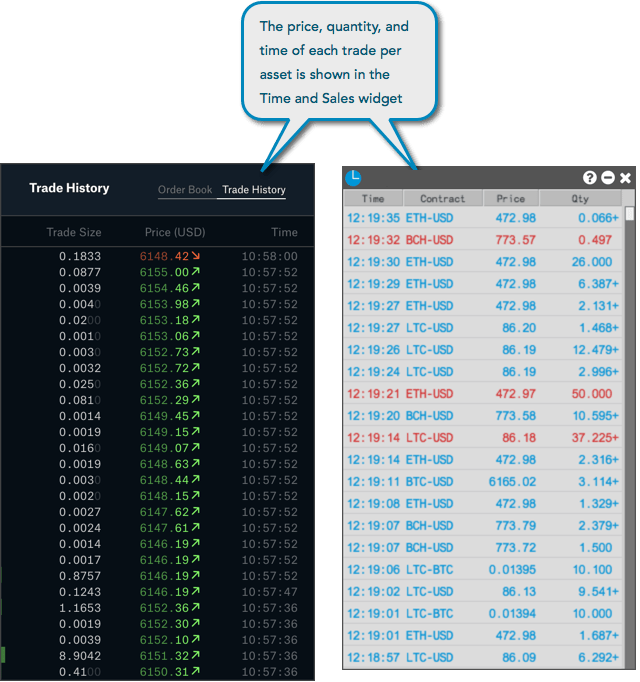
Similar to Coinbase Trade History, the Time and Sales widget displays:
- Buys and sells in different colors.
- “Trade Size” in the “Qty” column.
With TT’s Time and Sales widget, you can also:
- Highlight orders over a certain quantity.
- Filter your view to display only fills over a particular quantity.
- View the fills of multiple currencies in the same widget.
Assets Widget (Wallet Balance)
To see the funds currently available for trading in TT, you can use the Assets Widget.
Note: You cannot make deposits or withdrawals on TT. Your Coinbase account can only be funded from your Coinbase wallet using the Order Form.
The Wallet Balance section of the Order Form also allows you to transfer funds between your Coinbase wallet and your Coinbase Pro account and view the balance of each asset.
Additional TT Functionality
When trading Coinbase products on TT, you may also want to: