You can create filters and apply them to new or existing configurable models so that you will only receive alerts for data related to the specified filters.
Note Once you have created a filter, you can apply it to other new or existing configurable models.
- Create a configurable model or edit an existing configurable model.
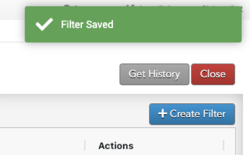
- Click the Create Filter button.
- Select a filter type.
- Enter a filter name.
- Set the criteria for the filter.
- Click Add Filter.
- Select the filter in the Filters list to add it to the configurable model.
- Enter a message in the “Please enter a message to save.” field.
- Click Save.

Editing a Filter for a Configurable Model
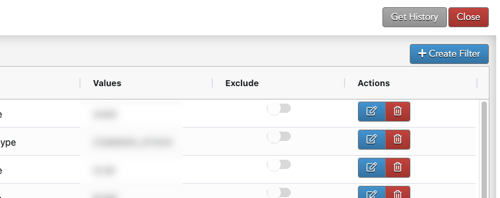
To edit a filter for a configurable model:
- From the Configured Model Instances screen, click the Edit button next to the configurable model to be updated.
- In the Filters section, click the Edit button next to the filter to be edited.
- Follow the steps above.

Deleting a Filter for a Configurable Model
To delete a filter for a configurable model:
- From the Configured Model Instances screen, click the Edit button next to the configurable model to be updated.
- In the Filters section, click the Delete button next to the filter to be deleted.
- Enter a message in the “Please enter a message to save.” field.
- Click Save.

The “Filter Saved” message displays.