










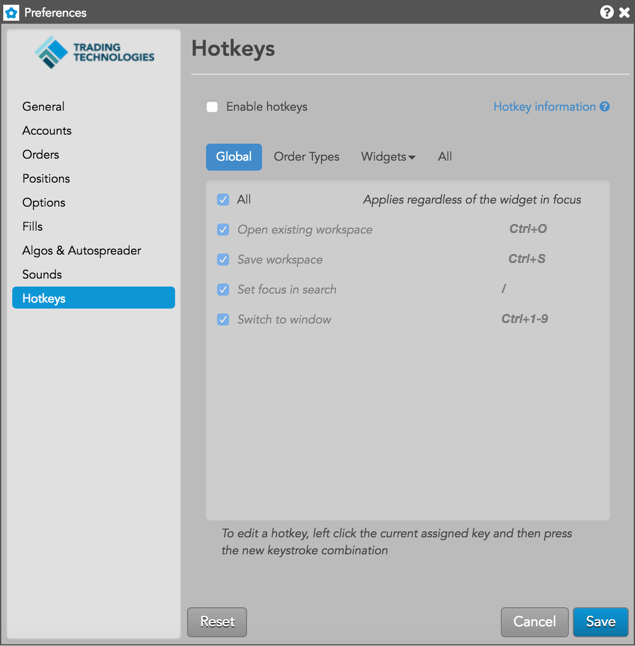
Hotkeys settings are stored at the user-level and apply across all workspaces.
- Enable Hotkeys — Click the checkbox to enable hotkeys. Uncheck to disable.
- Hotkey Information — Lists keys that are reserved for TT functionality and cannot be used
when creating your own custom hotkeys. Refer to Hotkey Restrictions. Also lists the
following keys that can be assigned as single hotkeys:
- Function keys F1 through F11
- Left bracket [
- Right bracket ]
- Equals =
- Minus –
- Plus +
- Asterisk *
- Left arrow
- Right arrow
- Period .
- Comma ,
Note: Commands displayed in italics and grayed out are hard-coded and cannot be customized.
Global
This option lists global hotkeys. Click this option and check the checkbox next to a hotkey to enable it. Uncheck to disable.
| Preference | Description |
|---|---|
| All | Selects all hotkeys. |
| (TT) Open Existing Workspace | Opens a dialog box to select and open one of your existing workspaces. Default hotkey is Ctrl+O. Enabled by default. |
| (TT) Save Workspace | Saves the open workspace in focus. Default hotkey is Ctrl+S. Enabled by default. |
| (TT) Set Focus in Search | Places the focus in the Search field on the tool bar. Default hotkey is / (forward slash). Enabled by default. |
| (TT) Switch to window | Switches windows within a single workspace. Press Ctrl + (the window number) to switch to that window. Default hotkey is Ctrl+1-9. Enabled by default. |
Order Types
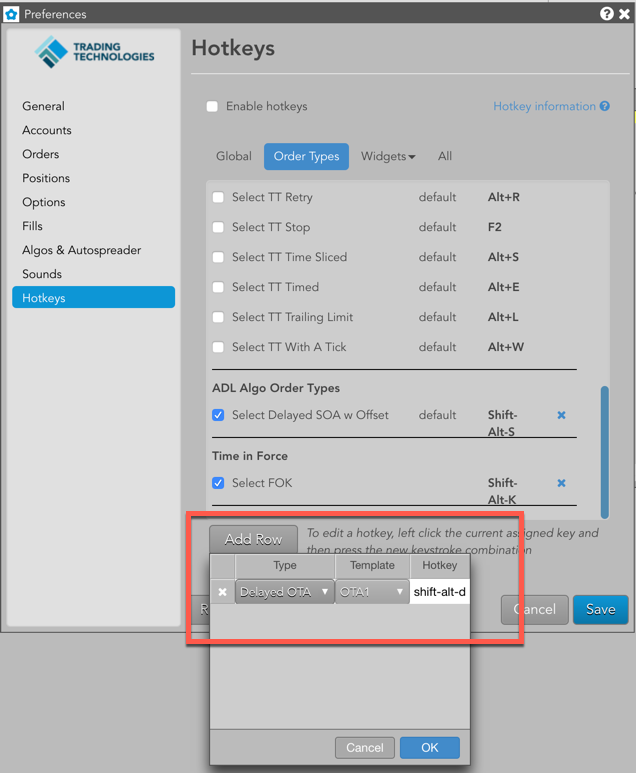
This option lists hotkeys defined for order types, algos and time-in-force (TIF settings). Click this option and check the checkbox next to a hotkey to enable it. Uncheck to disable.
Note: These hotkeys are valid only in MD Trader and Order Ticket widgets.
| Preference | Description |
|---|---|
| All | Applies all Order Types hotkeys when either an MD Trader or Order Ticket has focus. |
| Select Market | Selects the native Market order type if supported at the exchange. Enabled by default. The default hotkey is Ctrl+M. |
| Select Limit | Selects the native Limit order type if supported at the exchange. The default hotkey is Ctrl+L. |
| Select Iceberg | Selects the native Iceberg order type if supported at the exchange. The default hotkey is Ctrl+I. |
| Select Market to Limit | Selects the native Market-to-Limit order type if supported at the exchange. The default hotkey is Ctrl+Alt+L. |
| Select Stop Market | Selects the native Stop Market order type if supported at the exchange. The default hotkey is Ctrl+Alt+M. |
| Select Stop Limit | Selects the native Stop Limit order type if supported at the exchange. The default hotkey is Ctrl+Alt+S |
| Select OCO (native) | Selects the native OCO order type if supported at the exchange. The default hotkey is Ctrl+Alt+O. |
| Select Cross | Selects the native Cross order type if supported at the exchange. The default hotkey is Ctrl+Alt+X. |
| Select Block | Selects the native Cross order type if supported at the exchange. The default hotkey is F6. |
| Select TT Bracket | Selects the synthetic TT Bracket order type. The default hotkey is [ (the open bracket key). |
| Select TT Iceberg | Selects the synthetic TT Iceberg order type. The default hotkey is Alt+I. |
| Select TT If Touched | Selects the synthetic TT If Touched order type. The default hotkey is Alt+D. |
| Select TT OCO | Selects the synthetic TT OCO order type. The default hotkey is Alt+O. |
| Select TT Retry | Selects the synthetic TT Retry order type. The default hotkey is Alt+R. |
| Select TT Stop | Selects the synthetic TT Stop order type. The default hotkey is F2. |
| Select TT Timed Sliced | Selects the synthetic TT Timed Sliced order type. The default hotkey is Alt+S. |
| Select TT Timed | Selects the synthetic TT Timed order type. The default hotkey is Alt+E. |
| Select TT Trailing Limit | Selects the synthetic TT Trailing Limit order type. The default hotkey is Alt+L. |
| Select TT With A Tick | Selects the synthetic TT With A Tick order type. The default hotkey is Alt+W. |
| Add Row |
Lets you create hotkeys to seed the following in MD Trader and Order Ticket widgets:
|
Widgets
This option lists hotkeys for specific widgets. Click this option and select a widget name to see its hotkey shortcuts. Available widgets are:
All
This option lists all available hotkeys. Check the checkbox next to a hotkey to enable it. Uncheck to disable.
- All — Enables or disables all available hotkey options. Check the checkbox to enable all hotkeys. Uncheck this option to disable.
- Display Instrument Data — Displays the instrument, price, and risk P/L data for an instrument selected in a widget and allows you to export the data to a CSV file.
Hotkey Restrictions
When assigning hotkeys, the following restrictions apply:
- Hotkeys must be unique per widget in TT. That is, the same keystroke combination could be assigned to different actions as long as those actions are in different widgets.
- The following hotkeys are reserved in TT and cannot be assigned to single keystrokes or used as
hard-coded commands within widgets:
- Spacebar
- Page Up (PgUp)
- Page Down (PgDn)
- Esc
- Tab
- Caps Lock
- Shift
- Insert
- Delete
- Enter
- Backspace
- Print Screen
- Pause/Break
- Scroll Lock
- Num Lock
- Home
- End
- Windows key
- Backslash
- Ctrl
- Alt
- Back tick ` (the ~ tilde key)
- F12
- Alpha (letter) or numeric (number) keys cannot be used as single hotkeys. However, letter and number keys can be assigned when included with at least one control key (e.g., Ctrl+A).
- Assigned keys are interpreted as case insensitive.
- Multiple non-control keys cannot be combined as a hotkey assignment, e.g., you cannot use “A+B” as a hotkey assignment.
Widget hotkeys
This tab contains hotkey shortcuts for specific widgets in the Trade application. Check the box next to a hotkey to enable it. Uncheck to disable.
Note: Commands displayed in italics and disabled (grayed out) are hard-coded and cannot be customized.
Chart hotkeys
| Action | Hotkey |
|---|---|
| Escape draw mode | Esc |
| Open contract search | Single alpha |
| Open intervals | Single numeric |
| Abandon OCO | Backspace |
MD Trader General
Check All to enable all MD Trader hotkeys, which are applied with focus on MD Trader.
Note: The MD Trader hotkeys are disabled by default. You must enable them in Preferences to begin using them.
| Action | Hotkey |
|---|---|
| Center price ladder | Spacebar |
| Scroll price ladder up | Up arrow |
| Scroll price ladder down | Down arrow |
| Scroll price ladder up a page | PgUp |
| Scroll price ladder down a page | PgDn |
| Launch Chart | Alt+C |
| Launch Time and Sales | Alt+T |
| Show/hide order pane | Alt+P |
| Open contract search | Single alpha |
| Set order quantity | Single numeric |
| Abandon OCO | Backspace |
| Display contract information | Ctrl+Shift+X |
| Reset/Restore VAP (toggle) | Shift+R |
| Buy at the Offer (submit Buy Limit order at the current best Ask price) | F1 |
| Buy Market (submit Buy Market order) | Shift+F1 |
| Better the Bid (submit Buy Limit order 1 tick higher than current best Bid price) | F3 |
| Join the Bid (submit Buy Limit order at the current best Bid price) | F4 |
| Cancel all working orders for that instrument and account (if filtered) | Esc |
| Cancel working Buy orders | F5 |
| Cancel working Sell orders | F8 |
| Center price ladder at Bid (move price ladder to the best bid price; if no bids, move to center of grid) | Home+Space |
| Center price ladder at Sell (move price ladder to the best ask price; if no asks, move to center of grid) | End+Space |
| Combo Join the Bid and Offer | Shift+F6 |
| Better the Bid and Offer (submit Buy Limit order 1 tick above best Bid price and a Sell Limit order 1 tick below best Ask price) | F7 |
| Join the Offer (submit Sell Limit order at the current best Ask price) | F9 |
| Better the Offer (submit Sell Limit order 1 tick lower than current best Ask price) | F10 |
| Sell at the Bid (submit Sell Limit order at the current best Bid price) | F12 |
| Sell Market (submit Sell Market order) | Shift+F12 |
| Liquidate (same as left-click on Liquidate button in MD Trader order panel) | Shift+T |
| Set order quantity to current position (if net position is greater than your maximum order quantity, TT uses the maximum order quantity) | Shift+Q |
MD Trader Keyboard Trading
Note: MD Trader keyboard hotkeys are the only TT Hotkey functions that can be assigned with single alpha keys. Each alpha key is shown in upper case to match the keyboard, but commands must be entered in lower case.
Refer to the following table to submit trading commands using the keyboard.
| Action | Hotkey |
|---|---|
| Increase buy side marker | D |
| Center buy side marker | E |
| Decrease buy side marker | C |
| Buy at buy side marker | A |
| Delete buy orders at buy side marker | S |
| Sweep buy up to buy side marker | Ctrl+A |
| Increase sell side marker | K |
| Center sell side marker | I |
| Decrease sell side marker | M |
| Sell at sell side marker | ; |
| Sweep sell down to sell side marker | Ctrl+; |
| Center both buy/sell markers and the price ladder | Ctrl+Space |
Market Grid hotkeys
Check All to enable all Market Grid hotkeys, which are applied with focus on a row in Market Grid.
| Action | Hotkey |
|---|---|
| Display contract information | Ctrl+Shift+X |
| Launch Buy Order Ticket Join Bid | Alt+B |
| Launch Sell Order Ticket Join Offer | Alt+S |
| Launch Sell Order Ticket Hit Bid | F11 |
| Launch Buy Order Ticket Take Offer | F2 |
| Launch Order Ticket Cross Order | Ctrl+Alt+X |
Options Chain hotkeys
Check All to enable all Option Chain hotkeys, which are applied with focus on Options Chain.
| Action | Hotkey |
|---|---|
| Center strike prices | Spacebar |
| Set spread type to Strip | Alt+S |
| Set spread type to Calendar | Alt+C |
| Set spread type to Combo | Alt+B |
| Set spread type to Combo Hedged | Alt+0 |
| Set spread type to Combo Hedged | Alt+0 |
| Set spread type to Fly | Alt+Y |
| Set spread type to custom (hold key) | Windows key |
| Submit custom spread (release key) | Windows key |
| Abandon spread | Esc |
| Center strike prices | Space |
Order Book hotkeys
Check All to enable all Order Book hotkeys, which are applied with focus on the Order Book.
Hotkeys for OMS functions are also configurable here.
Note: Each of these hotkeys initiates the same action as selecting their equivalent right-click menu item or toolbar button action. Pressing these hotkeys will execute the action only when focus is on an Order Book or an OFW.
| Action | Hotkey |
|---|---|
| Escape confirmation mode | Esc |
| Cancel selected order(s) | Delete |
| Claim | F2 |
| Unclaim | Alt + F2 |
| Lock | Ctrl + L |
| Unlock | Alt + L |
| Combine | F7 |
| Bulk | Ctrl + B |
| Unbulk | Alt + B |
| Stitch | Ctrl + H |
| Unstitch | Alt + H |
| Split | Ctrl + T |
| Unsplit | Alt + T |
| Algo Dashboard | Alt + A |
| Release | Alt + R |
Order Ticket hotkeys
Check All to enable all Order Ticket hotkeys, which are applied with focus on the Order Ticket.
| Action | Hotkey |
|---|---|
| Escape confirmation mode | Esc |
| Submit Buy Order | Ctrl + F1 |
| Submit Sell Order | Ctrl + F12 |
| Open Profiles dropdown | Ctrl + P |
| Open Account dropdown | Ctrl + A |
| Set focus on Quantity | Ctrl + Home |
| Set focus on Price | Ctrl + End |
| Set focus on TextTT | Alt + T |
| Increase Order Price | + |
| Decrease Order Price | – |
Hotkey Reassignment
You can modify an existing hotkey by reassigning the command to a custom keystroke.
To modify a hotkey, click the currently assigned hotkey and press the new keystroke combination.

Note: You’ll receive an error message if your custom hotkey is already assigned to a different command, or if the hotkey is restricted within TT. If there’s a conflict, you will have the option to keep the custom hotkey assignment.