










Use the FIX sessions window to add FIX sessions to your company and configure them for third-party FIX client access.
You can add the following types of FIX sessions:
- FIX Drop Copy
- FIX Order Routing
- FIX Market Data
- FIX Inbound Drop Copy
- Nodal Drop Copy [currently in UAT]
Adding a FIX Drop Copy session
Note: Fields marked with an asterisk “*” are required fields.
To add and configure a FIX Drop Copy session:
- Click More | FIX Sessions in the left navigation pane.
- At the top of the FIX Sessions screen, click +New Session to display the configuration options.
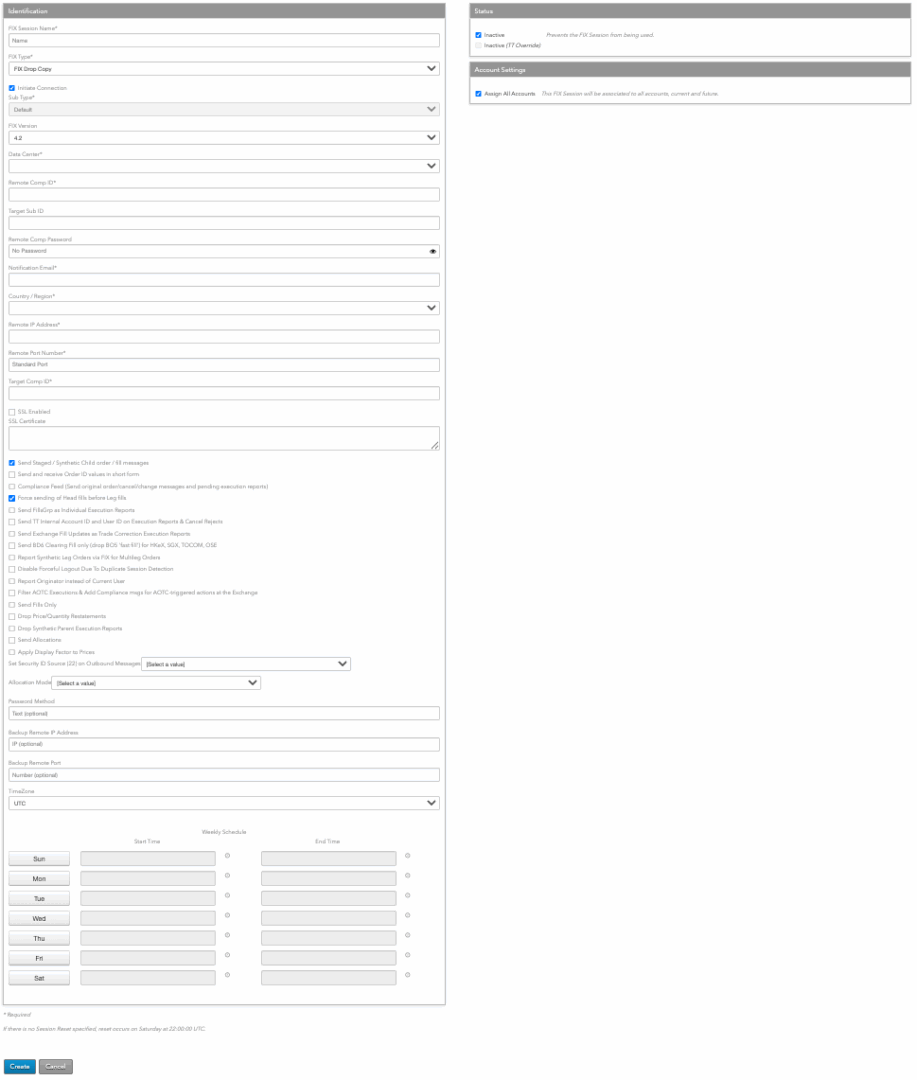
- In FIX Session Name, enter the display name of the FIX server.
- In FIX Type, select FIX Drop Copy.
- Configure the following settings:
- Initiate Connection — For a FIX Drop Copy session, this option is unchecked by default and the session is the acceptor of the FIX connection.
- Data Center — Select the TT data center where the FIX connection is initiated. This field is shown when Initiate Connection is enabled.
- Remote Comp Id — Sets the FIX client ID. This FIX client ID value is sent in FIX Tag 49 (SenderCompID) by a FIX client connecting to the FIX server. The ID is populated in FIX Tag 56 (TargetCompID) for all messages sent by the FIX Server to the FIX client.
-
Target Sub Id — Sets the receiver ID. This value is sent in FIX Tag 57
(TargetSubId) of the FIX client Logon (A) message.
Notes:
If a value is specified for this setting:
- The combination of the Remote Comp Id and Target Sub Id settings must be unique among all FIX sessions.
- The FIX client connecting to this FIX session must supply the same value in tag 57.
- Session Password — The password associated with this FIX session and used to authenticate FIX Servers. FIX Session passwords do not expire and are not subject to any TT account password restrictions. It must be passed in Tag 96 (RawData) in the Logon (A) message. Not required when Initiate Connection is enabled.
- Notification email — Sets the email address company administrators can use to receive notifications from TT for emergency maintenance, operational or product release information that could impact the FIX session.
- Remote Comp Password — Password associated with this FIX session and used for authenticating the connection to the server. This field is shown when Initiate Connection is enabled.
-
Country — The country in which the FIX server machine is located.
Based on the country selected, you may also need to provide a State/Province and Zip Code.
- Remote IP Address — IP address of the third-party FIX client. This field is shown when Initiate Connection is enabled.
- Remote Port# — Port number of the third-party FIX client. This field is shown when Initiate Connection is enabled.
- Target Comp ID — The TargetCompID of the system receiving the messages. This field is shown when Initiate Connection is enabled.
- SSL Certificate — The SSL certificate for the third-party FIX client. This field is shown when SSL Enabled is selected.
- Send Staged / Synthetic Child order / fill messages — Sets whether to send order and fill messages to the FIX client for child order of staged or synthetic parent orders.
- Send and receive Order ID values in short form — Sets whether to send shortened order IDs in tag 37 (OrderId) in order routing and execution report messages.
- Compliance Feed — Sets whether to include the original New Order Single (D), Order Cancel Request (F) and Order Cancel/Replace Request (G) messages and Execution Report (8) messages compliance messages that include high precision timestamps of when TT’s order routing software received the request and when it sent the request to the exchange.
- Force sending of Head fills before Leg fills — Sets whether to always send Head fills (442=3) before sending the individual leg fills (442=2). This setting is supported only for FIX 4.4 sessions.
- Send FillsGrp as Individual Execution Reports — Sets whether to send an individual Execution Report (8) message for each entry in the FillsGrp and LegFillsGrp repeating groups instead of in a group in a single Execution Report (8) message.
- Send TT Internal Account ID and User ID on Execution Reports And Cancel Reject Messages — Sets whether to send the TT internal IDs for tag 1 (Account) and tag 129 (DeliverToSubId) in tags 18101 (AccountID) and 18102 (UserID), respectively, for Execution Report (8) and Order Cancel/Replace Request (9) messages.
-
Send Exchange Fill Updates as Trade Correction Execution Reports — Sets whether
to send exchange fill updates as Execution Report (8) messages instead of Trade Capture Report (AE)
messages for the following markets:
- HKEX
- JSE
- SGX
- TOCOM
- NDAQ_EU
- NFI
- Send BD6 Clearing Fill only (drop BO5 ‘fast fill’) for HKeX, SGX, TOCOM, OSE —
Sets whether to send only clearing fills (BD6 messages) for the following markets:
- HKEX
- SGX
- TOCOM
- OSE
- Report Synthetic Leg Orders via FIX for Multileg Orders — Creates a synthesized
order audit trail for each leg including: New Order ACKs, Changes, Expirys and Cancels.
Notes:
- Supported with FIX 4.4 messages only.
- Compliance Feed messages are not generated for synthetic leg orders.
- Synthetic leg orders for Over-the-Counter (OTC) orders are not supported.
- Disable Forceful Logout Due to Duplicate Session Detection —
Allows a user to have two concurrent FIX sessions open at once.
When the box is unchecked (the default), FIX will logout the first session if a second is started.
- Send Tag 60 in Nanoseconds — Sets whether to send tag 60 (TransactTime) in nanosecond or microsecond precision in the outgoing FIX messages including recovery. It will be unchecked by default. If checked, tag 60 will be sent in nanoseconds `YYYYMMDD-HH:MM:SS.sssuuunnn`. If nanosecond precision is enabled but the exchange does not support it, the timestamp will be padded with zeros to maintain the nanosecond format. If unchecked, tag 60 will be sent in microseconds: `YYYYMMDD-HH:MM:SS.sssuuu`.If the TrimTimestamp rule is set in the session, it will always take precedence over this new parameter and tag 60 will be sent in miliseconds `YYYYMMDD-HH:MM:SS.sss` based on the rule criteria.
- Report Originator instead of Current User — Sets FIX to use the Order Originator
user data to populate the following tags in all order workflows:
- Tag 129 (DeliverToSubID)
- Tag 10553 (TTID)
- Tag 18102 (UserID)
When the box is unchecked (the default), then FIX uses the current user’s data.
-
Filter AOTC Executions & Add Compliance Messages for AOTC-triggered actions at the
Exchange — Sets whether to filter Avoid Orders That Cross (AOTC) and Compliance
messages. When enabled, FIX Drop Copy will:
- Generate compliance messages for AOTC fills / changes that occur against orders resting at the exchange.
- Simultaneously drop any internal fill messages for that action.
- Drop the internal transfer fills/cancels for the aggressing order.
- Deliver Performance Points — Used in some instances to provide additional measurements in the feed.
- Send Fills Only — Filters out all messages except for fills. When enabled, the user will only receive FIX messages related to fills.
- Drop Price/Quantity Restatements — Filters any messages related to updated price and quantity statements. For example, some automated tools may rely on frequent re-quoting to complete a trade. When enabled, this setting removes all messages relating to price/quantity changes for submitted orders.
- Drop Synthetic Parent Execution Reports — Filters any messages related to parent orders when using synthetic order functionality such as TT Order Types, ADL, etc. When enabled, the user will not receive messages related to the parent orders.
- Send Allocations — Enables the user to receive messages related to allocations.
Note Support for TT’s new order and fill allocation functionality currently available on a limited basis. For more information, contact the TT FIX Integration team at [email protected].
-
Set Security ID Source (22) on Outbound Messages — Sets which symbology to use to populate Tag 22. Select one of the following:
- TT Instrument ID — Note: When selected, Tag 22=96 will be included on Execution Reports and Cancel/Rejects so that the Security ID Source for Tag 48 is always explicitly stated.
- ISIN Number
- RIC Code
- Exchange Security ID
- Exchange Ticker
- Alias
- Name
- Bloomberg Code — Note: Contact your TT Customer Success Manager to enable this functionality for your company.
- OpenFIGI ID — Note: Contact your TT Customer Success Manager to enable this functionality for your company.
By default, no value is selected for this parameter and the session behaves as if “Set Security ID Source (22) on Outbound Messages” is set to “TT Instrument ID”.
- Allocation Mode — Sets whether to enable the Allocation Report Session.
Note Support for TT’s new order and fill allocation functionality currently available on a limited basis. For more information, contact the TT FIX Integration team at [email protected].
- (Weekly Schedule): — Schedule for connecting to the remote server. This field is shown when Initiate Connection is enabled.
To set the schedule:
- Select the preferred Olson time zone from the TimeZone field (the default value is UTC).
- Click a day to enable the Start Time and End Time fields.
- Set the desired start time and end time for the connection in the selected time zone. Note that you can set start and end times on a daily basis, or you can set the start time on one day and the end time on another. For example, you click Sun and set Start Time to 0:00, then click Fri and set Start Time to 23:59.
- Filter AOTC Executions & Add Compliance msgs for AOTC-triggered actions at the Exchange — Configures the session to filter and generate compliance messages for internal fills/changes due to position transfer.
-
(Session Reset): — Schedule for resetting the FIX Server connection. Not required when
Initiate Connection is enabled.
To set the reset time:
- Select the preferred Olson time zone from the TimeZone field (the default value is UTC).
- Click a day to enable the End Time fields.
- Set the desired session reset time in the selected time zone.
- In the Status section, choose whether to make the session active. The session is inactive by default.
- In the Account Settings section, enable the Assign All Accounts setting to ensure that all available accounts for the entire company are assigned to the FIX Drop Copy session. This includes accounts shared with your company. Dynamically, new accounts will be assigned to the session as they’re available and deleted accounts will be removed. When this checkbox is unchecked, each account has to be mapped individually to the FIX Drop Copy session. This setting is enabled by default.
- Click +Add in the Company Relationships section to share FIX sessions
with other companies (e.g., to brokers).
This allows the FIX Session to be configured for trading (assigned accounts, connections, etc.) by the shared company.
- Click Save Changes.
- Configure the connection to the FIX session via TCP or Secured TCP (SSL).
Adding a FIX Order Routing session
Note: Fields marked with an asterisk “*” are required fields.
To add and configure an FIX Order Routing session:
- Click More | FIX Sessions in the left navigation pane.
-
At the top of the FIX Sessions screen, click +New Session to display the configuration options.
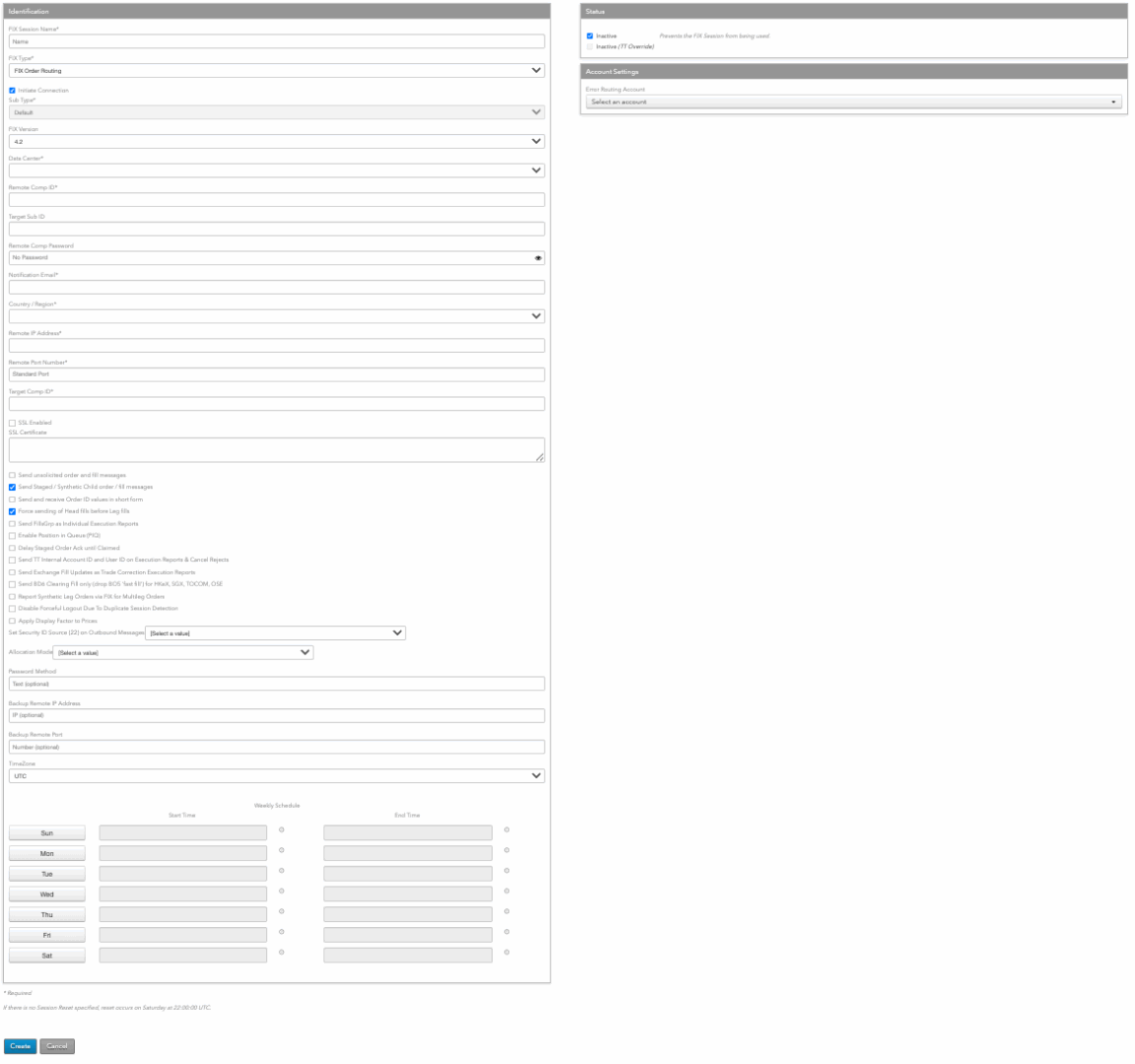
- In FIX Session Name, enter the display name of the FIX server.
- In FIX Type, select FIX Order Routing.
- Configure the following settings:
- Initiate Connection — For a FIX Order Routing session, this option is unchecked by default and the session is the acceptor of the FIX connection.
- Data Center — Select the TT data center where the FIX connection is initiated. This field is shown when Initiate Connection is enabled.
- Remote Comp Id — Sets the FIX client ID. This FIX client ID value is sent in FIX Tag 49 (SenderCompID) by a FIX client connecting to the FIX server. The ID is populated in FIX Tag 56 (TargetCompID) for all messages sent by the FIX Server to the FIX client.
-
Target Sub Id — Sets the receiver ID. This value is sent in FIX Tag 57
(TargetSubId) of the FIX client Logon (A) message.
Notes:
If a value is specified for this setting:
- The combination of the Remote Comp Id and Target Sub Id settings must be unique among all FIX sessions.
- The FIX client connecting to this FIX session must supply the same value in tag 57.
- Session Password — The password associated with this FIX session and used to authenticate FIX Servers. FIX Session passwords do not expire and are not subject to any TT account password restrictions. It must be passed in Tag 96 (RawData) in the Logon (A) message. Not required when Initiate Connection is enabled.
- Notification email — Sets the email address company administrators can use to receive notifications from TT for emergency maintenance, operational or product release information that could impact the FIX session.
- Remote Comp Password — Password associated with this FIX session and used for authenticating the connection to the server. This field is shown when Initiate Connection is enabled.
-
Country — The country in which the FIX server machine is located.
Based on the country selected, you may also need to provide a State/Province and Zip Code.
- Remote IP Address — IP address of the third-party FIX client. This field is shown when Initiate Connection is enabled.
- Remote Port# — Port number of the third-party FIX client. This field is shown when Initiate Connection is enabled.
- Target Comp ID — The TargetCompID of the system receiving the messages. This field is shown when Initiate Connection is enabled.
- SSL Certificate — The SSL certificate for the third-party FIX client. This field is shown when SSL Enabled is selected.
- Send unsolicited order and fill messages — Sets whether to send order and fill messages to the FIX client for those orders that originated outside of TT.
- Send Staged / Synthetic Child order / fill messages — Sets whether to send order and fill messages to the FIX client for child order of staged or synthetic parent orders.
- Force sending of Head fills before Leg fills — Sets whether to always send Head fills (442=3) before sending the individual leg fills (442=2). This setting is supported only for FIX 4.4 sessions.
- Send FillsGrp as Individual Execution Reports — Sets whether to send an individual Execution Report (8) message for each entry in the FillsGrp and LegFillsGrp repeating groups instead of in a group in a single Execution Report (8) message.
- Enable Position in Queue (PIQ) — Sets whether to enable position in queue support for the FIX session.
- Delay Staged Order Ack until Claimed — Sets whether to delay staged order acknowledgement until the order is claimed.
- Send TT Internal Account ID and User ID on Execution Reports And Cancel Reject Messages — Sets whether to send the TT internal IDs for tag 1 (Account) and tag 129 (DeliverToSubId) in tags 18101 (AccountID) and 18102 (UserID), respectively, for Execution Report (8) and Order Cancel/Replace Request (9) messages.
-
Send Exchange Fill Updates as Trade Correction Execution Reports — Sets whether
to send exchange fill updates as Execution Report (8) messages instead of Trade Capture Report (AE)
messages for the following markets:
- HKEX
- OSE
- SGX
- TOCOM
- NDAQ_EU
- NFI
- Send BD6 Clearing Fill only (drop BO5 ‘fast fill’) for HKeX, SGX, TOCOM, OSE —
Sets whether to send only clearing fills (BD6 messages) for the following markets:
- HKEX
- SGX
- TOCOM
- OSE
- Disable Forceful Logout Due to Duplicate Session Detection —
Allows a user to have two concurrent FIX sessions open at once.
When the box is unchecked (the default), FIX will logout the first session if a second is started.
- Send Tag 60 in Nanoseconds — Sets whether to send tag 60 (TransactTime) in nanosecond or microsecond precision in the outgoing FIX messages including recovery. It will be unchecked by default. If checked, tag 60 will be sent in nanoseconds `YYYYMMDD-HH:MM:SS.sssuuunnn`. If nanosecond precision is enabled but the exchange does not support it, the timestamp will be padded with zeros to maintain the nanosecond format. If unchecked, tag 60 will be sent in microseconds: `YYYYMMDD-HH:MM:SS.sssuuu`.If the TrimTimestamp rule is set in the session, it will always take precedence over this new parameter and tag 60 will be sent in miliseconds `YYYYMMDD-HH:MM:SS.sss` based on the rule criteria.
-
Set Security ID Source (22) on Outbound Messages — Sets which symbology to use to populate Tag 22. Select one of the following:
- TT Instrument ID — Note: When selected, Tag 22=96 will be included on Execution Reports and Cancel/Rejects so that the Security ID Source for Tag 48 is always explicitly stated.
- ISIN Number
- RIC Code
- Exchange Security ID
- Exchange Ticker
- Alias
- Name
- Bloomberg Code — Note: Contact your TT Customer Success Manager to enable this functionality for your company.
- OpenFIGI ID — Note: Contact your TT Customer Success Manager to enable this functionality for your company.
By default, no value is selected for this parameter and the session behaves as if “Set Security ID Source (22) on Outbound Messages” is set to “TT Instrument ID”.
- Send Allocations — Enables the user to receive messages related to allocations.
Note Support for TT’s new order and fill allocation functionality currently available on a limited basis. For more information, contact the TT FIX Integration team at [email protected].
- Weekly Schedule: — Schedule for connecting to the remote server. This field is shown when Initiate Connection is enabled.
To set the schedule:
- Select the preferred Olson time zone from the TimeZone field (the default value is UTC).
- Click a day to enable the Start Time and End Time fields.
- Set the desired start time and end time for the connection in the selected time zone. Note that you can set start and end times on a daily basis, or you can set the start time on one day and the end time on another. For example, you click Sun and set Start Time to 0:00, then click Fri and set Start Time to 23:59.
- Session Reset — Schedule for resetting the FIX Server connection. Not required when
Initiate Connection is enabled.
To set the reset time:
- Select the preferred Olson time zone from the TimeZone field (the default value is UTC).
- Click a day to enable the End Time fields.
- Set the desired session reset time in the selected time zone.
- In the Status section, choose whether to make the session active. The session is inactive by default.
- Click +Add in the Company Relationships section to share FIX sessions
with other companies (e.g., to brokers).
This allows the FIX Session to be configured for trading (assigned accounts, connections, etc.) by the shared company.
- In the Account Settings section, you can assign an error routing account. This account can be used to route order reject messages created by FIX Order Router or FIX Inbound Drop Copy to specific Drop Copy sessions. Error accounts can be assigned to users and FIX Order Routing and FIX Inbound Drop Copy sessions. An error account is not sent to the exchange and is not part of account hierarchies.
- Click Save Changes.
- Configure the connection to the FIX session via TCP or Secured TCP (SSL).
Adding a FIX Market Data session
Note: Fields marked with an asterisk “*” are required fields.
To add and configure a FIX Market Data session:
- Click More | FIX Sessions in the left navigation pane.
-
At the top of the FIX Sessions screen, click +New Session to display the configuration options.

- In FIX Session Name, enter the display name of the FIX server.
- In FIX Type, select FIX Market Data.
- Configure the following settings:
- Initiate Connection — Configures the FIX session to act as a client and initiate the connection from TT to a third-party system. When the checkbox is checked, the FIX session will initiate the connection. If unchecked, the FIX session will act as a server and accept the connection.
Note After the session is created and saved as either an “initiator” or “acceptor”, this setting cannot be changed. - Initiate Connection — For a FIX Market Data session, this option is unchecked by default and the session is the acceptor of the FIX connection.
- Data Center — Select the TT data center where the FIX connection is initiated. This field is shown when Initiate Connection is enabled.
- Remote Comp Id — Sets the FIX client ID. This FIX client ID value is sent in FIX Tag 49 (SenderCompID) by a FIX client connecting to the FIX server. The ID is populated in FIX Tag 56 (TargetCompID) for all messages sent by the FIX Server to the FIX client.
-
Target Sub Id — Sets the receiver ID. This value is sent in FIX Tag 57
(TargetSubId) of the FIX client Logon (A) message.
Notes:
If a value is specified for this setting:
- The combination of the Remote Comp Id and Target Sub Id settings must be unique among all FIX sessions.
- The FIX client connecting to this FIX session must supply the same value in tag 57.
- Session Password — The password associated with this FIX session and used to authenticate FIX Servers. FIX Session passwords do not expire and are not subject to any TT account password restrictions. It must be passed in Tag 96 (RawData) in the Logon (A) message. Not required when Initiate Connection is enabled.
- Notification email — Sets the email address company administrators can use to receive notifications from TT for emergency maintenance, operational or product release information that could impact the FIX session.
- Remote Comp Password — Password associated with this FIX session and used for authenticating the connection to the server. This field is shown when Initiate Connection is enabled.
-
Country — The country in which the FIX server machine is located.
Based on the country selected, you may also need to provide a State/Province and Zip Code.
- Remote IP Address — IP address of the third-party FIX client. This field is shown when Initiate Connection is enabled.
- Remote Port# — Port number of the third-party FIX client. This field is shown when Initiate Connection is enabled.
- Target Comp ID — The TargetCompID of the system receiving the messages. This field is shown when Initiate Connection is enabled.
- SSL Certificate — The SSL certificate for the third-party FIX client. This field is shown when SSL Enabled is selected.
- Password Method — Enter the password encryption method used for connecting to the session. This field is shown when Initiate Connection is enabled.
- Backup Remote IP Address — Backup IP Address of the third-party FIX client. This field is shown when Initiate Connection is enabled.
- Backup Remote Port — Backup port of the third-party FIX client. This field is shown when Initiate Connection is enabled.
- Weekly Schedule: — Schedule for connecting to the remote server. This field is shown when Initiate Connection is enabled.
- Select the preferred Olson time zone from the TimeZone field (the default value is UTC).
- Click a day to enable the Start Time and End Time fields.
- Set the desired start time and end time for the connection in the selected time zone. Note that you can set start and end times on a daily basis, or you can set the start time on one day and the end time on another. For example, you click Sun and set Start Time to 0:00, then click Fri and set Start Time to 23:59.
- In the Status section, choose whether to make the session active. The session is inactive by default.
- Click +Add in the Company Relationships section to share FIX sessions
with other companies (e.g., to brokers).
This allows the FIX Session to be configured for trading (assigned accounts, connections, etc.) by the shared company.
- Click Save Changes.
- Configure the connection to the FIX session via TCP or Secured TCP (SSL).
To set the schedule:
Adding a FIX Inbound Drop Copy session
Note: For Nodal Exchange, refer to the Nodal Drop Copy section below.
Note: Fields marked with an asterisk “*” are required fields.
To use the TT platform to monitor Execution Report (8) messages from an inbound Drop Copy source (e.g., 7X FIX Adapter), configure the following settings:
- Click More | FIX Sessions in the left navigation pane.
- At the top of the FIX Sessions screen, click +New Session to display the configuration options.
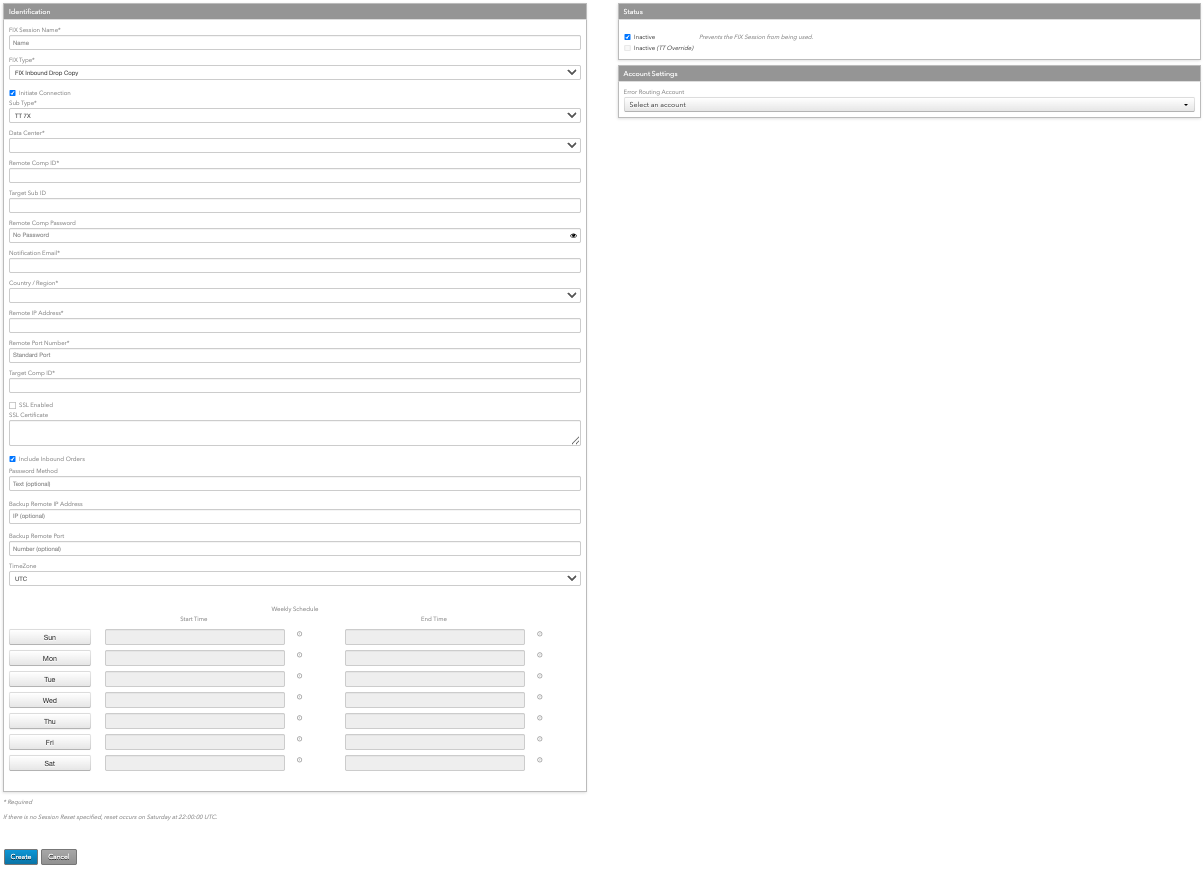
- In FIX Session Name, enter the name of the Target FIX Server.
- In FIX Type, select FIX Inbound Drop Copy.
-
Configure the following settings:
- Initiate Connection — Configures the FIX session to act as a client and initiate the connection from TT to a third-party system. When the checkbox is checked, the FIX session will initiate the connection. If unchecked, the FIX session will act as a server and accept the connection.
Note After the session is created and saved as either an “initiator” or “acceptor”, this setting cannot be changed. - FIX Type — Select FIX Inbound Drop Copy.
-
Sub Type — Select the inbound Drop Copy source:
- TT 7X
- CME
- ICE
- Generic FIX, Persistent Session
- CME STP
- SGX Gift City
- MX Drop Copy
- Euronext Drop Copy
- ASX Drop Copy
- Data Center — Select the TT data center where you want to import the data.
- Remote Comp Id — Value of the SenderCompID field in the 7.X FIX Adapter configuration.
-
Target Sub Id — Sets the receiver ID. This value is sent in FIX Tag 57
(TargetSubId) of the FIX client Logon (A) message.
Notes:
If a value is specified for this setting:
- The combination of the Remote Comp Id and Target Sub Id settings must be unique among all FIX sessions.
- The FIX client connecting to this FIX session must supply the same value in tag 57.
- Session Password — The password associated with this FIX session and used to authenticate FIX Servers. FIX Session passwords do not expire and are not subject to any TT account password restrictions. It must be passed in Tag 96 (RawData) in the Logon (A) message. Not required when Initiate Connection is enabled.
-
Country — Country in which the 7.X FIX Adapter machine is located.
Based on the country selected, you may also need to provide a State/Province and Zip Code. - Remote Comp IP Address — IP address of the 7.X FIX Adapter.
- Remote Port# — Port number of the 7.X FIX Adapter for the connection.
- Remote Comp Password — Password associated with this FIX session and used to authenticate the connection to the 7.X FIX Adapter.
- Notification email — Sets the email address company administrators can use to receive notifications from TT for emergency maintenance, operational or product release information that could impact the FIX session.
- Target Comp ID — Value of the TargetCompID of the system receiving the messages (typically, TT_ORDER).
- SSL Certificate — The SSL certificate for the third-party FIX client. This field is shown when SSL Enabled is selected.
- Trading Firm — Shown only for CME STP Sub Type. The name of the trading firm for the third-party FIX client.
- Trading Firm Type — Shown only for CME STP Sub Type.
- Trading Firm
- Broker Firm
- Username — Shown for CME STP and SGX Gift City Sub Types. The exchange-provided User ID for the FIX session.
- Password Expiration Date — Shown only for SGX Gift City Sub Type. The expiration date for the FIX session password.
- Include Inbound Orders — Whether to include Execution Report (8) for order acknowledgments in addition to fills. If disabled, TT FIX processes only Execution Report (8) for fill messages.
- Password Method — Shown for CME and TT 7X Sub Types. Enter the password encryption method used for connecting to the session. For CME, enter the value provided by the exchange as part of their Drop Copy login credentials.
- Access Key Id — Shown only for the CME Sub Type. Enter the value provided by CME as part of their Drop Copy login credentials.
- Secret Key — Shown only for the CME Sub Type. Enter the value provided by CME as part of their Drop Copy login credentials.
- Sender Location — Shown only for the CME Sub Type. Enter the value provided by CME as part of their Drop Copy login credentials.
- Backup Remote IP Address — Backup IP Address of the inbound Drop Copy source.
- Backup Remote Port — Backup port of the inbound Drop Copy source.
-
(Weekly Schedule): — Schedule for connecting to the inbound Drop Copy source.
To set the schedule:
- Select the preferred Olson time zone from the TimeZone field (the default value is UTC).
- Click a day to enable the Start Time and End Time fields.
- Set the desired start time and end time for the connection in the selected time zone. Note that you can set start and end times on a daily basis, or you can set the start time on one day and the end time on another. For example, you click Sun and set Start Time to 0:00, then click Fri and set Start Time to 23:59.
-
Session Reset: — Displayed if Initiate Connection is unchecked. Schedule
for resetting the FIX Server connection. Not required when Initiate Connection is enabled.
To set the reset time:
- Select the preferred Olson time zone from the TimeZone field (the default value is UTC).
- Click a day to enable the End Time fields.
- Set the desired session reset time in the selected time zone.
- In the Status section, choose whether to make the session active. The session is inactive by default.
- Click +Add in the Company Relationships section to share FIX sessions
with other companies (e.g., to brokers).
This allows the FIX Session to be configured for trading (assigned accounts, connections, etc.) by the shared company.
- In the Account Settings section, you can assign an error routing account. This account can be used to route order reject messages created by FIX Order Router or FIX Inbound Drop Copy to specific Drop Copy sessions. Error accounts can be assigned to users and FIX Order Routing and FIX Inbound Drop Copy sessions. An error account is not sent to the exchange and is not part of account hierarchies.
- Click Save Changes.
- Configure the connection to the FIX session via TCP or Secured TCP (SSL).
For a FIX Inbound Drop Copy session, this option is checked by default and the session is the initiator of the FIX connection.
Adding a Nodal Drop Copy session [currently in UAT]
Nodal Trading hours: Hours of Operation & Holiday Schedule
FIX Profile Rules A FIX profile must be created with at least (2) rules for Trade Capture Report messages:
- Assign tag 116 (OnBehalfOfSubID) to a valid TT User in the current company
- Assign tag 18228 (RoutingAccount) to a valid TT Account in the current company
- Nodal does not send Execution Reports on Drop Copy sessions.
Disaster Recovery (DR) Nodal maintains a DR environment on standby in the event of significant and widespread outages in the production environment. In a DR scenario, Nodal will inform customers about the switch to the DR environment.
To use the TT platform to monitor Execution Report (8) messages from a Nodal Drop Copy source, configure the following settings:
- Click More | FIX Sessions in the left navigation pane.
- At the top of the FIX Sessions screen, click +New Session to display the configuration options.
Note Fields marked with an asterisk “*” are required fields.
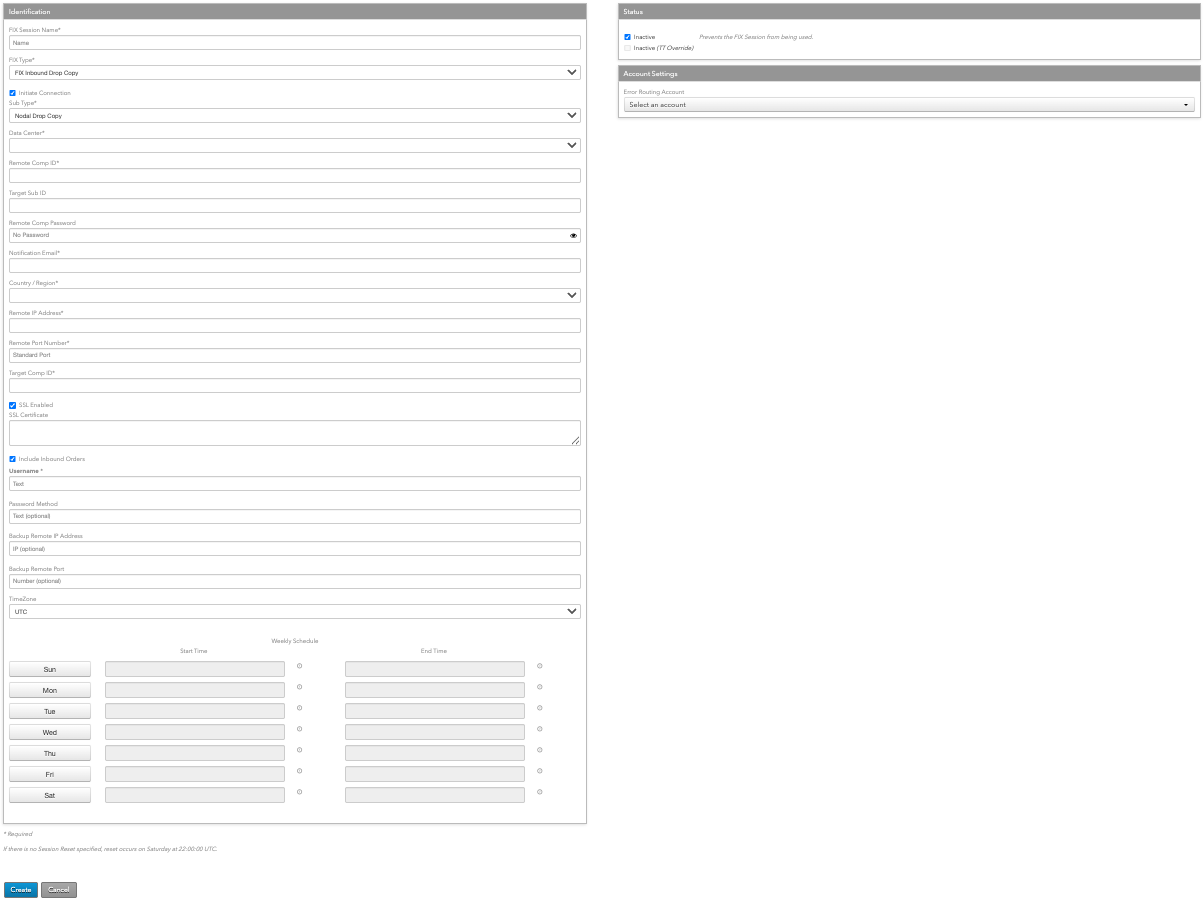
- In FIX Session Name*, enter the name of the Target FIX Server.
- In FIX Type*, select FIX Inbound Drop Copy.
-
Configure the following settings:
- Initiate Connection — Configures the FIX session to act as a client and initiate the connection from TT to a third-party system. When the checkbox is checked, the FIX session will initiate the connection. If unchecked, the FIX session will act as a server and accept the connection.
Note After the session is created and saved as either an “initiator” or “acceptor”, this setting cannot be changed. - FIX Type* — Select FIX Inbound Drop Copy.
- Sub Type* — Select Nodal Drop Copy.
- Data Center* — Select Chicago.
- Remote Comp Id* — Value of the SenderCompID field in the 7.X FIX Adapter configuration. Provided by Nodal on a per-customer basis.
-
Target Sub Id — Sets the receiver ID. This value is sent in FIX Tag 57
(TargetSubId) of the FIX client Logon (A) message.
Notes If a value is specified for this setting:- The combination of the Remote Comp Id and Target Sub Id settings must be unique among all FIX sessions.
- The FIX client connecting to this FIX session must supply the same value in tag 57.
- Remote Comp Password — Password associated with this FIX session and used to authenticate the connection to the 7.X FIX Adapter. Provided by Nodal on a per-customer basis.
- Notification email* — Sets the email address company administrators can use to receive notifications from TT for emergency maintenance, operational or product release information that could impact the FIX session.
- Session Password* — The password associated with this FIX session and used to authenticate FIX Servers. FIX Session passwords do not expire and are not subject to any TT account password restrictions. It must be passed in Tag 96 (RawData) in the Logon (A) message. Not required when Initiate Connection is enabled. Provided by Nodal on a per-customer basis
-
Country/Region* — Country in which the 7.X FIX Adapter machine is located.
Based on the country selected, you may also need to provide a State/Province and Zip Code. - Remote IP Address* — IP address of the 7.X FIX Adapter. Provided by Nodal on a per-customer basis.
- Remote Port Number* — Port number of the 7.X FIX Adapter for the connection. Provided by Nodal on a per-customer basis.
- Target Comp ID* — Value of the TargetCompID of the system receiving the messages (typically, TT_ORDER).
- SSL Certificate* — (Required for Nodal Drop Copy) The SSL certificate for the third-party FIX client. SSL Enabled must be checked.
- Include Inbound Orders* — (Required for Nodal Drop Copy) Includes Execution Report (8) for order acknowledgments in addition to fills.
- Username* — The exchange-provided User ID for the FIX session.
- Password Method — (Should be left empty for Nodal Drop Copy.)
- Backup Remote IP Address — Backup IP Address of the Nodal Drop Copy source.
- Backup Remote Port — Backup port of the Nodal Drop Copy source.
-
(Weekly Schedule): — Schedule for connecting to the Nodal Drop Copy source.
To set the schedule:
- Select the preferred Olson time zone from the TimeZone field (the default value is UTC).
- Click a day to enable the Start Time and End Time fields.
- Set the desired start time and end time for the connection in the selected time zone. Note that you can set start and end times on a daily basis, or you can set the start time on one day and the end time on another. For example, you click Sun and set Start Time to 0:00, then click Fri and set Start Time to 23:59.
-
Session Reset: — Displayed if Initiate Connection is unchecked. Schedule
for resetting the FIX Server connection. Not required when Initiate Connection is enabled.
To set the reset time:
- Select the preferred Olson time zone from the TimeZone field (the default value is UTC).
- Click a day to enable the End Time fields.
- Set the desired session reset time in the selected time zone.
- In the Status section, choose whether to make the session active. The session is inactive by default.
- Click +Add in the Company Relationships section to share FIX sessions
with other companies (e.g., to brokers).
This allows the FIX Session to be configured for trading (assigned accounts, connections, etc.) by the shared company.
- In the Account Settings section, you can assign an error routing account. This account can be used to route order reject messages created by FIX Order Router or FIX Inbound Drop Copy to specific Drop Copy sessions. Error accounts can be assigned to users and FIX Order Routing and FIX Inbound Drop Copy sessions. An error account is not sent to the exchange and is not part of account hierarchies.
- Click Save Changes.
- Configure the connection to the FIX session via TCP or Secured TCP (SSL).
For a Nodal Drop Copy session, this option is checked by default and the session is the initiator of the FIX connection.
Modifying a FIX Session
Note: Fields marked with an asterisk “*” are required fields.
To modify a FIX session:
- Click More | FIX Sessions in the left navigation pane.
A list of FIX sessions displays in the FIX Sessions Grid.
- Select a session and modify the settings as needed.
You can also filter sessions in the list.
- Click Save Changes.