










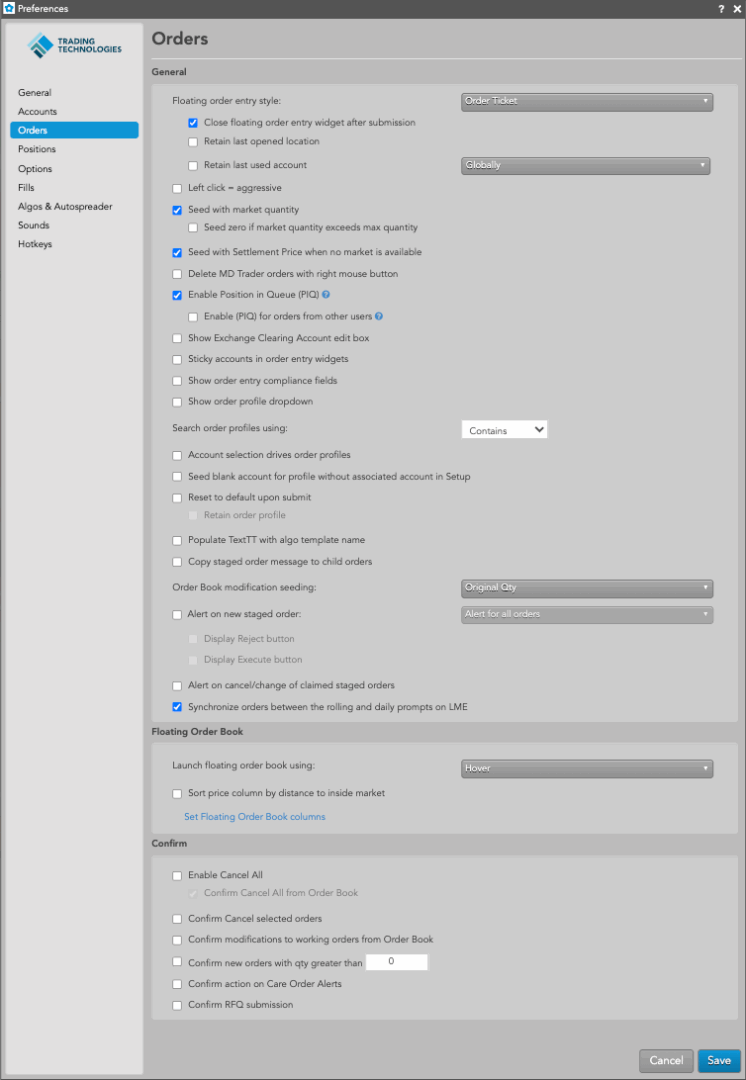
Use this tab to create default preferences for each order you enter using order entry widgets.
General
| Preference | Description |
|---|---|
| Floating order entry style | Sets whether MD Trader or the Order Ticket opens as your default order entry method. |
| Close floating order entry widget after submission | Click this checkbox to close floating order entry widgets after submitting orders. Click to enable/disable this preference. The default preference is enabled (checkbox is checked). |
| Retain last opened location | Sets whether to open a floating order entry widget in the same location where it was closed per workspace window. Check the checkbox to retain the last opened location. By default, this setting is unchecked and the floating order entry opens in its default location. |
| Retain last used account | Retains the last used account in floating order entry widgets. To enable, check the checkbox and select one of
the following:
|
| Left click = aggressive |
Seeds the order ticket to lift the offer (Buy) or hit the bid (Sell) with a left-click.
Note: This preference affects only Order Tickets with the Enable broker mode preference checked. |
| Seed with market quantity |
Sets the order quantity in floating order entry widgets. When this setting is enabled, clicking a Bid/Ask quantity in Market Grid or Spread Matrix seeds the order quantity with either the market quantity or your maximum order quantity, whichever is less. When disabled, clicking a Bid/Ask quantity seeds your default order quantity. |
| Seed zero if market quantity exceeds max quantity |
Sets the order quantity in floating order entry widgets. Dependent on the Seed with market quantity setting. When “Seed with market quantity” is enabled and this setting is enabled (checked), TT sets the order quantity to “0” if the market quantity is greater than your maximum order quantity. When “Seed with market quantity” is enabled and this setting is disabled (unchecked), TT seeds the order quantity with either the market quantity or your maximum order quantity, whichever is less. This is the default behavior. |
| Seed with Settlement Price when no market data is available |
Seeds the settlement price in the Order Ticket for an instrument with no bid/ask market available. When unchecked, a price of “0” (zero) is seeded when there is no active market. |
| Delete MD Trader orders with right mouse button | Swaps the left and right mouse button functionality in MD Trader. By default, this setting is disabled, so clicking the left mouse button deletes the working order and dragging working orders with the right mouse button reprices the order. When this setting is enabled, clicking the right mouse button will delete a working order and dragging a working order with the left mouse button to a new level will reprice the order. |
| Enable Position in Queue (PIQ) | Displays how many contracts are in front of your order at any given price. Click (check) the checkbox to
enable and display PIQ values when the PIQ column is shown in MD Trader®. The
Enable Position in Queue (PIQ) checkbox is unchecked (disabled) by default. If this preference
is disabled when the PIQ column is shown in MD Trader, each cell in the column will be blank.
Note: Position In Queue values are estimated on non-CME markets. |
| Enable (PIQ) for orders from other users | Allows all users that share an account to view position in queue for orders placed on the account. |
| Show Exchange Clearing Account edit box | Allows you to show/hide the “Exch Acct” edit box in MD Trader and the Order Ticket. Use this field to enter an exchange clearing account that is routed to the exchange instead of the account selected in the account field. Check the checkbox to enable this setting. |
| Sticky accounts in order entry widgets | Allows the same account to remain selected in order entry widgets after entering an order. The account also remains selected when changing instruments. For example, if you open a linked MD Trader from the Market Grid and change instruments by clicking through the grid, the account remains the same. |
| Show order entry compliance fields | (For MiDFID II exchanges only) Displays a CDI dropdown in MD Trader and Order Ticket widgets that allows a trader to report whether a trade is reducing risk, also referred to as a hedging trade, overriding the default value defined in Setup at order entry time. It also adds the Invest Decision, Exec Decision, and Client ID text entry fields. |
| Show order profile dropdown | Shows/hides the order profile dropdown selector in the Order Ticket and MD Trader. By default, this setting is unchecked and order profile selectors are hidden. Note: If a user has only one order profile, this dropdown will not appear. |
| Account selection drives order profiles | Filters the list of Order Profiles in the profile dropdown based on the account selected in an order entry widget. Note: Only profiles set as Order Tag Defaults and defined for the account in Setup are filtered. Filtering is not applied to Order Profiles created or uploaded locally in Trade. |
| Seed blank account for profile without associated account in Setup |
When enabled, the account dropdown in order entry widgets (e.g. Order Ticket and MD Trader) always forces the user to select an account when: (1) The selected profile does not have an account assigned to it in TTUS, or (2) More than one account is available for the profile/market combination. When disabled, the account dropdown automatically populates with the first account in the list. |
| Reset to default upon submit | Sets whether to reset order entry parameters, such as order type, quantity and time-in-force (TIF), to their default values after submitting an order through an MD Trader or Order Ticket. By default, this setting is unchecked, which means that the modified order entry parameters are retained after submitting an order. Enabling the additional Retain order profile will keep the currently-selected profile after submitting the order and reset to the parameters defined for that profile. |
| Populate TextTT with algo template name | Sets whether to populate the Text TT field in the Order Ticket or MD Trader with the algo template name. When this checkbox is checked, the algo template name is populated (default setting). When unchecked, TextTT is populated with a value from an order profile or is blank. Note: If you submit an order using an algo template, the template name will override the Text TT value from the order profile. To use the profile value, uncheck this setting. |
| Order Book modification qty seeding |
Determines how the order quantity field is seeded for orders selected in the Order Book or orders pane of the
Order and Fills widget. Select one of the following:
Note: Care orders and held orders always default to the original order quantity when selected in the Order Book or orders pane. However, child orders of care orders will seed the quantity based on this setting. |
| Alert on new staged order |
Displays an alert when a new care order is available to be claimed. The alert also allows you to configure a
Buy/Sell Order Ticket, or claim and execute the care order with one click.
Note: You may toggle to display the Reject and Execute buttons by selecting the appropriate checkboxes. These alerts can be refined to trigger with these three options:
|
| Only alert for my staged orders | Displays an alert based on your user alias in FIX Tag 116 for orders you staged into TT via a FIX-enabled system. The alert also allows you to configure a Buy/Sell Order Ticket, or claim and execute the care order with one click. |
| Alert on cancel/change of claimed staged order | Displays an alert to approve a change or cancel request for a claimed care order. The alert also allows you to accept or reject the request directly from the notification. |
| Synchronize orders between the rolling and daily prompts on LME | Sets whether to match the working order status between daily/monthly prompt orders and the 3M, TOM, and Cash
orders with the same expiry.
|
Floating Order Book
| Preference | Description |
|---|---|
| Launch floating order book using: | Sets how you launch the floating order book using your mouse or keypad. Click to select one of the following: Middle Click, Left Click, Hover. |
| Sort price column by distance to inside market | Sets the Floating Order Book to sort orders based on how near they are to the inside market. |
| Set Floating Order Book columns | Sets the columns you want shown in the Floating Order Book. |
Floating Order Book columns
| Column | Description |
|---|---|
| Delete (Cxl) | Delete a single line (order) |
| Algo | Launch an Order Management Algo (OMA) for the order |
| Contract | The name and contract expiry for the instrument or strategy. |
| WrkQty | Total order quantity |
| Send | Green check button appears when a change is made to the order quantity or price |
| Price | Price of the order or fill. |
| TrigPrc | Price at which to enter an order (Shown only when an order has an associated Trigger price, such as a TT Stop or TT If-Touched order) |
| TIF | Time In Force for the order. |
| Account | Account number associated with the transaction. |
| Type | The type of instrument or options strategy. |
| Time |
The workstation time the order or action was sent. In a shared order book, if users are in different time zones, the Time field will display in the local time of the initiated workstation and will not convert to the workstation times for users in other time zones. For synthetic and algo orders, the Time field displays the local time based on where the Algo Server is located |
| CurrentUser |
TT user name of the trader associated with the transaction For users who share an order book, this column allows you to determine which user submitted each order. You can also sort the orders by this column. |
| Parent Order | Name of the parent algo order |
| Mod | Modify user-defined parameters for a parent algo order |
| Delete Parent | The type of instrument or options strategy. |
| OrigTime | Time the order was originally submitted. |
| PIQ | Shows your position in queue (PIQ) for each of your orders at a given price level. The column is hidden by default. The PIQ value is displayed when you enable PIQ in your workspace preferences. |
| TextTT | Displays an optional, user-defined text value from the Setup app or entered in the TextTT free-form text field in the Order Ticket. The value displayed in this column remains on submitted orders for tracking purposes in the TT system, but is not routed to the exchange. You can show or hide the Text TT text box for a selected working order in the Order Toolbar. You can add or modify the text that displays in the TextTT column for the selected order. In the Position Manager widget, you can now edit the TextTT column for Local Fills and Admin Fills. However, this is not available for Admin SODs. Note: For Autospreader orders submitted by an ADL algo, the value is populated with the order tag of the parent algo order. |
Confirm
The preferences in this section allow you to enable order confirmations.
| Preference | Description |
|---|---|
| Enable Cancel All | Enables you to cancel all orders with a single click. This setting is checked and enabled by default and you
are allowed to use the “Cancel All” buttons and menu options.
When this setting is unchecked, consider the following:
|
| Confirm Cancel selected orders | Enables order confirmation for when you cancel one or more selected orders. Unchecked (disabled) by default. |
| Confirm modifications to working orders from Order Book | Enables order confirmation for changes to working orders in the Order Book widget. Unchecked (disabled) by default. |
| Confirm new orders with qty greater than | Enables order confirmation for orders that exceed the configured quantity. Double-click or use the up/down arrows in the text box to enter a quantity. Unchecked (disabled) by default. |
| Confirm action on Care Order Alerts | Enables confirmation before approving care order cancel and change requests. Unchecked (disabled) by default. |
| Confirm RFQ submission | Enables confirmation before RFQ submissions. Unchecked (disabled) by default. When enabled, initiating an RFQ will launch a small non-modal confirmation dialog box which displays the name of the instrument(s) for the proposed RFQ, along with two buttons to either Cancel the submission or Submit the RFQ. |