










Available settings
These settings affect only the selected MD Trader widget. To update the default settings with these value for newly-opened MD Trader widgets, or to apply them to existing opened widgets, click Defaults.
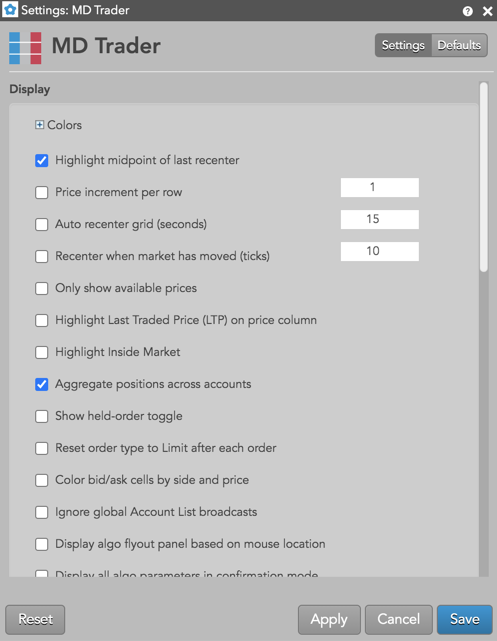
Display
Display settings
| Setting | Description |
|---|---|
| Colors | Allows you to customize or change the cell and column colors available in the widget. |
| Highlight midpoint of last recenter | Sets whether to show the midpoint (white line) after the ladder is re-centered. |
| Price increment per row | Sets the multiplier for the tick size at each price in the ladder. For example, if an instrument tick size is .25 and you set Price increment per row to “2”, each price in the ladder would tick by .50. This setting consolidates the display of prices in the price ladder and displays a greater range of prices while still showing the total quantity available. If you click the checkbox to enable this setting, the Increment field appears in the MD Trader widget with the tick interval value that you entered. |
| Only show available prices | Displays a floating price ladder by only showing price levels where there is available liquidity. |
| Auto recenter grid (seconds) | Sets how many seconds before MD Trader automatically re-centers the price ladder. |
| Recenter when market has moved (ticks) | Sets whether to automatically recenter the trading ladder when the market moves a specified number of ticks since the last time it was re-centered. |
| Highlight Last Traded Price (LTP) on price column | Sets whether to highlight the price level in the Price column whether the last trade occurred. | Highlight Inside Market | Sets whether to highlight the best Bid and Ask cells in the Price column. |
| Aggregate positions across accounts | Sets whether to display an aggregate net position for the contract across multiple accounts when the account filter is unchecked. |
| Show held-order toggle | Sets whether to show/hide the “Hold” button in the MD Trader order panel. This button is used to submit new orders as held orders. |
| Reset order type to Limit after each order | Sets whether to reset the Order Type drop-down to Limit automatically after an order with another order type is submitted. |
| Color bid/ask cells by side and price | Sets whether to display the background color of cells in the Bids and Asks columns for price levels on the opposite market side. |
| Ignore global Account List broadcasts | Configures the widget to ignore account selections made in an Account List. When checked (enabled), the widget ignores account selections broadcast by an Account List widget. |
| Display algo flyout panel based on mouse location | Sets whether to display the algo flyouts at the top of the widget or parallel to the mouse location when selecting a TT Order Type or algo from the Order Type dropdown, |
| Display all algo parameters in confirmation mode | Shows the algo parameters flyout panel in expanded mode when confirming an order. This allows you to review and verify all algo parameters before submitting an algo order or TT Order Type. |
| Display only the working qty for orders | Sets whether to display only the total working quantity of orders at each price level instead of the detailed view for working orders. |
| Show LTQ on VAP column | Shows the last-traded quantity (LTQ) in the VAP column. |
| Show aggregated leg columns | If trading an aggregated instrument and you enable this setting, MD Trader will open the corresponding legs of the instrument in separate MD Trader widgets. |
| Show order qty and cancel buttons on bottom | Sets whether to display the order quantity field and cancel buttons in the side Order Entry panel or at the bottom of the ladder. |
| Show order entry panel on right | Displays the Order Entry panel on the right side of MD Trader. |
| Invert price axis |
Inverts the price ladder so that Bids are at the top and Asks are at the bottom of the ladder. This can be useful when displaying prices in yield and for some foreign exchange instruments, such as Yen (6J). Note: Instruments priced in yield, such as CME BrokerTec RV Spreads, display an inverted price axis by default. |
| Show detailed depth on hover | Sets whether to show detailed depth when hovering on the total number of bids in the Bids column or total number of asks in the Asks column at each level of depth in the price ladder. |
| Keyboard trading (requires enabling hotkeys) | Allows you to use the keyboard to make trades using hotkeys. |
| Bold font | Sets whether to use bold font in the MD Trader display. |
| Show tabs | Sets whether to display tabs at the bottom of the widget for the instruments used in the widget. |
| Do not accumulate last traded qty | Sets whether to show LTQ as the total traded quantity at a price level or as the quantity of the last executed trade. When enabled, the value in the LTQ column is the quantity of the last trade. By default, this setting is disabled and LTQ is an accumulation of last traded quantities at the current price until it changes. |
| Filter Orders By: | Sets how working orders are filtered in MD Trader. Select one of the following:
|
Set MD Trader columns
These settings allow you to add or remove columns on the MD Trader widget.
| Column | Description |
|---|---|
| Work | Shows/hides the Work column, which shows your working orders. |
| PIQ | Shows/hides the PIQ column, which displays how many contracts are in front of your order at any given
price.
Showing this column also enables the Enable Position in Queue (PIQ) setting in the Preferences. If this preference is disabled when the PIQ column is shown in MD Trader, each cell in the column will be blank. Note: Position In Queue values are estimated on non-CME markets. |
| BCnt | Shows/hides the BCnt column. Check this option to show the columns; uncheck to hide the column. The BCnt column shows the number of orders comprising the total bid quantity at a price level. |
| Bids | Shows/hides the Bids column, which shows the total bid quantity at each price level. |
| Price | Shows/hides the Price column. |
| Asks | Shows/hides the Asks column, which shows the total ask quantity at each price level. |
| ACnt | Shows/hides the ACnt column. Check this option to show the columns; uncheck to hide the columns. The ACnt column shows the number of orders comprising the total ask quantity at a price level. |
| Volume at Price (VAP) | Show/hide the VAP column to display volume-at-price
data.
Note: Enabling this setting also adds the VAP sub-menu to the MD Trader context menu. |
| Last Traded Qty (LTQ) | Sets whether to show the LTQ column |
You can also choose which columns to display from the column heading context menu.
Market Data settings
| Setting | Description |
| Show Yield | Shows the Yield column in the price ladder and allows you to select or create a yield configuration. |
| Show price as net change | Displays prices in the ladder as the difference between the last traded price and the settlement price for the instrument. |
| Only show direct prices | When this setting is checked (enabled), implied prices are filtered out and only direct prices are shown, and implied bid and ask quantities are not included in the best bid and ask quantities. When unchecked (disabled), best bid and ask prices and quantities include both direct and implied values. |
| Show implieds with asterisk (*) | When this setting is checked (enabled), asterisks are displayed next to quantities that are partially or completely implied. Valid only when the Only show direct prices setting is disabled. |
Trade Sounds
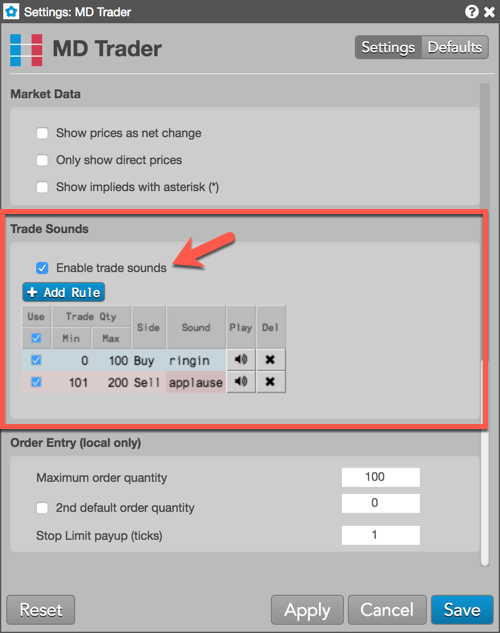
The Trade Sounds section allows you to play sounds for trades that meet or exceed a user-defined range of quantities. To enable this functionality, check the Enable trade sounds checkbox.
When checked, the Add Rule button is displayed. Click this button to add one or more rules for which sound to play for trades that meet or exceed the range of trade quantities. Double-click a cell in the following columns to add or select a value for each rule:
- Trade Qty Min — Enter the minimum trade quantity.
- Trade Qty Max — Enter the maximum trade quantity. When a trade meets or exceeds this range, the selected sound is played.
- Side — Select which side of the trade to apply the sound. The table row will be shaded blue for “Buy” or red for “Sell” based on which side is selected. If the cell is blank, the sound plays for both sides of the trade.
- Sound — Select which sound to play when the trade quantity meets or exceeds your trade quantity range.
The following controls are available for each rule:
- Use — Check this checkbox in each row to activate a rule.
- Play — Click to preview the selected sound.
- Del — Click the “x” to remove a rule.
Order Entry (local only)
The settings in the Order Entry (local only) section affect only the current MD Trader widget.
| Setting | Description |
|---|---|
| Right-click order entry action | Enables right-click entry order. Select one of the following:
|
| Maximum order quantity | Sets the maximum quantity allowed per order. |
Selective defaults
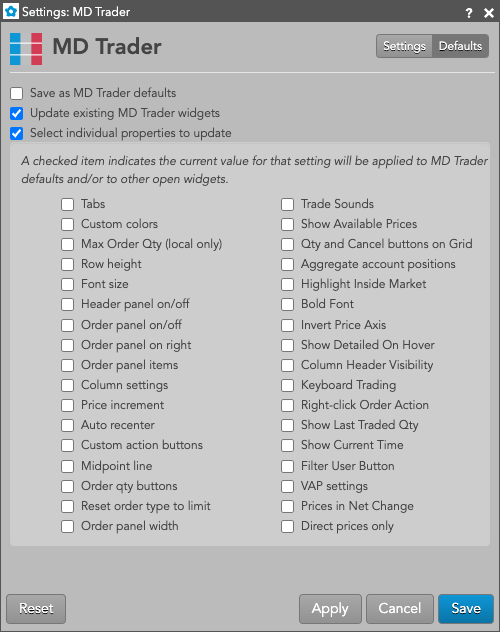
MD Trader lets you select individual customizations to save as default MD Trader settings and to update existing MD Trader widgets, while applying other customizations to the current widget. Checking either of the Save as MD Trader defaults or Updating existing MD Trader widgets settings enables the Selectively update properties setting. You can choose the individual widget attributes you want to save.
Context menu options
Right-click the MD Trader widget Price column, Order Entry panel, Header panel, or Column headers to open the MD Trader context menus. Options vary based on which context menu was opened. On this menu, you can select the following options:
- Edit custom action buttons… — Allows you to add custom order type and TIF buttons to the Order Entry panel.
- Edit quantity buttons… — Allows you to customize the values of the quantity buttons.
- Show/hide — Shows or hides the following in the widget:
- Order Entry Panel — Toggles the order pane, which contains all order entry options for the widget. Note: After hiding the order pane the first time, you can quickly toggle the display by left-clicking anywhere in the upper header area.
- Header Panel — Toggles the header pane, which contains market data for the selected
instrument in the widget.
Note: When this pane is hidden, the Net Change is displayed in the Order Pane below the TIF dropdown. - Column Headers — Toggles the headings of each column shown in the widget.
- Position — Toggles the position field.
- Net Change — Toggles the net change field.
- Default Qty — Toggles the default quantity field.
- CXL Buttons — Shows/hides the order cancel buttons.
- Liquidate Button — Toggles the Liquidate Button.
- Filter User Button — Toggles the Filter User Button.
- Current Time — Shows the current time based on your workstation clock.
- Account — Toggles the account selector.
- Order Type — Toggles the order type selector.
- TIF — Toggles the TIF selector.
- Quantity Buttons — Shows/hides the quantity buttons.
- SLED — Toggles the SLED selector.
- Order Text Fields — Shows/hides the free-form text fields.
- Algo Templates — Shows/hides the algo template picker on the order entry panel instead of the algo or TT Order Type flyout panel.
Order entry panel options include:
- Time & Sales — Open the Time & Sales widget for the selected instrument. For multiple instruments in MD Trader, click the tab for the instrument, first, then select Time & Sales from the context menu.
- Chart — Opens a chart for the selected instrument. For multiple instruments in MD Trader, click the tab for the instrument, first, then select Chart from the context menu.
- VAP — Volume at price data
- PIQ — Number of contracts in front of your order at a price level
- LTQ — Quantity of the last trade
- Order headcount — Number of orders comprising the total bid and ask quantities
- Show/Hide VAP — Shows or hides the column
- Show bars — Shows or hides the VAP bars when VAP is shown
- Split bid/ask volume — Displays the bar with blue and red to indicate the relative bid and ask quantities
- Show values — Displays the total VAP as a number
- Overlay LTQ values — Displays the last-traded quantity at the price level in the VAP column
- Reset VAP — Resets the VAP counter for the widget and starts displaying VAP data that occurs after the reset. The VAP column header is hightlighted to indicate that the widget is displaying partial VAP data.
- Restore VAP — Cancels the effect of a VAP reset and restores the display of VAP data to include historical values. Restoring VAP also clears the column heading highlighting.