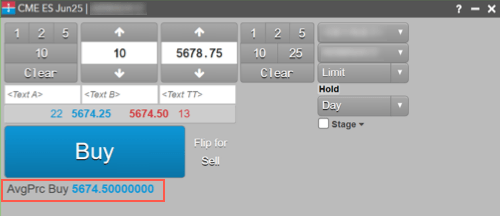





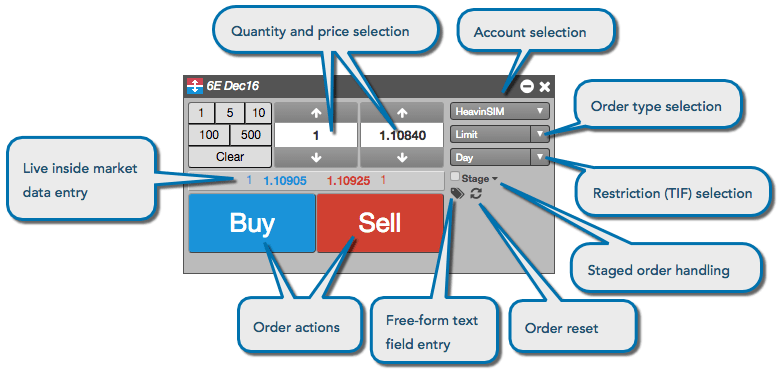
Order Ticket provides a compact widget for entering orders for a single, pre-selected instrument. From an Order Ticket, you can supply all of the information for an order and easily submit the order by clicking the appropriate action button.
Account selection
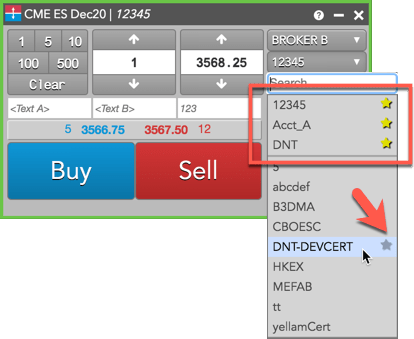
The account selector shows all accounts that have been assigned to you by your company administrator and have active connections to the exchange. Click the drop-down to select an account, which is required for submitting orders on TT.
You can show your most commonly used accounts in the account selector by marking them as “favorites”. To designate an account as a favorite, hover on the account in the list and click the “star” icon. This moves the account to the top of the list and makes it easier to select frequently used accounts.
Optionally, you can enter your own exchange clearing account value when submitting an order.
Note: Before entering your own value, ensure that your administrator has allowed you to override the exchange clearing account value in Setup.
To enter your own clearing account value at order entry, check the Show Exchange Clearing Account edit box setting in Preferences | Orders. When this setting is enabled, order entry widgets display an edit box where you can enter the exchange clearing account. When you click the Clearing Acct edit box to enter a value, it stores and displays a list of the most recent clearing account values you entered.
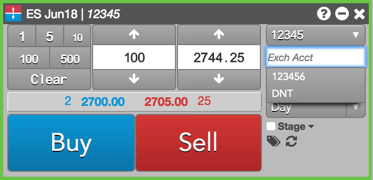
After submitting the order, the ClearingAcct column in the Order Book, Fills, or Audit Trail widget shows the value sent to the exchange as the clearing account. The Account column in these widgets shows the account you selected at order entry, but this account is not sent to the exchange if you enter your own exchange clearing account.
Order type and third-party algo selection
The Order Ticket automatically lists all order types available for the associated instrument. The order types drop-down lists all of the order types natively supported for the instrument by the exchange and the available TT order types you can use. Additionally, if you have created your own algos or are associated with a third-party algo provider, those algos are also displayed as valid order types.
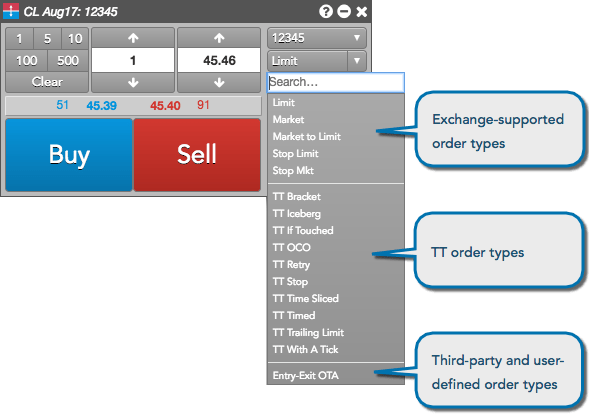
Note: The list includes only ADL algos and Order Ticket Algos (OTAs) you have permission to run.
If you select a TT Order type or custom algo order type, you can enter the additional information in the embedded panel. Based on the TT Order type, the panel might include tabs for additional parameters. For example, the following shows a fly-out dialog for a TT Bracket order type.
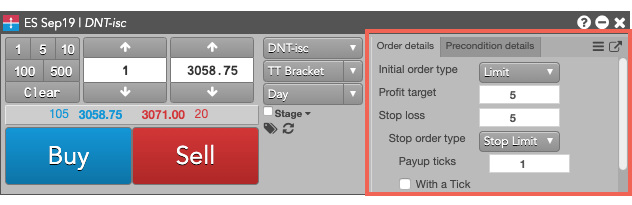
Note: You can click  to display the available templates and
  to display all of the parameters in a flyout.
For quicker access to order templates, you can display the template selector by enabling Algo templates from the Show/Hide context menu.
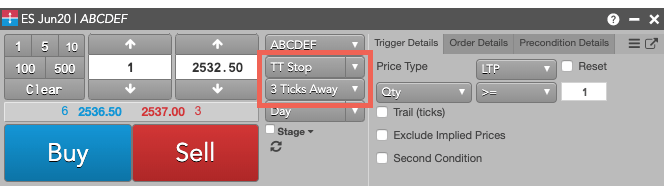
TIF order restriction selection
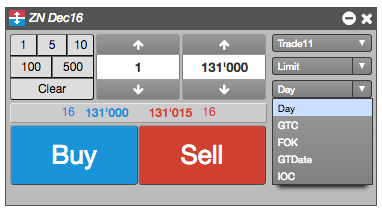
The order restrictions or time-in-force (TIF) options that the exchange supports for the instrument are also automatically listed in the TIF drop-down.
Free-form text fields
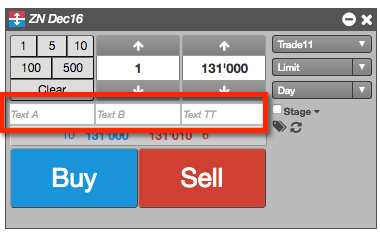
Free-form text fields allow you to send optional or additional information with an order.
Reset
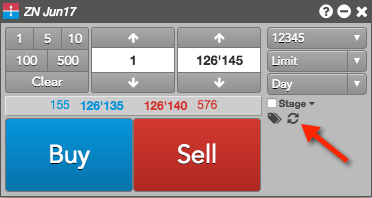
The reset icon allows you to reset the order ticket to the product defaults displayed when the ticket was opened.
Cross trades support
You can submit cross trades using the Order Ticket window in the Market Grid widget. In the Order Ticket window, the Cross Order Type is only available for exchanges (e.g., EEX) and accounts that support Cross Orders.
Exchanges supporting cross trades
The TT platform supports cross trades at the following exchanges:
- Eurex
- EEX
Staged order support
Using the Order Ticket, you can stage a care order that can be claimed by another user for order management and order execution.

For more information about care orders, refer to Care Orders Overview.
Broker mode support
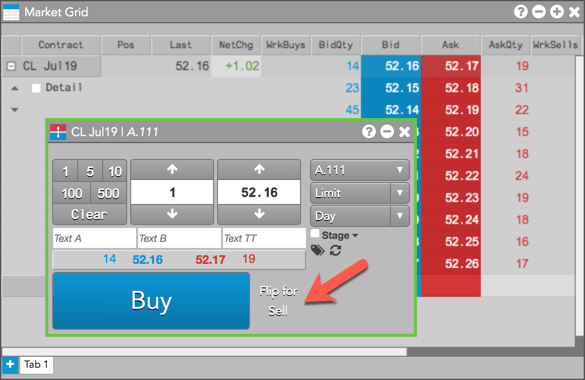
When Enable broker mode is enabled in the Order Ticket settings, the Order Ticket displays a single Buy or Sell button based on whether you are entering a bid or ask. Click the Flip for Sell/Buy toggle button to quickly switch the direction of the main Buy/Sell button.
Open and Close button
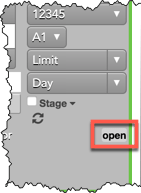
For exchanges that support setting an “open” or “close” flag on submitted orders, the Open/Close button appears in MD Trader and the Order Ticket for the selected instrument. The flag indicates whether the order opens or closes a position. Click the button to select “open” or “close” from the drop down menu before submitting the order. Some exchanges may provide additional options.
Working or filled orders with the flag set show either “O” (open) or “C” (close) in the O/C column in the Order Book.
Order Confirmation
You have the option to confirm an order based on its quantity before submitting the order into the market. To use the order confirmation functionality, enable the “Submission of orders with qty greater than…” setting on the Orders tab in workspace Preferences.
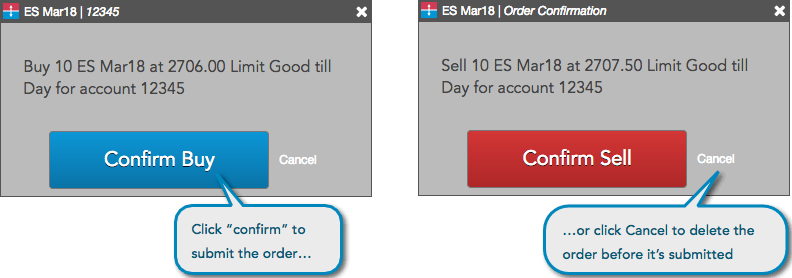
When enabled, orders that exceed the configured quantity will trigger a pop-up window that prompts you to confirm the Buy or Sell order. The order confirmation window displays the side, contract, price, TIF, and account for you to review before submitting. Click Confirm Buy or Confirm Sell to submit, or click Cancel to delete the order before it’s submitted.
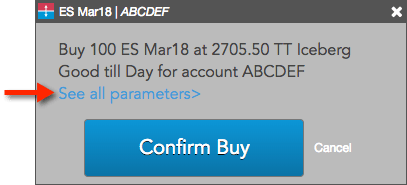
For TT order types, you can click See all parameters to review the order type configuration before submitting. The following example shows an order confirmation for a TT Iceberg order.
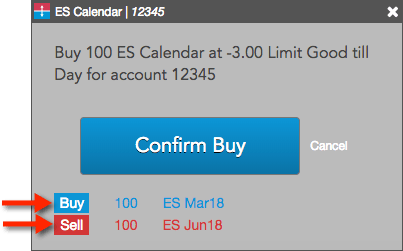
For Autospreader orders, the confirmation displays the order quantity for each leg based on the total order quantity and configured leg ratios (e.g., 1.0, -1.0).
Minimum Volume orders
Minimum Volume orders require a minimum quantity to be executed immediately at the entered price. TT supports Minimum Volume orders on the following exchanges: B3, MX.
If the minimum quantity cannot be filled immediately at that price or better, then the order for the total quantity is rejected at the exchange. If the minimum quantity can be filled but the total quantity of the order is larger than what is immediately available, the balance of the order quantity will continue working in the market at that price.
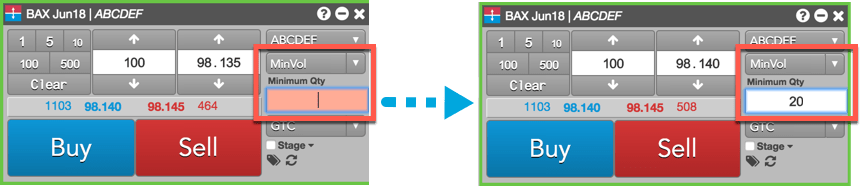
To enter a Minimum Volume order using the Order Ticket, select “MinVol” as the natively supported order type. When selected, an additional order entry field called Minimum Qty is shown. Enter the minimum quantity amount for the order in this field.
Order Ticket notional value
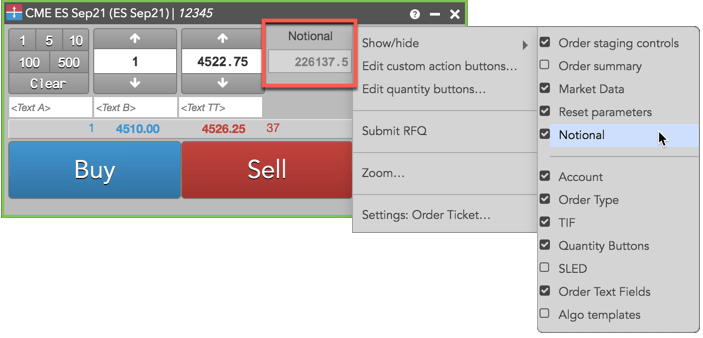
By enabling the Notional option in the Order Ticket, you can submit an order for an outright futures contract or crypto asset based on its notional trade value. To show this optional field, right-click the Order Ticket and check the Show/hide | Notional checkbox in the context menu.
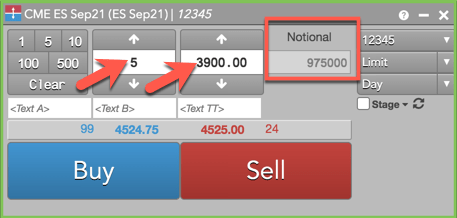
When the Notional option is enabled for a futures contract, the notional value of the contract is displayed in the view-only “Notional” field, which updates automatically as the price or quantity of the order is changed in the Order Ticket.
Note: The “Notional” field is not supported for options, spreads, and strategies.
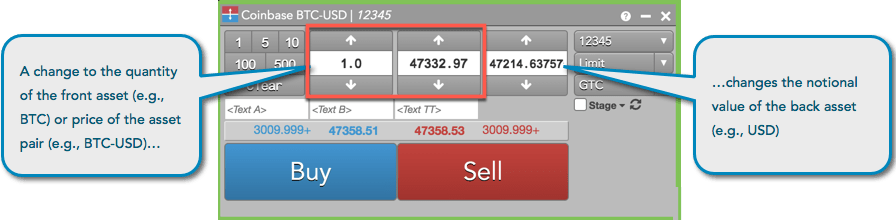
When Notional is enabled for a crypto asset, you can enter a notional trade value for the back asset of an asset pair. As you change the price of the asset pair (e.g., BTC-USD) or quantity of the front asset (e.g., BTC), the notional value of the back asset (e.g., USD) also changes. As you change the notional value of the back asset, the quantity of the front asset updates automatically.
Note: For crypto exchanges on TT, the total notional amount includes commission fees for any order type except Limit (Post-Only).
Floating Depth in the Order Ticket
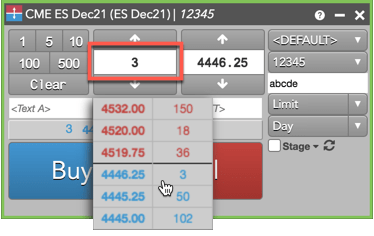
The Floating Depth pop-up widget let’s you quickly trade from a contract’s market depth. The widget appears when you hover on a price or quantity in the Market Grid and Spread Matrix, or price or quantity edit control in the Order Book and Order Ticket.
To use the Floating Depth widget, enable the Show floating depth widget on hover option in the Order Ticket, Market Grid, Order Book, or Spread Matrix settings.
When shown, the Floating Depth widget displays up to three levels of depth for both bids and offers. You can click a price or quantity in a level of depth to seed that value in the price or quantity edit control in the Order Ticket.
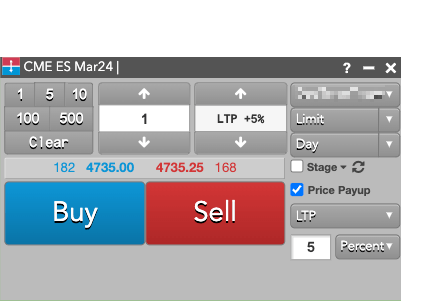
Order Ticket Price as a Payup
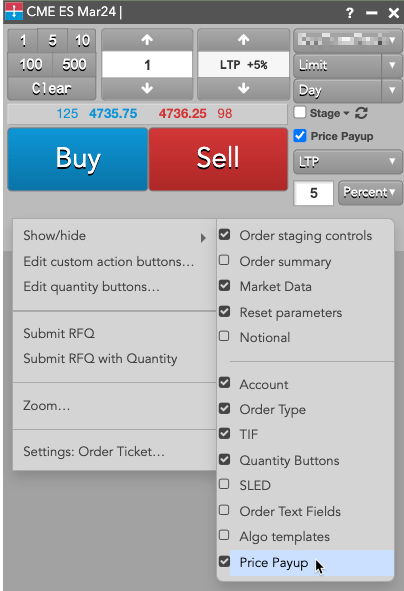
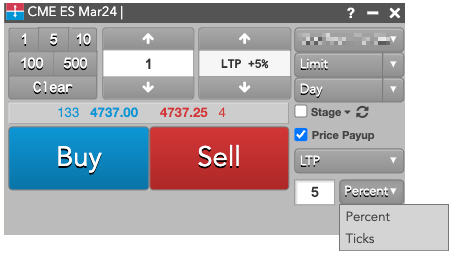
By enabling the Price Payup option in the Order Ticket, you can configure the price of a Limit order as a payup from a base price type. You can also utilize the Price Payup feature when submitting or modifying single instrument algos that have a limit price as an algo input parameter. To show this optional field, right-click the Order Ticket and check the Show/hide Price Payup checkbox in the context menu. The payup can be defined either as a percentage or as a number of ticks.
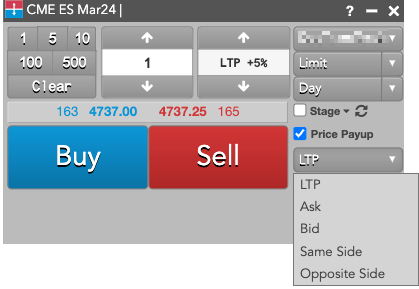
The base price type can be:
- LTP
- Ask
- Bid
- Same Side (aka Bid for Buy, Ask for a Sell)
- Opposite Side (aka Ask for a Buy, Bid for a Sell)
The value is applied as a payup, meaning that positive values are into the market and negative values are away from the market. The Percent values can have up to 2-digit decimal precision while the Ticks values must be integers. Both styles can be set to a maximum of 100.
Note: This feature is not an algo, as the order price is determined by the front end using the value of the base price type at time of order submission.
Average Price
The Average Price is the expected price at which the order might be filled. It is displayed below the Buy/Sell Button.