



A TT OCO (one-cancels-other) order submits two orders of the same quantity at different price levels on the same side of the market. This order allows you to potentially lock in profits with a favorable move or prevent a downside loss without having to constantly monitor the position.
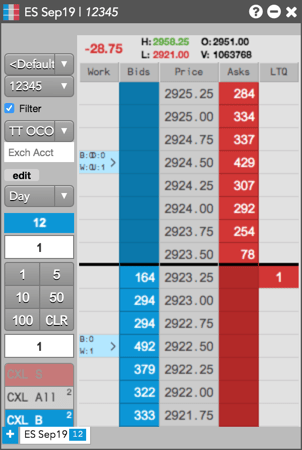
A TT OCO submits a profit order and a Stop protective order by combining Limit and Stop order types. If you are buying, the Limit order (profit order) is submitted at a low target price, and the Stop order (protective order) is placed at a higher price. If you are selling, the Limit order is placed at a high target price, and the Stop order is placed at a lower price. Both orders are placed on the same side of the market.
When an OCO is entered and the orders are working in the market, a fill in the Limit order decreases the quantity of the Stop order by the filled quantity. When the Limit order is completely filled, the Stop order will be canceled. However, if the Stop order is triggered, the Limit order will be canceled.
Note: If you “change” the quantity of one of the TT OCO child orders, it will not automatically change the quantity of the other order.
TT OCO Behaviors
You can configure the following TT OCO behaviors:
- Stop child order behavior after the TT OCO parent order is triggered
- TT OCO parent order behavior based on preconditions
Setting the order type of the Stop child order
A basic TT OCO order is configured for how the Stop child order will be submitted in the market when the parent OCO is triggered and the child Limit (profit) order is submitted. The child order can be submitted as a:
- Stop Limit
- Stop Market
- TT Stop
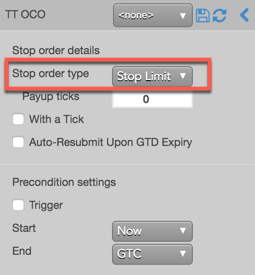
By default, the Stop order is submitted as a Stop Limit order and uses the default “Payup” setting of “1”, which submits the child order one tick away from our Limit price.
Select TT OCO from the order type dropdown to display the flyout.
Note: For a TT Stop child order submitted as part of a TT OCO parent order, you can override/select the TIF of the native child order submitted by the TT Stop. When TT Stop is selected, the TIF selector is displayed in the flyout.
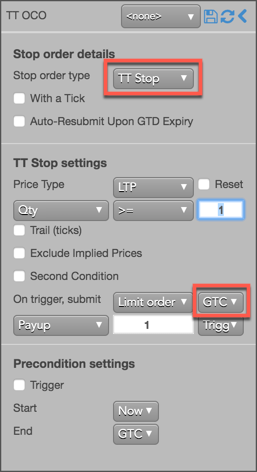
The following TIFs can be selected if natively supported by the exchange:
- Day
- GTC
- FOK
- GTDate
- IOC
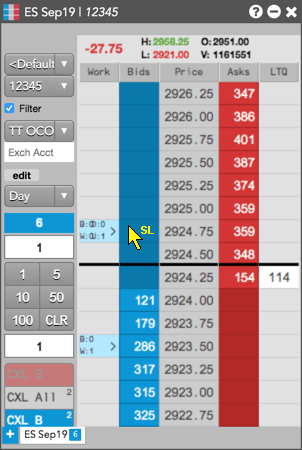
In the following example, a TT OCO is submitted as a Buy order using the default configuration:
- The TT OCO is triggered immediately at 2923.50 and submits a Limit order at this price level.
- The cursor is placed at a price above the first order on the same side of the market and indicates that a valid Stop Limit order can be entered at that price. The Stop Limit order is entered at 2924.75.
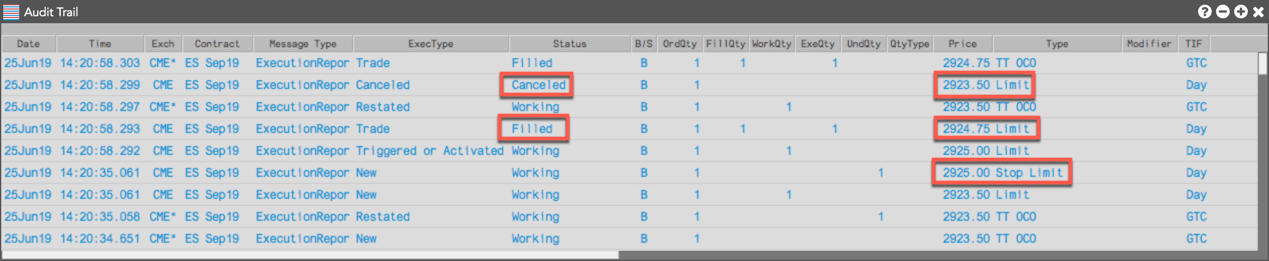
The Audit Trail shows that the Stop Limit order (protective Stop order) was actually submitted at 2925.00, which is one tick away based on the Payup setting. When the Stop Limit was triggered, the order was filled at 2924.75 and the first Limit order (profit order) was canceled. The parent TT OCO order was filled at 2924.75.
For this next configuration, the TT OCO is configured to submit a Stop Market order. However, the Payup setting is ignored for Market orders.
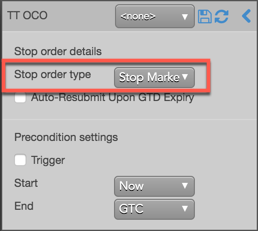
The following example shows a TT OCO submitted as a Buy order using this configuration:
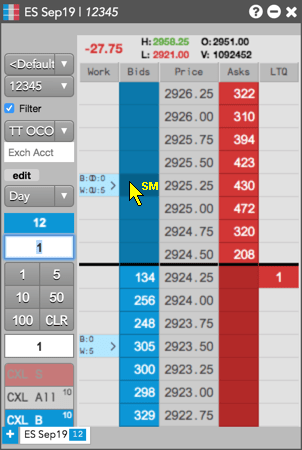
- The TT OCO is triggered immediately at 2923.50 and submits a Limit order at this price.
- The cursor is placed at a price above the first order on the same side of the market and indicates that a valid Stop Market order can be entered at 2925.25.
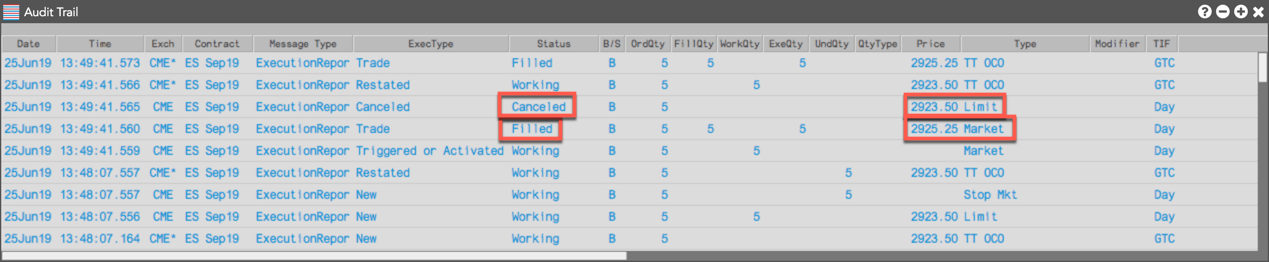
The Audit Trail shows that the Stop Market order (protective Stop order) was triggered and filled at the market price of 2925.25 and the first Limit order (profit order) was canceled. The parent TT OCO order is filled at 2925.25.
Setting the price of the Stop child order
The TT OCO can be configured to execute the Stop child order at a specific price level. You can set the child order based on market conditions (WAT) or a set number of ticks from the market (Payup). In this example, we’ll use a Payup of “-3”.
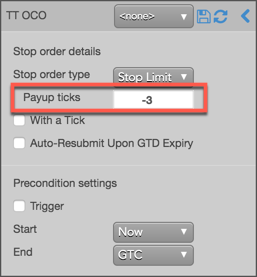
To submit the TT OCO order:
- Click the price level of the profit order. In this example, The TT OCO is submitted as a Sell order, which is triggered immediately at 2954.50 and submits a Limit order.
- Click the price level of the protective Stop Limit order on the same side of the market, but at the lower price of 2952.75.
The Stop Limit order is triggered at 2952.75 and a child Limit order is submitted at 2953.50, three ticks away from the market based on the Payup setting of “-3”.
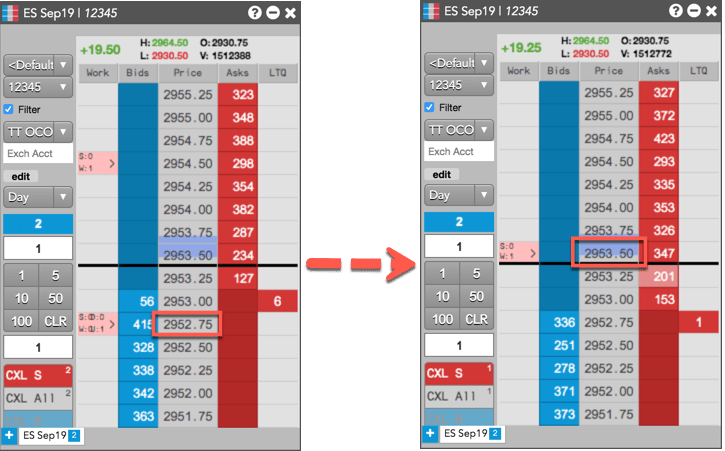
The Audit Trail shows that the child Limit order was activated and filled at 2953.50, and the profit order of 2954.50 was canceled. The parent TT OCO order is filled at 2953.50.
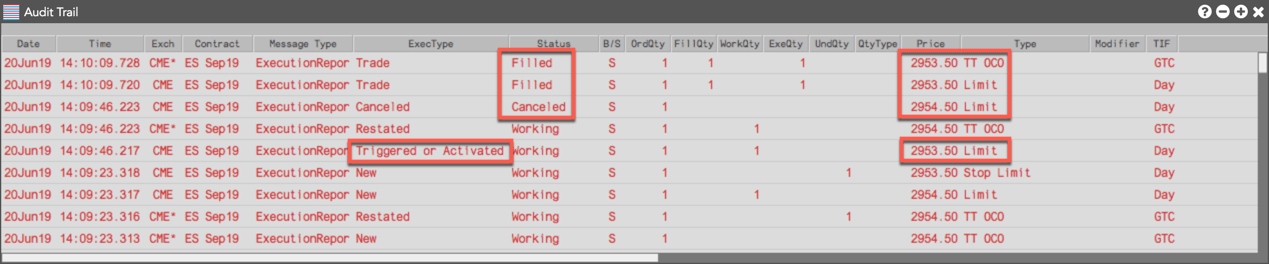
Aggressing the price of a working child order based on market conditions
You can also apply With A Tick functionality to the child orders. This feature gives you the ability to work an order at one price and automatically pay up one tick when the quantity available at the opposite side drops below a user-defined threshold.
To configure With a Tick behavior:
- Specify the desired quantity and price settings.
- Enable With a Tick and set the quantity threshold.
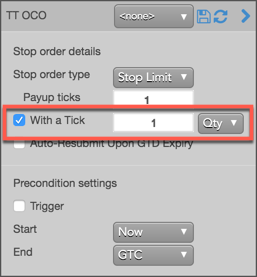
- Enter the order at the desired price level. If you entered a Buy order at the inside market, the TT OCO parent order will reprice its child order one tick when the quantity for the inside Ask falls below 20.
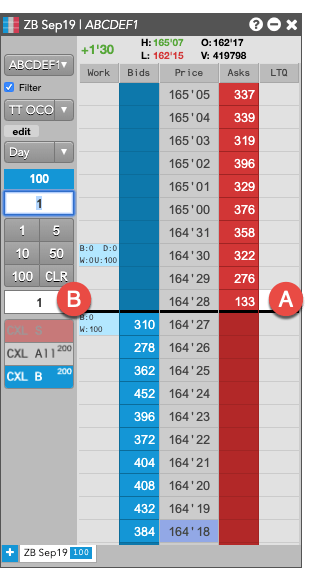
- A – When the quantity at this level falls below 20…
- B – The TT OCO parent order will reprice its child order one tick higher.
For this order:
TT gives users the option to set the With a Tick functionality with a percentage instead of a fixed quantity. For example, if you set With a Tick equal to 20%, instead of to a quantity, then:
- When the quantity on the opposite side of the market drops below 20% of your order’s quantity…
- Your order will aggress into the market by one tick.
Triggering a TT OCO parent order at a specific price level
You can also configure at what price the TT OCO parent order is triggered. If a trigger price is set for the parent TT OCO, it’s submitted ‘on hold’ until the price conditions are met. When the TT OCO is triggered, it submits a child profit order and Stop order at the prices selected in the market. TT OCO supports the following triggers:
- If-Touched: Triggered when the market has reached or traded through a price better than the current market.
- Stop: Triggered when the market has reached or traded through a price worse than the current market.
The following trigger price types are supported:
- LTP: The Last Traded Price is used to evaluate the trigger price. A trade must occur at or through the Last Traded Price in order to trigger the order.
- Bid/Ask: The Best Bid or Ask price is used to evaluate the trigger price.
- Same Side: Evaluates the trigger using the inside market price in the Buy/Sell direction of the order:
- Best Bid for Buys
- Best Ask for Sells
- Opposite Side: Evaluates the trigger using the inside market price in the opposite Buy/Sell direction of the order:
- Best Ask for Buys
- Best Bid for Sells
In this example, the TT OCO order trigger is a “Stop” and the trigger price is set to “2954.50”. The trigger price is evaluated based on the price type of “LTP”.
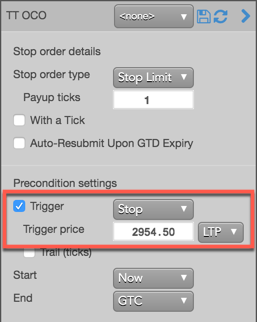
The TT OCO with the trigger price preconditions behaves in the market as follows:
- The TT OCO is submitted with a “Buy” profit order of 2953.25 and a Stop order of 2956.00. However, the parent OCO order rests in the market at the trigger price of 2954.50 until the Stop is triggered.
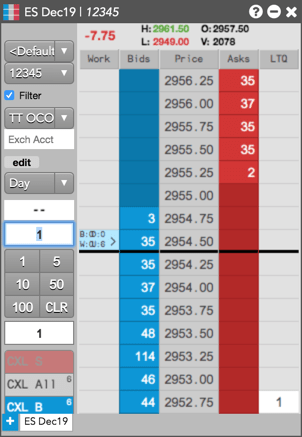
- The market trades at or through 2954.50 and the Stop is triggered. The TT OCO submits a profit order as a Limit order at 2953.25 and a protective Stop order as a Stop Limit at 2956.25 (2956.00 with a Payup of “1”).
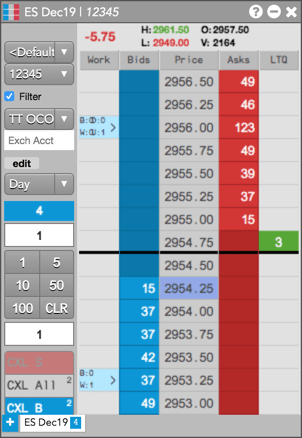
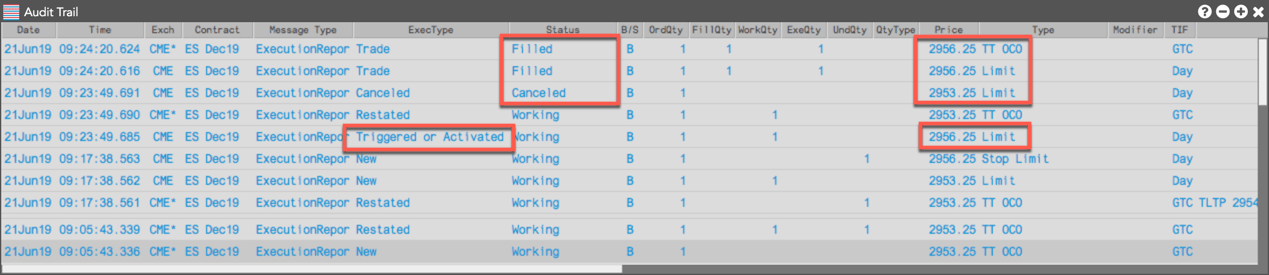
The Audit Trail shows that the Stop Limit was triggered and filled at 2956.25 and that the initial Limit order at 2953.25 was canceled. The TT OCO is filled at 2956.25.
Using Stop and If-Touched trailing triggers to enter a TT OCO parent order at a price level that trails the market
You can also trigger a TT OCO using a trigger price that dynamically adjusts relative to the market. Using the “Trail (ticks” option, you can set how many ticks away from a specified price type to trigger an OCO.
The Trail (ticks) setting adjusts the trigger price based on which trigger is used:
- If-Touched: When the market moves higher for a Buy order, the trigger price follows the market at the specified ticks away value. When the market moves lower, the trigger price does not adjust. When the market moves lower for a Sell order, the trigger price follows the market at the specified ticks away value. When the market moves higher, the trigger price does not adjust.
- Stop: When the market moves lower for a Buy order, the trigger follows the market at the specified ticks away value. When the market moves higher, the trigger price does not adjust. When the market moves higher for a Sell order, the trigger follows the market at the specified ticks away value. When the market moves lower, the trigger price does not adjust.
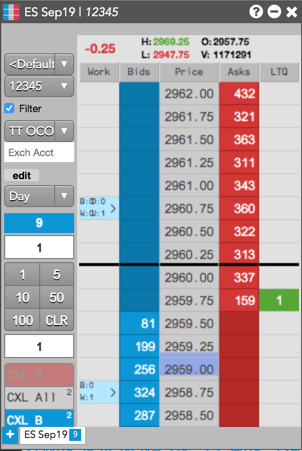
In this example, the TT OCO order trigger is a “Stop” and Trail (ticks) is set to “3”. The trigger price is evaluated based on the price type of “LTP”. When submitted, the TT OCO trigger price will trail LTP by three ticks.
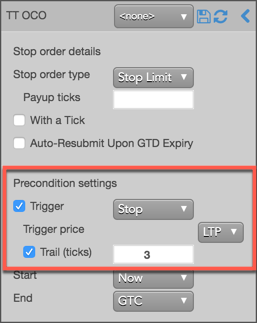
The TT OCO with a trailing price trigger behaves in the market as follows:
- The TT OCO is submitted with a “Buy” profit order of 2953.25 and a Stop order of 2956.00.
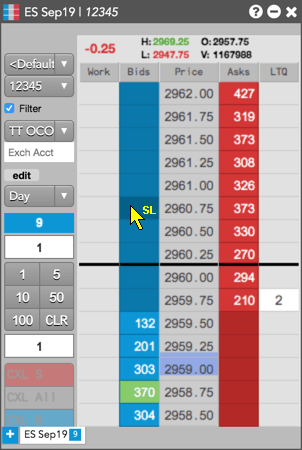
- However, the parent OCO order rests in the market three ticks away from LTP until the Stop is triggered.
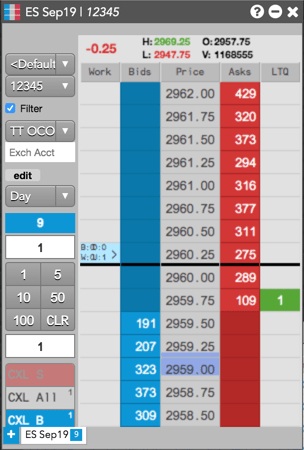
- As the market moves lower, the trigger price trails the market by three ticks.
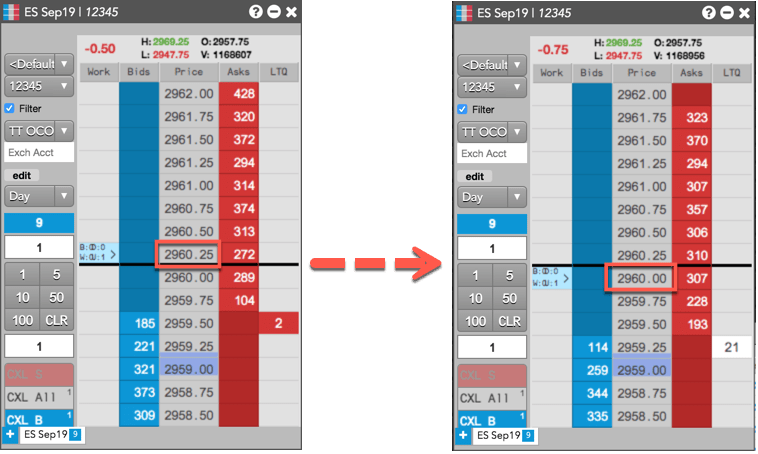
- When the market moved higher, the TT OCO was triggered and the Limit and Stop Limit child orders were submitted.
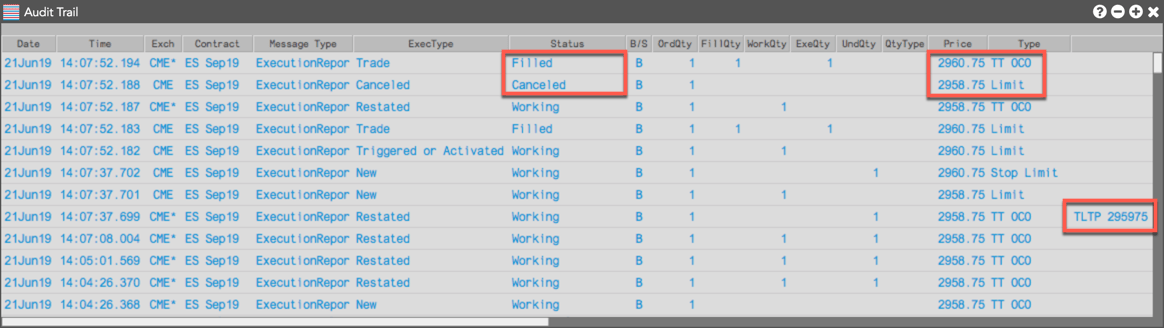
The Audit Trail shows that the TT OCO was triggered at 2959.75 and filled at 2960.75, which was the price of the Stop Limit (protective) order. The Limit (profit) order at 2958.75 was canceled.
Setting start and end times for a TT OCO parent order
By default, a TT OCO order begins working immediately after submission and continues to work until canceled. You can, however, customize when a TT OCO parent order begins working and when it stops.
To set start and stop times for a TT OCO parent order:
- For the Start setting, click the dropdown arrow and select the desired start time option.
In this example, you select Time.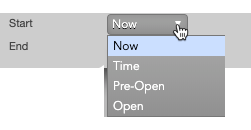
- Set a start date and time in the calendar selector, and click Apply.
Tip: Use the “tab” key to navigate to the right between time edit boxes. Use “Shift + tab” to navigate left to an edit box.
Note: If you specify a future start time, the Order Book will show the TT OCO parent order Status as Working and its SynthStatus as Waiting.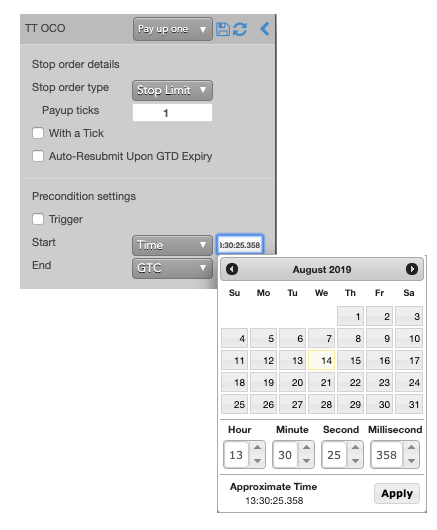
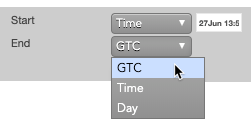
- For the End setting, click the dropdown arrow and select one of the following:
- GTC: Keeps the TT OCO parent order working until it is canceled.
- Time: Sets a time and date for when the TT OCO parent order ends.
- Day: Cancels the TT OCO parent order at the end of the trading session.
Note: When creating or using an order template and using the Time option, the Start and End dates automatically adjust if originally set in the past.
- Enter the order at the desired price level. If you placed the order with a future start time, the TT OCO parent order would appear in MD Trader and the Order Book similar to the following.
The Order Book shows the status of the future order.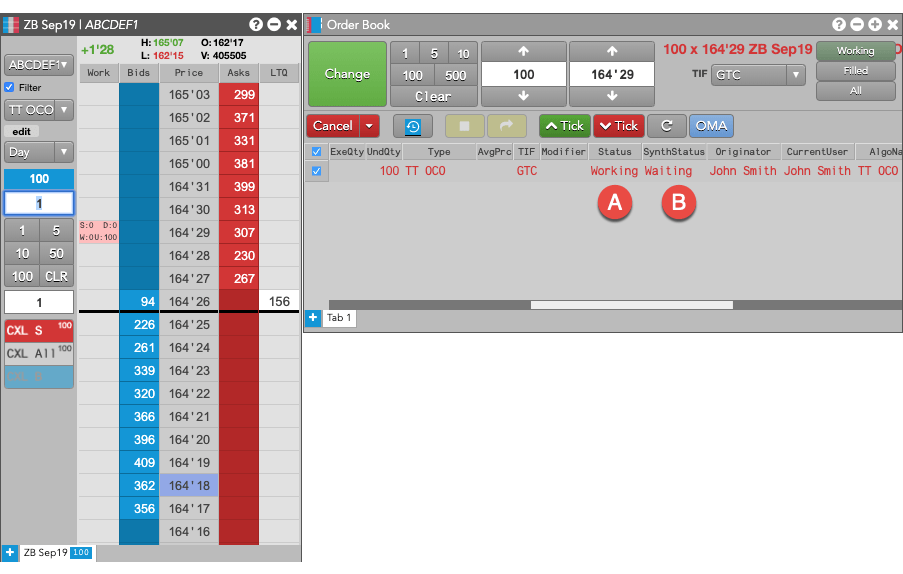
- A – The Status is Working, which indicates the TT OCO parent order is working on the Algo Server.
- B – The SynthStatus is Waiting, which indicates the order has not yet started working in the market. When the start time is reached, the SynthStatus will also change to Working.
TT OCO order parameters
OCO details parameters
- Stop order type: Sets the stop order type, market or limit, of the stop-loss order: For TT Stop, the following TIFs can be selected if natively supported by the exchange:
- Day
- GTC
- FOK
- GTDate
- IOC
- Payup: Sets the number of ticks away from the Stop price to submit a Limit order when the OCO Stop Limit order is triggered. Applies only if you set OCO stop order types as Stop Limit and it specifies the offset (in number of ticks) of the Limit order that will be placed if the Stop Limit is triggered.
- With a Tick: Sets the threshold for the With A Tick behavior that reprices the child order one tick toward the market when available quantity at the opposite inside market is at or below the specified quantity threshold. The quantity can be specified as:
- Qty for an absolute number of contracts
- % for a percentage of the initial quantity for this order
- Auto-Resubmit Upon GTD Expiry: Valid only when the child order TIF is Day (GTD). If any child orders are not completely filled by the session close, the exchange will expire the child orders; when the market reopens, the parent order will then resubmit the child orders with the same parameters as when they expired.
- Exclude Implied Prices: Sets whether to exclude implied prices when evaluating the triggering logic. (Only when Stop order type is TT Stop)
Precondition settings parameters
- Trigger: Sets the type of order trigger for the parent synthetic order Possible types include:
- Stop
- If-Touched
- Trigger Price: Sets the price at which to trigger the parent synthetic order. Possible values include:
- LTP: Last Traded Price
- Ask: Best Ask
- Bid: Best Bid
- Same Side: Evaluates the trigger using the inside market price in the Buy/Sell direction of the order:
- Best Bid for Buys
- Best Ask for Sells
- Opposite Side: Evaluates the trigger using the inside market price in the opposite Buy/Sell direction of the order:
- Best Ask for Buys
- Best Bid for Sells
Values include:
- Now to start the order immediately
- Time to display a date/time picker for you to indicate when to start the order
- Pre-open to enter the order at the pre-open state defined by an exchange
- Open to enter the order when the exchange opens its trading session
- GTC, which leaves the order working until canceled
- Time, which displays a date/time picker for you to indicate when to stop the order
- Day, which leaves the order working until the market closes
- Cancel — Cancels all child orders and stops the order type.