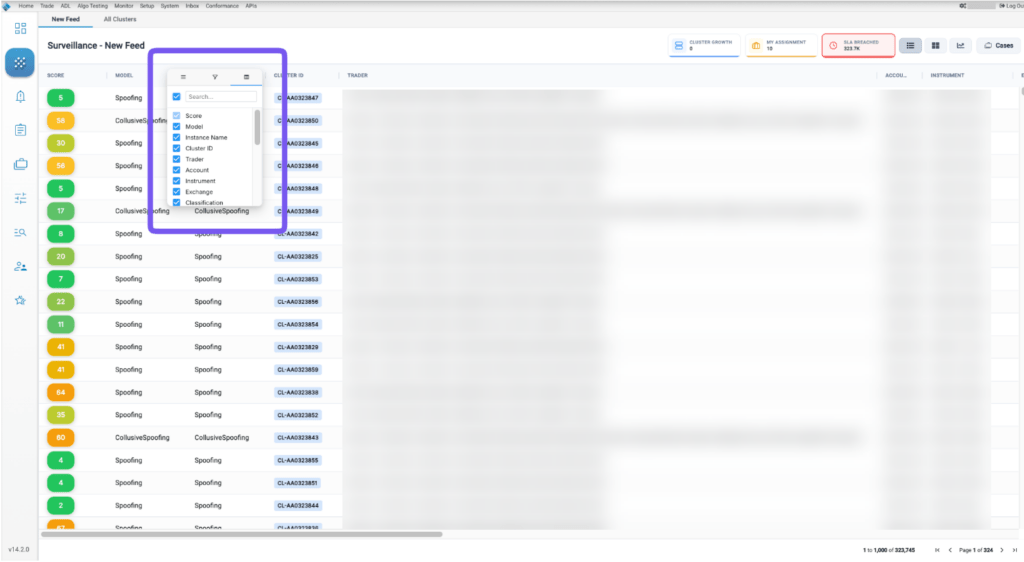
The New Feed tab is the starting point for your surveillance activities, serving as your prioritized “To-Do” list.
The Cluster List view shows individual clusters. Each row of this sortable list is highlighted with a color to indicate the severity of that cluster’s risk score.
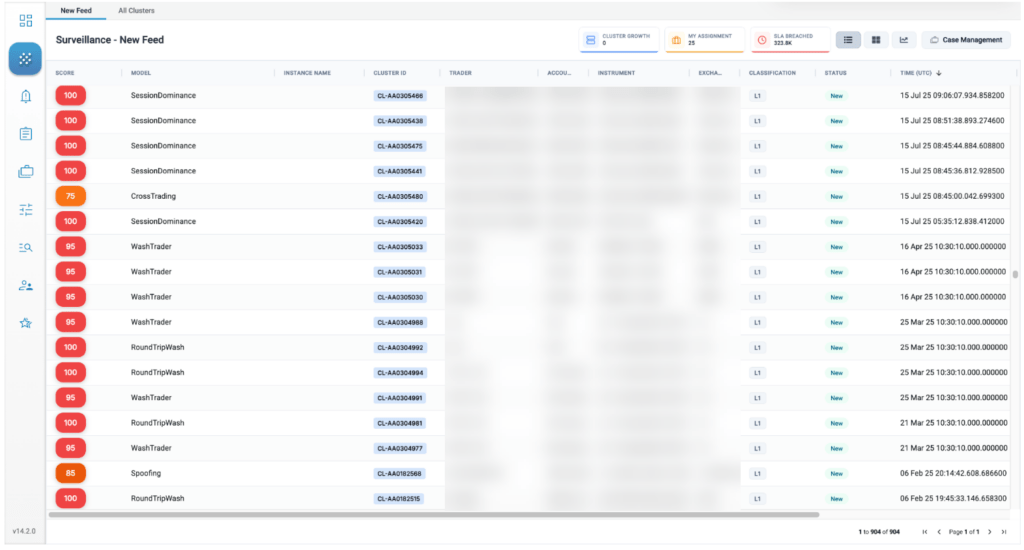
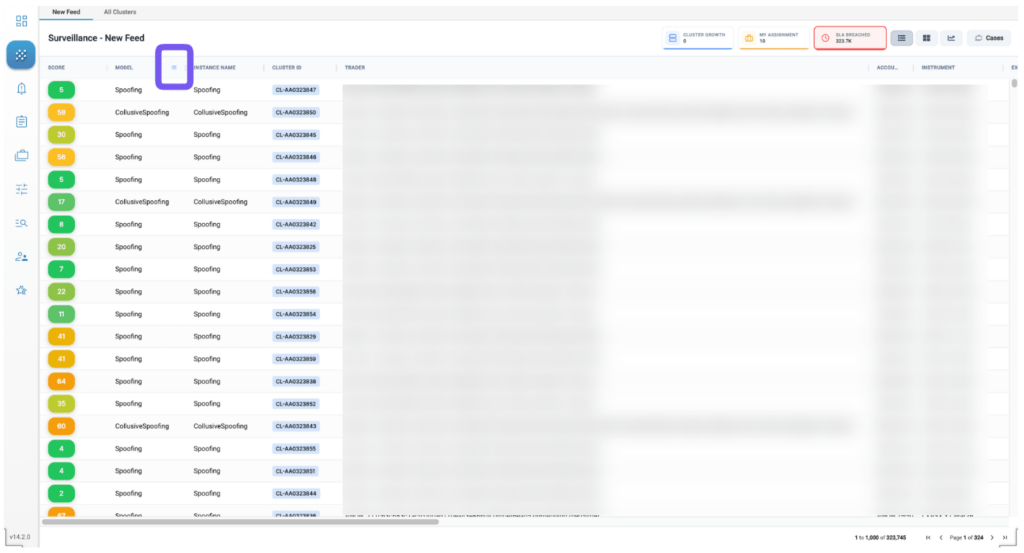
The Cluster List displays the following:
- Score: Risk score calculated for the cluster.
- Model: Type of risk highlighted in the cluster.
- Instance Name: The user defined name of the model instance (applicable to configurable models only)
- Cluster ID: The unique identifier for the cluster
- Trader: Trader ID used for the cluster’s trading activity.
- Account: Account used for the cluster’s trading activity.
- Instrument: ID of the instrument whose activity is contained in the cluster.
- Exchange: Exchange where the instrument was traded.
- Classification: User defined category. The default value is L1.
- Status: Each cluster has a status. This allows users to manage the lifecycle of the cluster. The default value is New and the lifecycle goes from New to InProgress, Escalated, Blocked, Watch List, Invalidated and Closed.
- Time: Cluster start time with microsecond precision.
- Creation Time: time of generation of the cluster
- Assigned To: The user the cluster is assigned to
- End Time: end time of the cluster activity
Other fields:
- Server Start Time
- Server End Time
- Source
- Instance Type
- Commit ID
- Product Type
- Tags
Managing the New Feed Tab
Manage the content displayed in your New Feed tab through the preferences. Here, you can customize your view by setting criteria such as the minimum cluster score, desired cluster status, specific models, and the relevant date range for the clusters you want to see. All these settings can be adjusted in the Preferences tab to meet your specific needs.
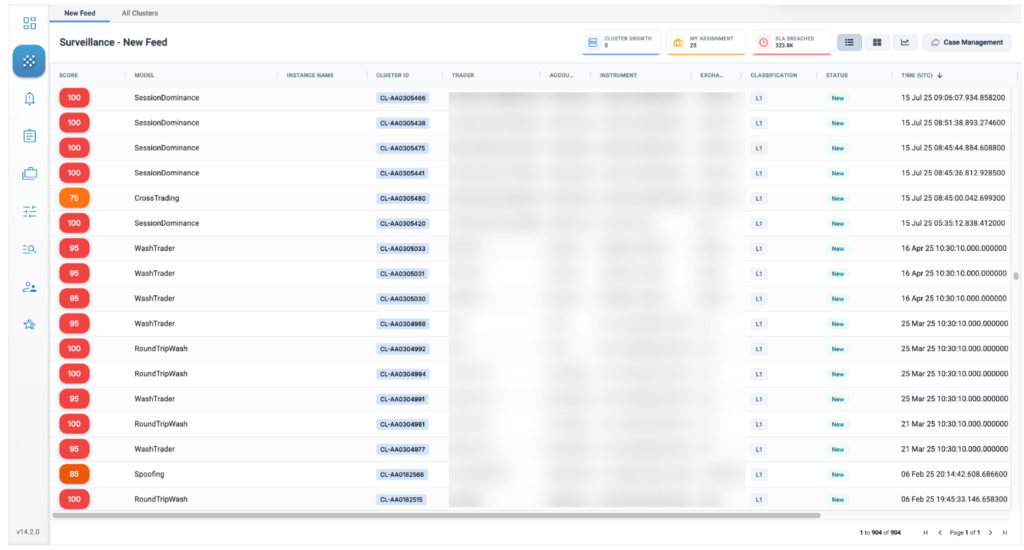
Cluster List navigation and quick filters
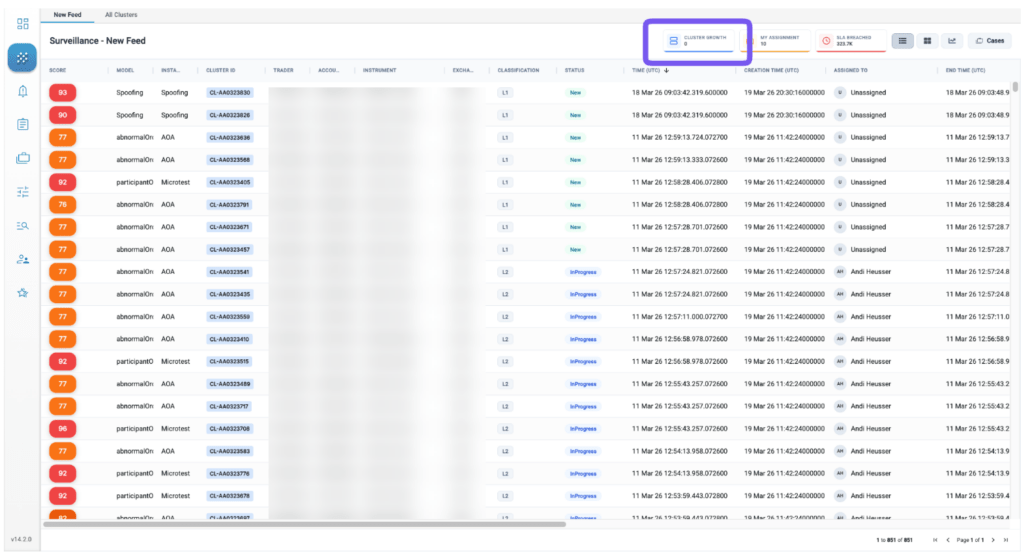
The top right section has some metric cards for quick navigation.
Cluster Growth: Shows the number of clusters that have been generated in the last 24 hours
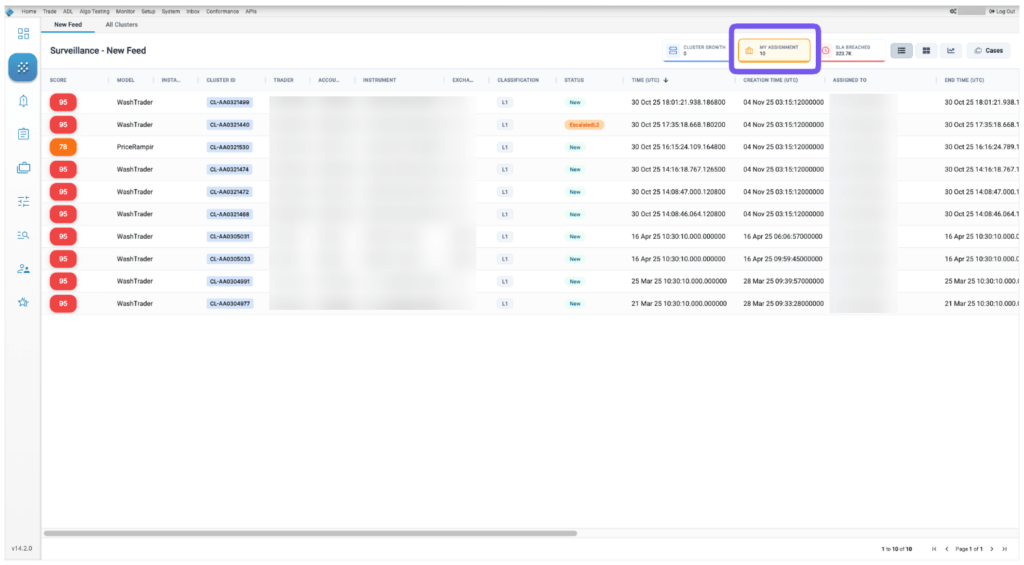
My Assignment: Shows all the clusters assigned to the current user. This is a quick and easy way to view your workload. The clusters here are filtered for the last 30 days only.
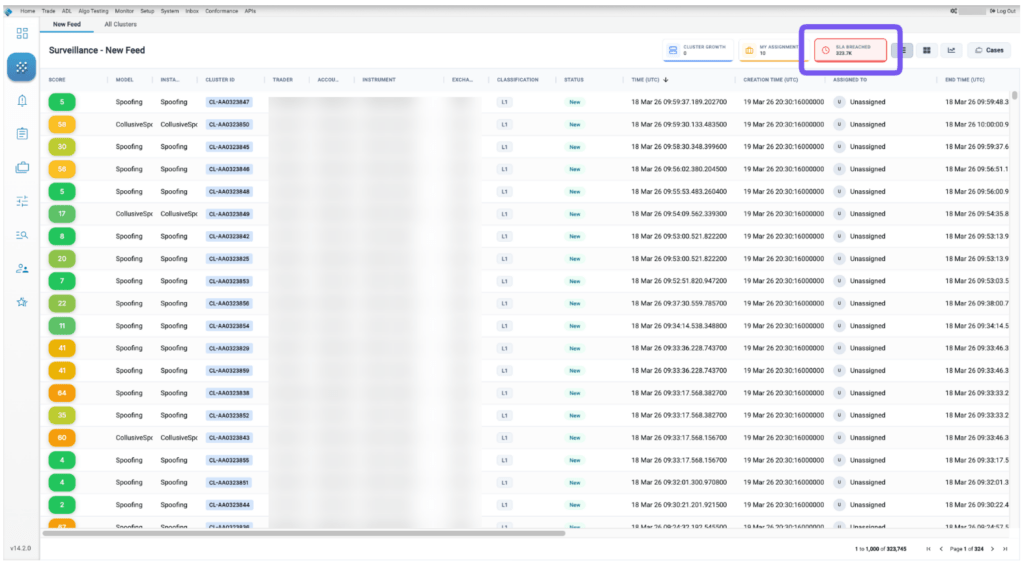
SLA Breached: Shows all the clusters that have been in the “New” state for over 24 hours.
Note: Where not applicable, Admin users can turn off the SLAs for the company under preferences settings
Filtering, Arranging, and Sorting the Cluster List
Users can filter and sort on almost all the columns in the New Feed page. Simply click on the three lines on the right-hand side of any column:
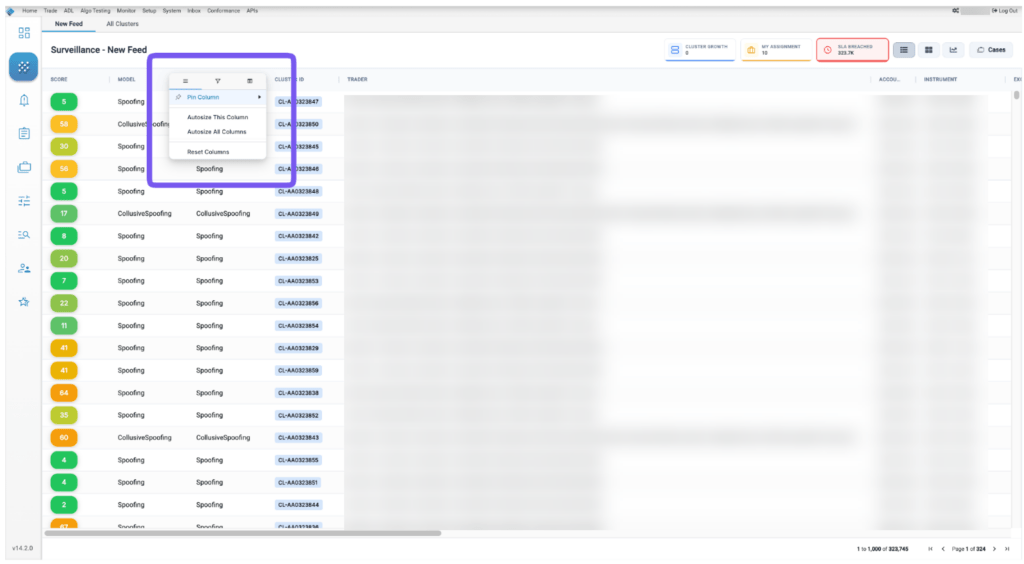
This will bring up the Column Settings menu, where users can:
Arrange the columns: Pin the selected column, Autosize the selected columns or all columns, or reset the column settings.
Add filters: Some filters will allow mult-select, some will have free text entry.
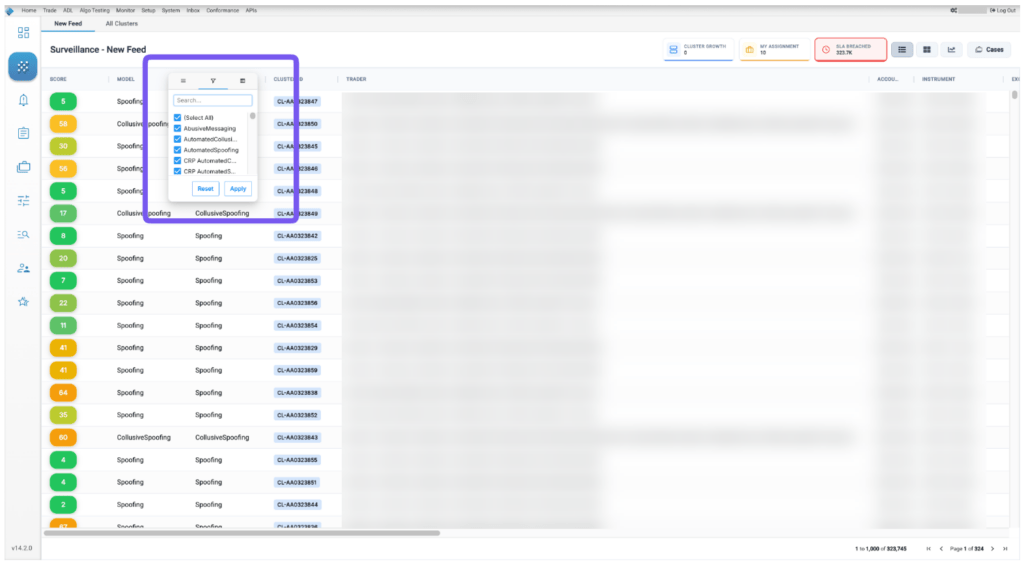
Manage the columns: Add or remove columns from the view