










MD Trader gives you the ability to quickly and safely enter orders for an instrument with a single click. The static price ladder gives you the confidence to enter an order at a specific price level, and the intuitive design of the widget allows you to manage your working orders and positions.

Order Configuration
Using the order pane to configure an order in MD Trader, you can select an account, order type, order restriction, and order quantity. You can also add Custom Action Buttons for natively supported and TT order types.
Account selection
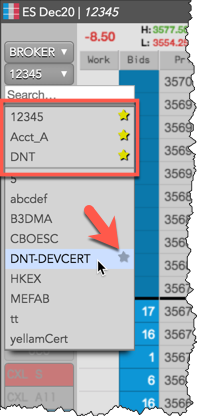
The account selector shows all accounts that have been assigned to you by your company administrator and have active connections to the exchange. Click the drop-down to select an account, which is required for submitting orders on TT.
You can show your most commonly used accounts in the account selector by marking them as “favorites”. To designate an account as a favorite, hover on the account in the list and click the “star” icon. This moves the account to the top of the list and makes it easier to select frequently used accounts.
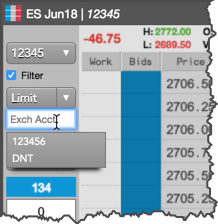
Optionally, you can enter your own exchange clearing account value when submitting an order.
Note: Before entering your own value, ensure that your administrator has allowed you to override the exchange clearing account value in Setup.
To enter your own clearing account value at order entry, check the Show Exchange Clearing Account edit box setting in Preferences | Orders. When this setting is enabled, order entry widgets display an edit box where you can enter the exchange clearing account. When you click the Clearing Acct edit box to enter a value, it stores and displays a list of the most recent clearing account values you entered.
After submitting the order, the ClearingAcct column in the Order Book, Fills, or Audit Trail widget shows the value sent to the exchange as the clearing account. The Account column in these widgets shows the account you selected at order entry, but this account is not sent to the exchange if you enter your own exchange clearing account.
Order type selection
The order type selector shows all native order types supported by TT, custom TT order types, third-party algos, or any ADL algos that you have deployed. Native order types vary by exchange.
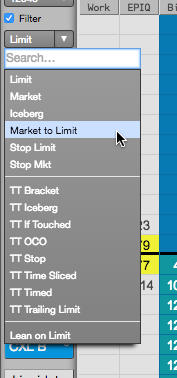
Note: The list includes only ADL algos and Order Ticket Algos (OTAs) you have permission to run.
Custom action buttons
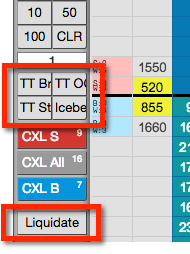
The Custom Action Buttons allow you to quickly submit an order type without having to select one from the drop-down list of order types for each order. You can add these buttons by right-clicking and selecting Edit custom action buttons…. For more information, refer to the Adding Custom Action Buttons section.
The Liquidate button is also an optional setting and provides you with the ability to quickly flatten your position. To show this button, right-click the Order Entry Panel and select Show/hide | Liquidate Button.
Note: This setting does not apply when MD Trader displays synthetic instruments, such as Autospreader or Aggregator instruments.
Cancel working orders buttons
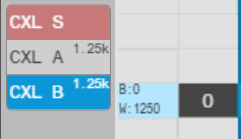
The cancel working order buttons allow users to cancel all Buys (B), all Sells (S) or All orders.
- For large order quantities greater than 1,000, the buttons display quantity values with a “k” and two-digit decimal precision. Mouse over to display a tooltip with the exact quantity.
- The buttons can be removed using the Show/Hide option in the MD Trader context menu.
TIF selection
The time-in-force (TIF) selector shows all exchange-supported order restrictions supported by TT. Order restrictions vary by exchange. The default TIF is Day.

Order quantity and second default order quantity
You can type an order quantity or enter one using the order quantity buttons. MD Trader displays the default order quantity field immediately below the quantity buttons. The value in this field populates the order quantity field after each trade.
Note You can edit the quantity buttons by right-clicking and selecting Edit quantity buttons….
The second default order quantity field provides the ability to right-click in the Bids and Asks column at a price level to submit an order with a different default order quantity. This feature is enabled in the MD Trader settings.
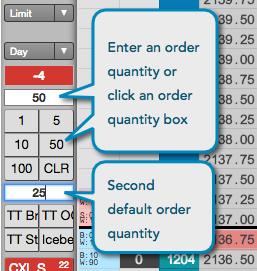
Tip: When second default order quantity field is blank, the value in the order quantity field is highlighted and becomes persistent.
FX Spot Quantity Button
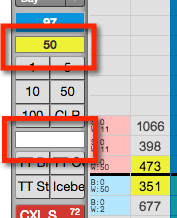
When trading FX Spot instruments, the order quantity controls include a FX Spot Quantity button that allows you to quickly set the numeric quantity to equal the value in thousands (K), millions (M), or the numeric value (blank). Simply click the FX Spot Quantity button to cycle through the options.
Note The FX Spot Quantity button appears with the order quantity and the second default order quantity and is only available with FX Spot instruments.

Free-form text fields
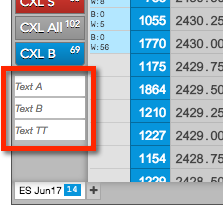
The free-form text fields in MD Trader allow you to send additional order routing and clearing information with an order.
Open and Close button
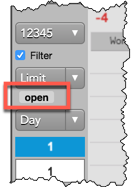
For exchanges that support setting an “open” or “close” flag on submitted orders, the Open/Close button appears in MD Trader and the Order Ticket for the selected instrument. The flag indicates whether the order opens or closes a position. Click the button to select “open” or “close” from the drop down menu before submitting the order. Some exchanges may provide additional options.
Working or filled orders with the flag set show either “O” (open) or “C” (close) in the O/C column in the Order Book.
Minimum Volume orders
Minimum Volume orders require a minimum quantity to be executed immediately at the entered price. TT supports Minimum Volume orders on the following exchanges: B3, MX.
If the minimum quantity cannot be filled immediately at that price or better, then the order for the total quantity is rejected at the exchange. If the minimum quantity can be filled but the total quantity of the order is larger than what is immediately available, the balance of the order quantity will continue working in the market at that price.
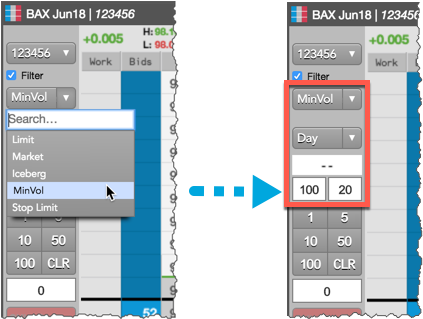
To enter a Minimum Volume order in MD Trader, select “MinVol” as the natively supported order type. When selected, an additional quantity field is shown to the right of the order quantity field. Enter the minimum quantity amount (e.g., 20) in this additional field.
Order Placement Columns
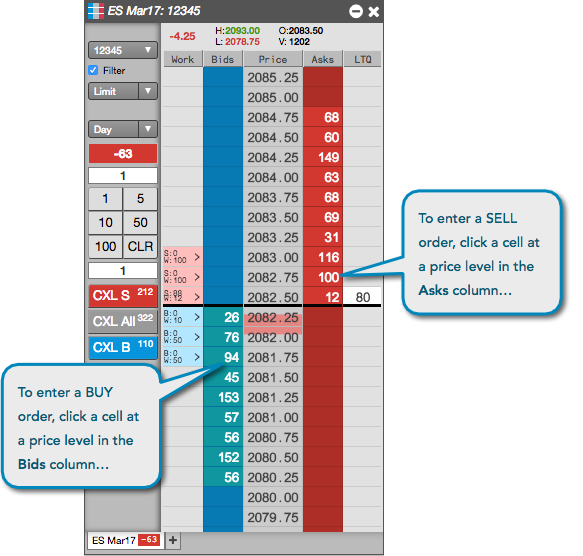
Orders are entered by clicking a cell in the Bids or Asks column at the desired price level.
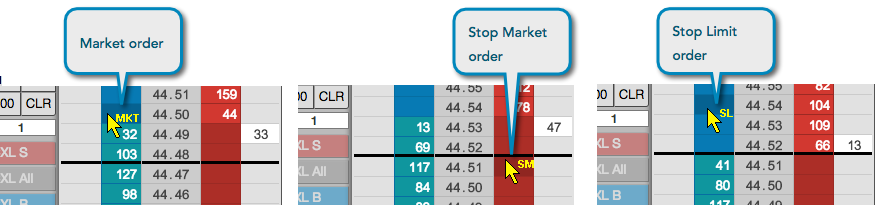
The cursor may be highlighted depending on which order type is selected.
Order Confirmation
You have the option to confirm an order based on its quantity before submitting the order into the market. To use the order confirmation functionality, enable the “Submission of orders with qty greater than…” setting on the Orders tab in workspace Preferences.
When enabled, orders that exceed the configured quantity will trigger a pop-up window that prompts you to confirm the Buy or Sell order. The order confirmation window displays the side, contract, price, TIF, and account for you to review before submitting. Click Confirm Buy or Confirm Sell to submit, or click Cancel to delete the order before it’s submitted.

For TT order types, you can click See all parameters to review the order type configuration before submitting. The following example shows an order confirmation for a TT Iceberg order.

For Autospreader orders, the confirmation displays the order quantity for each leg based on the total order quantity and configured leg ratios (e.g., 1.0, -1.0).

Working Orders
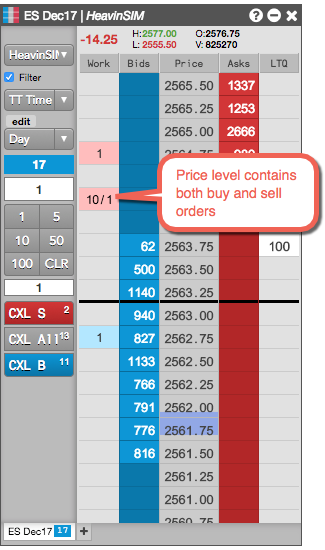
When you place an order at a price level, the corresponding cell in the working orders Work column contains abbreviations and colors to assist you in tracking and managing your working orders. The text and colors vary based on order type and order status. Refer to the following table for a description of the abbreviations and colors that appear in the working orders column.
|
Working Orders column |
Description |
|---|---|
|
|
Appears for working buy or sell orders. The cell is highlighted blue for buy orders, red for sell orders or yellow when the price level contains both buy and sell orders. Abbreviations include:
|
|
|
Appears in the outright legs of a spread order. The color bar matches the color configured for the spread in Autospreader®. The cell is highlighted blue for buy orders or red for sell orders. Abbreviations include:
|
|
|
Appears when submitting TT order types (e.g., TT Time Sliced) or native order types (Iceberg) with disclosed and undisclosed quantities. The cell is highlighted blue for buy orders, red for sell orders or yellow when the price level contains both buy and sell orders. Abbreviations include:
|


You can also display only the working order quantities at each price level by enabling Display only the working qty for orders in the MD Trader settings.
Position in Queue in MD Trader
MD Trader can show your actual or estimated position in queue in the optional PIQ column. When multiple orders are submitted at a price level, PIQ is displayed for an order in MD Trader on a FIFO basis.

Enabling PIQ
PIQ can be enabled either in Preferences or by showing the PIQ column in the MD Trader settings. When this setting is enabled, the PIQ column displays the PIQ values for visible orders.
PIQ display
Your PIQ is only displayed and tracked when an order price is within the visible displayed market depth. When viewing PIQ, the PIQ number displayed in the column is black by default. If your order is the first in the queue, the background color turns black and the PIQ number “0” is white. If your order is at the inside market, the background color turns yellow.

Number of Orders (Headcount)
MD Trader provides optional columns that show the number of orders (i.e., headcount) that comprises the total bid and ask quantity at a price in the market. By viewing the number of orders, you can gain insight to the makeup of the bid or ask quantity displayed at a price level.
Some exchanges provide the number of orders in their market data feeds. If an exchange does not provide this data, TT calculates the number of orders based on the detailed depth provided by the exchange. If an exchange provides neither the number of orders or detailed depth, the optional columns for displaying the number of orders will be blank.
Number of orders display
The number of orders values at a price level for bids and asks are displayed in the optional BCnt and ACnt columns. These columns are shown using the Show number of orders option on the MD Trader widget settings.

Positions in MD Trader
The net position field in MD Trader displays your net open position for each instrument opened in the widget. A long position is highlighted with a blue background, and a short position is highlighted with a red background.
You can also display a net position panel to view your positions by account. To show the panel, check the Aggregate positions across accounts option in the MD Trader widget settings. After enabling this setting, middle-click the net position field in the MD Trader order panel to display your positions by account. To view net positions for all your accounts, uncheck the Filter checkbox in the order panel.
Note: When MD Trader and a Positions widget are grouped, a click on a position row that has an instrument seeds MD Trader with the instrument and account, and sets the filter checkbox.

If you want to display all accounts, even if they have no positions, click arrow in the Account
header ( ).
).
Tip: Click a value in the floating net position panel to quickly seed an order quantity and account to flatten your position.

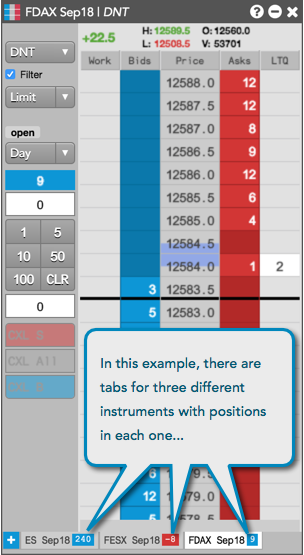
Additionally, each tab in the MD Trader displays your net position for the instrument on that tab. The position value is shown only if you enable filtering or if only one account is available for the instrument.
Average price of open position
The price ladder in MD Trader shows the average price of all your fills at different price levels. You can use this price point to gauge whether trading out of your position will provide you with a realized gain, loss, or scratch. If you are short, the average price of all your sells is shaded red in the price ladder. If you are long, the average price of all your buys is shaded blue in the price ladder.
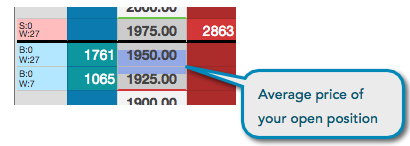
Note: The average price indicator is shown only if you enable filtering or if only one account is available for the instrument.
Display of timed orders in MD Trader
MD Trader displays the Buy and Sell quantities of timed orders set to start in the future. Timed orders that have a defined price are displayed in the Work column with the order quantity in the “U” field (undisclosed).
Quantities of timed orders that do not have a current price, such as timed Market orders or relative priced orders (e.g., orders based on the Bid price later in the session), are displayed as call outs on the Work column header in blue (Buy) and red (Sell) backgrounds, respectively.

You can also launch the floating order book from the call outs based on your workspace preferences. For example, you can hover on the blue call out in the Work column to open the floating order book to manage a timed order set to start in the future.

Viewing only your orders in MD Trader
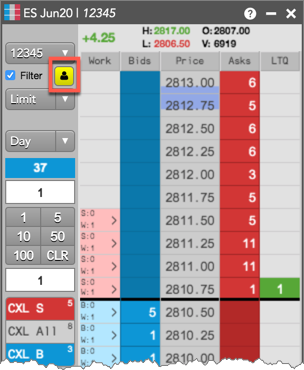
MD Trader has an optional Filter User Button that is a left-click toggle button for filtering/unfiltering your working orders in the Work column. Net position is not affected. The button is displayed from the right-click context menu in the Order Entry panel.
When the button is activated, it’s highlighted yellow and only your orders are displayed in MD Trader. When deactivated, orders for all users sharing the account are displayed.
Filtering orders by profile in MD Trader
Working orders can be filtered on the price ladder based on the order profile you select in MD Trader. To show the order profile selector, click Edit from the workspace menu bar and enable the Preferences | Orders | Show order profile dropdown option. Position values will remain filtered by account regardless of the profile selection.
To enable filtering by profile, right-click the widget and select “Profile” in the Filter Orders By setting.
Note: This setting only applies to profiles defined in Setup and is not applicable to local profiles created using the Order Profiles widget or uploaded via a .csv file.
