Order block

The Order block is a trading block that submits a buy or sell order to an exchange. The Block Properties panel for the block lets you specify all of the order details. Depending on the order type selected, you specify a varying set of inputs.
Example: An Order block with its properties set to ‘Buy’ receives instrument, price, quantity data to place an order and Boolean data to activate or deactivate the order. Once the order is in the market the order block outputs the working order quantity. When the order fills the order block outputs a discrete message containing data about the fill.
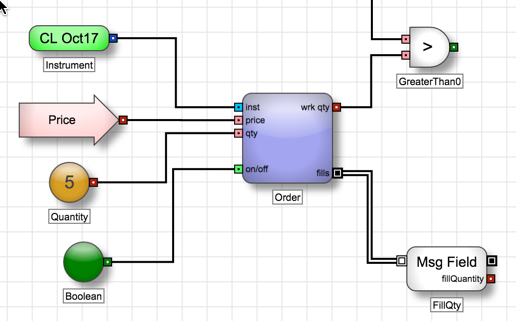
The block keeps track of the number of fills received for its order and reduces the value of the wrk qty output port by subtracting the fill quantities from the total order quantity specified in the qty input port.
Note: For orders with a disclosed quantity, the wrk qty output port will be equal to or less than the specified on the disc qty input port.
If the user manually deletes or modifies an order generated by the Order block, it will relinquish control to the user, but a discrete event message will still be generated for order executions. Specifically, the Order block will ignore left-side inputs, but still generate values for the right-side outputs. If the user pauses and resumes the algorithm, the Order block will attempt to re-locate its managed order and re-take control. If it cannot locate the order, the Order block will compare the number of fills it has achieved so far against the user-specified input quantity and submit a new order for the remaining balance.
Order block inputs
The number and types of inputs required for an order block are determined by the selected order type.
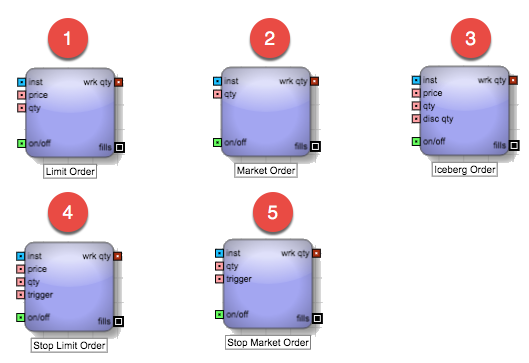
Order types
- Limit order
- Market order
- Iceberg order
- Stop Limit order
- Stop Market order
Based on the selected order type, the Order block exposes the following block inputs:
-
inst: Identifies the instrument being traded with the order block
-
price: Indicates the price at which to submit the order
-
qty: Represents the total order quantity
-
on/off: Controls whether to execute an order based a Boolean condition
When this True/False input is provided, the Order block will delete the working order when the input value changes from TRUE to FALSE. The Order block will add a new order when the value changes from FALSE to TRUE.
-
disc qty: Indicates the disclosed quantity to use for Iceberg orders
When this input is provided, the Order block will submit a limit or market order with an exchange-recognized disclosed quantity tag. Upon approval, the exchange will acknowledge the total order quantity as the input quantity, but disclose only the specified amount at a time. If disclosed quantity is greater than input quantity, exchange will acknowledge the input quantity as the total order quantity.
-
trigger: Specifies the trigger price for a Stop order
- When the Order block is set to submit BUY orders, the Stop Trigger price must be greater than the last traded price of the instrument;; for SELL orders, the Stop Trigger must be less than the last traded price.
- When the Order block is set to submit BUY orders, the price input must be greater than or equal to the Stop Trigger; for SELL orders, the price input must be less than or equal to the Stop Trigger.
Order block outputs
-
wrk qty: Shows the quantity of the order still actively working in the market
Note: For StopMarket and StopLimit orders, the port outputs 0 until the stop order is triggered, at which time the port outputs the order quantity.
-
Add Req: Provides access to the new order request sent to the exchange
-
Add OK: Provides access to the new order acknowledgment received from the exchange
-
Chg Req: Provides access to the order change request sent to the exchange
-
Chg OK: Provides access to the acknowledgment received from the exchange or a modified order
Note: For StopMarket and StopLimit orders, the discrete message sent through this port will set the isTriggered message field to TRUE when the stop order is triggered.
-
Del Req: Provides access to the order delete request sent to the exchange
-
Del OK: Provides access tothe delete order acknowledgment received from the exchange
-
fills: Provides access to the fill acknowledgments
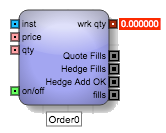
For order blocks that work with Autospreader spreads, the outputs change to the following:
-
wrk qty: Shows the quantity of the spread order still actively working
Note: For StopMarket and StopLimit orders, the port outputs 0 until the stop order is triggered, at which time the port outputs the order quantity.
-
Add Req: Provides access the new spread request sent to the exchange
-
Add OK: Provides access to the new spread acknowledgment discrete event message
-
Chg Req: Provides access the spread change request sent to the exchange
-
Chg OK: Provides access to the spread update acknowledgment discrete event message
Note: For StopMarket and StopLimit orders, the discrete message sent through this port will set the isTriggered message field to TRUE when the stop order is triggered.
-
Del Req: Provides access to the spread delete request sent to the exchange
-
Del OK: Provides access to the spread delete acknowledgment discrete event message
-
Hedge Add OK: Provides access to the discrete event message generated when the Algo Server successfully submits a hedge order for the spread
-
Quote Fills: Provides access to the fill message for a quoting leg of the spread
-
Hedge Fills: Provides access to the fill message for a hedge leg of the spread
-
fills: Provides access to the spread fill message
Block properties
To customize the block, update the Block Properties.
| Property | Description |
|---|---|
| Name | Name to display beneath the block on the ADL canvas |
| Type |
Type of exchange-native order to submit Choice include:
Note: If you select a type not supported natively by the exchange, the order will be rejected. |
| Side | Whether the order represents a Buy or Sell order |
| TIF |
How long to leave a generated order working in the market Choices include:
|
| Flip for Sell Order |
Whether to enable a single algorithm to act either as buy or sell side routine as needed Many automated strategies in ADL will have nearly identical buy and sell side routines, with certain blocks acting as “pivot” points. To enable a single algorithm to act either as buy or sell side routine as needed, several blocks in ADL will have the option “Flip For Sell Orders.” This option enables them to perform an alternate function depending on the user’s selection of the Order Side Variable (either BUY or SELL). The Order Side Variable will appear automatically for any algorithm containing a block with the “Flip For Sell Orders” functionality enabled, and the user must set this variable prior to launching an algorithm. When this functionality is enabled, the Discrete Order block will submit either buy or sell orders depending on the user’s selection of the Order Side variable (see: Flip For Sell Orders Functionality for more information). |
| Autospreader |
Whether the block will manage an Autospreader order If enabled, the Order block exposes additional outputs to provide access to activity for the spread legs. |
| When Ext Mod Occurs |
Action to take if the order is modified outside of the algorithm
|
| Leave Child Order On |
Whether orders generated by the Discrete Order block should remain in the order book even if the algorithm is paused or canceled. A paused state can result from a client side connection drop. |
| Ignore Inputs After Add |
Whether to ignore any changes in its inputs When this option is checked, the Order block will consider its inputs only at the time of an order submission. Once an order is submitted and working, the Order block will ignore any changes in its inputs. In effect, checking this option instructs the Order block to submit a “one-shot” order. On the other hand, when this option is unchecked, the Order block will continue to modify the working order to reflect changes in any of the inputs (note that the inputs can be dynamic):
|
| Submit in Suspended State |
Whether to submit the order to the market or on hold. When enabled, the order will be entered as a held order. Held orders remain in this state until they are submitted or canceled. For more details, refer to the Placing Orders on Hold section in the Trade help. |
| AutoResubmit |
Whether to re-submit a new order whenever its current working order is deleted When enabled, the new order will be submitted with an order quantity of OrderQty-FillQty. In effect, checking this option instructs the Order block to submit new orders when necessary in order to ultimately achieve the user specified. When this option is unchecked, however, the Order block is allowed to submit a single order during the life of the algorithm. Keep in mind that a manual-delete performed by the user will cause the Order block to relinquish control over to the user regardless of whether this option is checked or not. Note: If the block’s on/off input port is FALSE at the time, the Order block will wait until the reverts to TRUE and then submit a new order. |
| Connectors |
Additional output ports to expose for selected events:
|
| Order Tag |
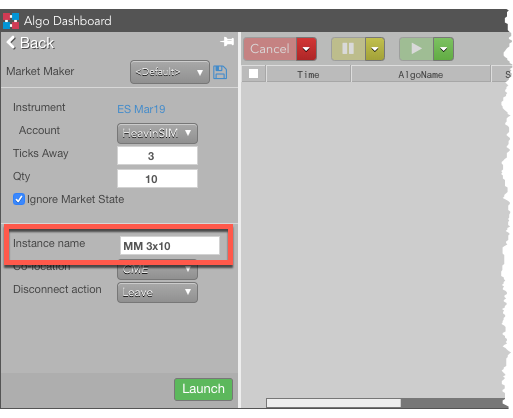
Custom text to display in the Order Tag column of the Fills widget for orders generated from this Discrete Order block. If the algo is launched with an Instance name in Algo Dashboard, the TextTT field for all child will be concatenated with with parent order’s TextTT field. For example, suppose you set this field value to OT123 and the algo is launched from the Algo Dashboard as follows:
The TextTT field of the algo parent order is set to MM 3×10. The TextTT field of each child order submitted by this algo is set to MM 3×10:OT123. By assigning text to each order, you can quickly sort and filter child orders of this algo in the Fills widget based on the TextTT column. |
| OpenClose / Strategy flags |
When set to True, this allows users to enable and define the Open/Close, TradingStrategy, and ReverseSpreadOC flags:
|
| Order Color |
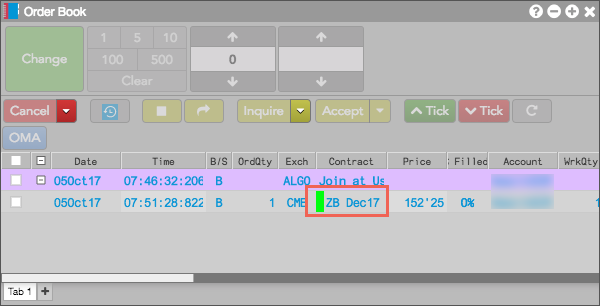
Color to display next to orders generated by this block in the TT MD Trader and Order Book widgets, similar to the following.
|
| Description | Optional text to explain how the block is used |