










The Cluster List view shows individual clusters created from the selected dates. Each row of this sortable list is highlighted with a color to indicate the severity of that cluster’s risk score.
Cluster List display
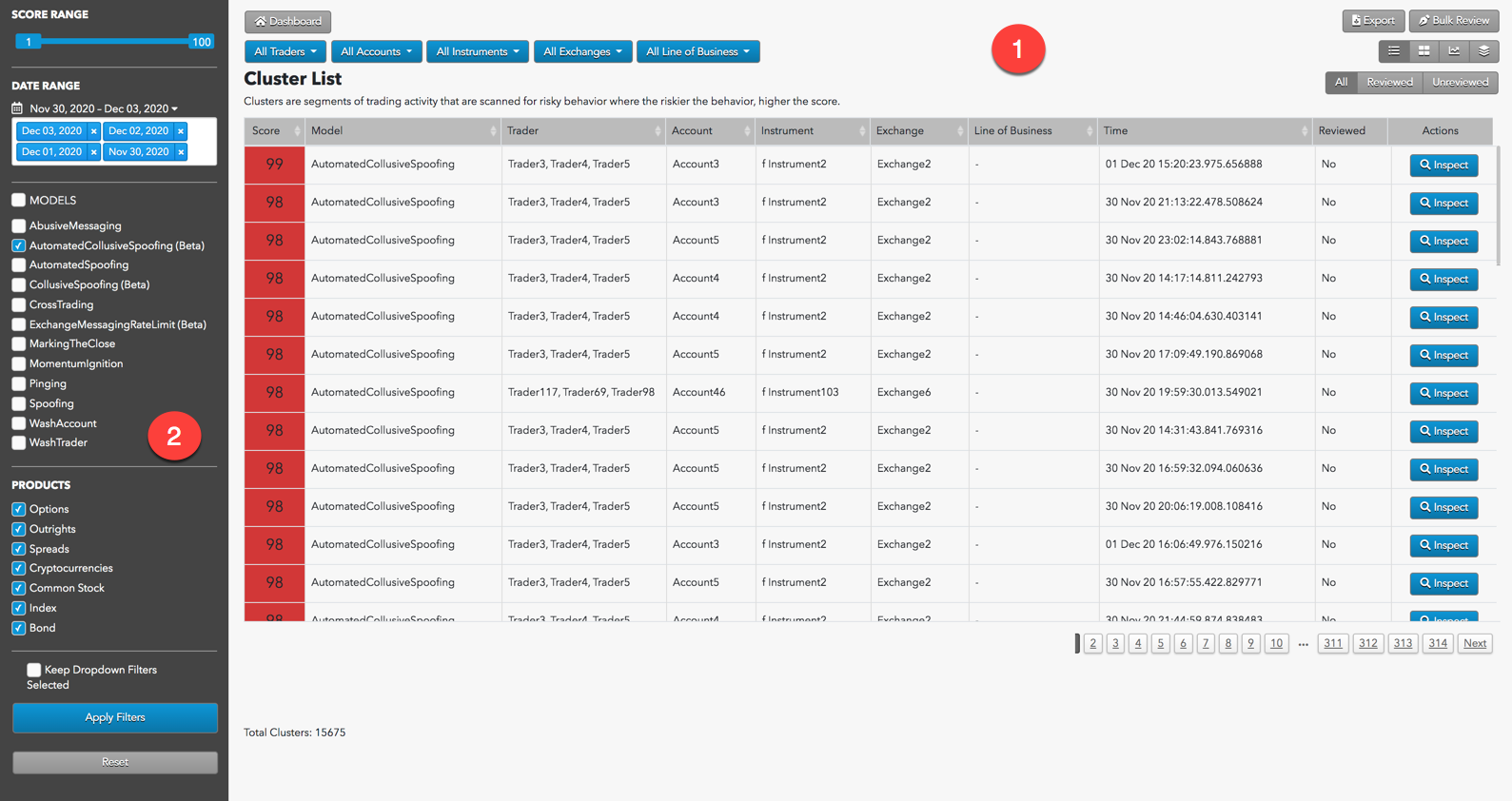
The Cluster List display is organized into the following sections:
- Cluster List: Displays the Cluster List view of the selected dates’ data as well as filtering and navigation tools.
- Data Selection Panel: Manages the dates available to TT Trade Surveillance and specifies the criteria to use when populating the list.
Interpreting the Cluster List
The Cluster List is used to conduct a cluster list review. Once a problematic cluster group is identified, you can inspect the individual clusters contained in that group using the Cluster Scorecard. This Score column is color coded using a graduated scale tied to the risk score, transitioning from red through yellow to green and pale green as scores decrease.
While conducting a cluster list review, it can be helpful to:
- Filter out lower scoring clusters using the Score filter to make larger datasets more navigable.
- Sort the list by Start Time to see if higher scoring clusters bunch up at particular times of day.
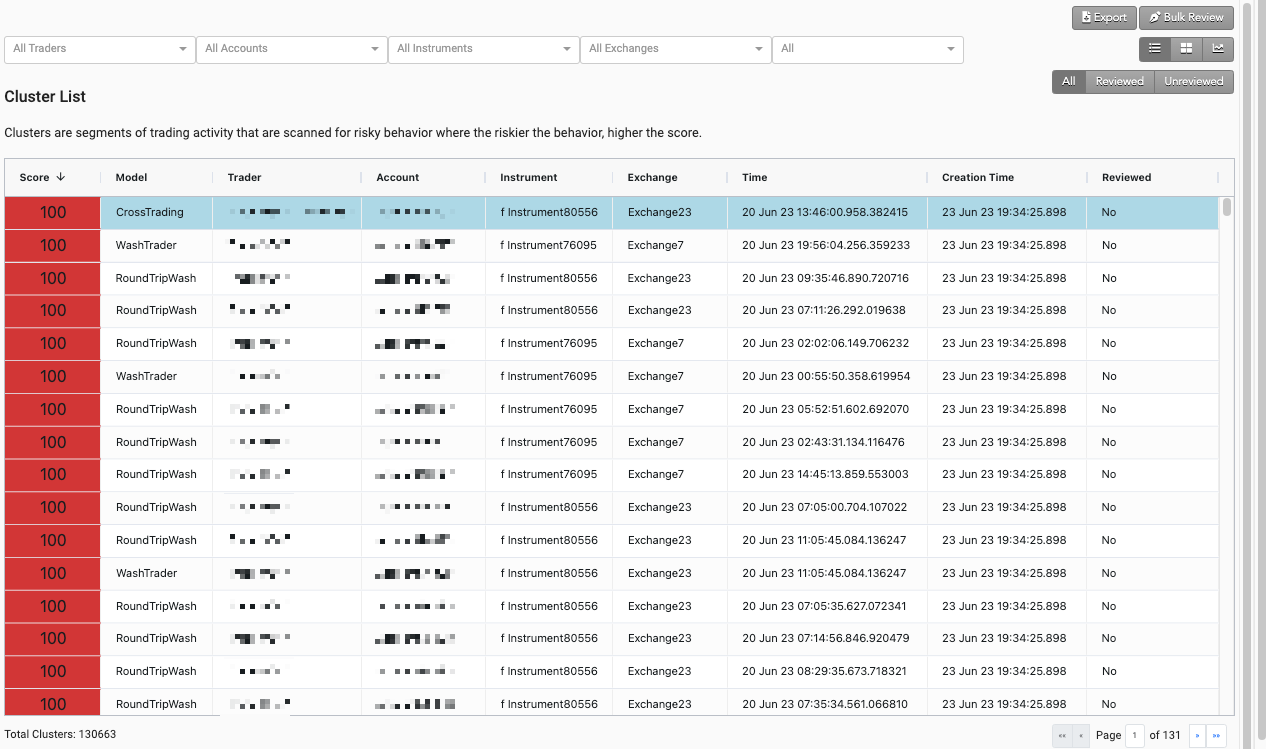
The Cluster List displays the following:
- Score: Risk score calculated for the cluster.
- Model: Type of risk highlighted in the cluster.
- Trader: Trader ID used for the cluster’s trading activity.
- Account: Account used for the cluster’s trading activity.
- Instrument: ID of the instrument whose activity is contained in the cluster.
- Exchange: Exchange where the instrument was traded.
- Cluster Start Time: Cluster start time with microsecond precision.
- Reviewed: Shows whether the cluster has been reviewed by compliance officers (Yes or No).
- Actions: Allows you to inspect and review the cluster details.
Cluster List navigation and filters

- Cluster Filters: Filter the view by trader, account, instrument, exchange, and line of business.
- Select View: Switch between Individual Clusters, Heatmap, Outlier Chart, and Daily Cluster Groups views.
- Review Filters: View all clusters or filter by reviewed or unreviewed.
- Export (Cluster List view only): Exports filtered data into a .csv spreadsheet file.
- Bulk Review (Cluster List view only): Marks all clusters as “reviewed” for the selected model and data.
Data Selection Panel
On the left of the screen, the Data Selection Panel shows the daily activity logs that have been selected using the date picker and are available for data visualization. It also includes filters to apply to the data view.
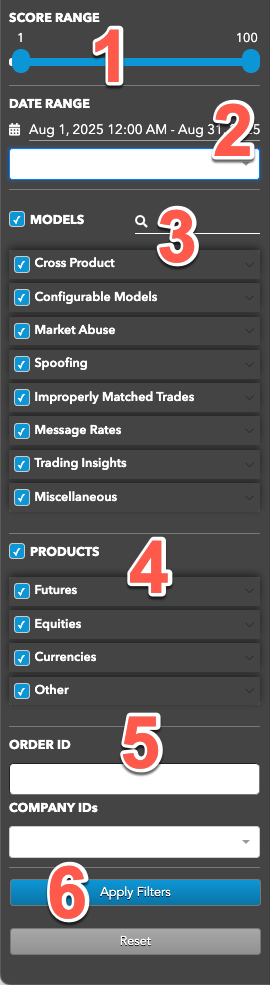
The panel includes the following:
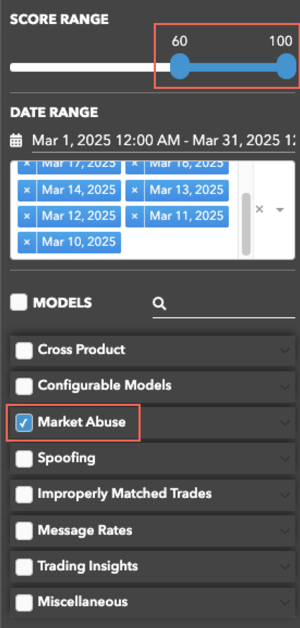
- Score Range: Sets the maximum score of the clusters to include in each view.
- Date Range: Date-based selector to add daily activity data to analyze.
- MODELS: Sets which types of suspect trading patterns to analyze in the data. Check this
checkbox to apply all problematic trading models.
TT Trade Surveillance uses the following models to analyze data for problematic trading patterns:
- Abusive Messaging: Quote stuffing schemes designed to introduce predictable latency into an exchange’s quoting engine or malfunctioning algorithms that might cause market disruptions.
- Automated Collusive Spoofing: Patterns of manipulative or disruptive trading activity by multiple traders working together to automatically submit a number of orders for which they have no intention of executing in an attempt to move the market.
- Automated Spoofing: Patterns of manipulative or disruptive trading activity that involve the automated placement of a number of orders for which a trader has no intention of executing in an attempt to move the market.
- Collusive Spoofing: Patterns of manipulative or disruptive trading activity by multiple traders working together to place a number of orders for which they have no intention of executing in an attempt to move the market.
- Configurable Models: In addition to core models, TT Trade Surveillance offers configurable models that allow you to create models to generate alerts when activity matches the specified parameters.
- Cross Products: Patterns of suspicious trader behavior across instruments, products and markets. The clusters identify activity between multiple traders across different configured products.
- Cross Trading: A cross trade occurs when a buy order and a sell order for the same instrument are entered for different accounts under the same management, such as a broker or portfolio manager.
- Exchange Messaging Rate Limits: Instances where traders exceeded the exchange message rate limit for a set period of time during a trading session.
- Influencing the Open: Instances where indirect wash trades occurred at the open of trading in violation of exchange rules.
- Marking the Close: Trading activity intended to manipulate the settlement price of an instrument during its settlement period.
- Momentum Ignition: Behaviors that indicate an attempt to create an artificial price movement with aggressive orders followed by an attempt to capitalize on such movement.
- Pinging: The entry of multiple small orders intended to discover hidden book depth followed by a series of order actions designed to force the large order to trade at less desirable prices.
- Price Ramping: Behavior that may be an attempt to create artificial price movement with aggressive orders.
- Spoofing: Patterns of manipulative or disruptive trading activity that involve the placement of a number of orders for which a trader has no intention of executing in an attempt to move the market.
- Wash Account: The same account ID is both the buyer and seller in the same transaction.
- Wash Trader: The same trader ID is both the buyer and seller in the same transaction.
- Dominance at Open: A single trader’s orders make up the majority of the disclosed market volume of an instrument during the first 15 minutes of the current trading session.
- Order Book Dominance: A single trader’s working orders make up the majority of the disclosed market volume of an instrument at any time during a trading session.
- Products: Sets one or more of the following product types to include in each view:
- Bond
- Common Stock
- Cryptocurrencies
- Index
- Options
- Outrights
- Spreads
- Unknown
- ORDER ID — Allows you to search for clusters using an order ID.
- Apply Filters: Applies the selected dates and filters.
Visible models in the Data Selection Panel
The TT Trade Surveillance Dashboard settings in the Preferences | Models Defaults – Visibility & Range section determine which models are visible in the panel and what range of cluster scores are included in the cluster data views.
When you click the Surveillance tab to show the Data Selection Panel, the MODELS section is filtered based on your visibility preferences. By default, all checkboxes are checked for the visible models and the SCORE RANGE is 1-100.
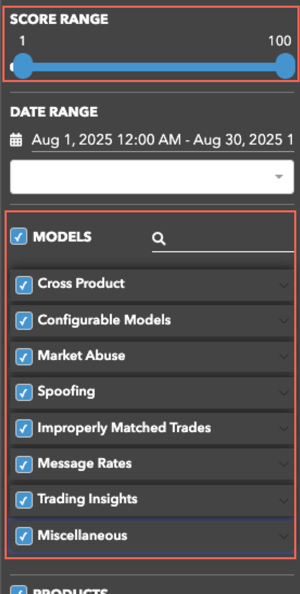
As you check each visible model, the SCORE RANGE displays the range preference set for the selected model
(e.g., 60-100).
Watchlists

You can create custom Watch Lists for monitoring potentially significant clusters that might not necessitate immediate action. These Watch Lists can also be used to track longer-term patterns in cluster generation.
In the Watch Lists tab, you can create, edit, and delete multiple watch lists at any time using the buttons located in the upper-right corner. After creating Watch Lists, you can add clusters to them in the Cluster View or the Cluster Scorecard View.
Adding Clusters to Watch Lists from the Cluster View
Note You must create at least one Watch List before any clusters can be added.
To add clusters to Watch Lists from the Cluster View:
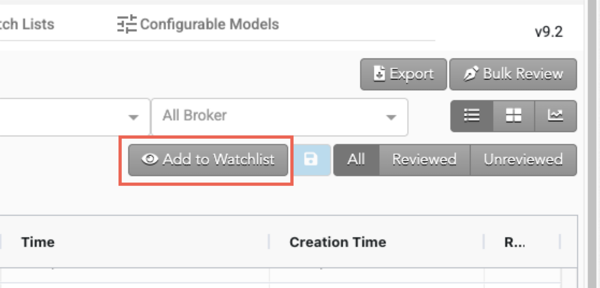
- In the Cluster View, click the Add to Watchlist button.
- Select the clusters to be added to the Watch List.
- Click the save button in the upper-right corner.
- In the drop-down, select which list to add the selected cluster(s) to:
- Click Add.
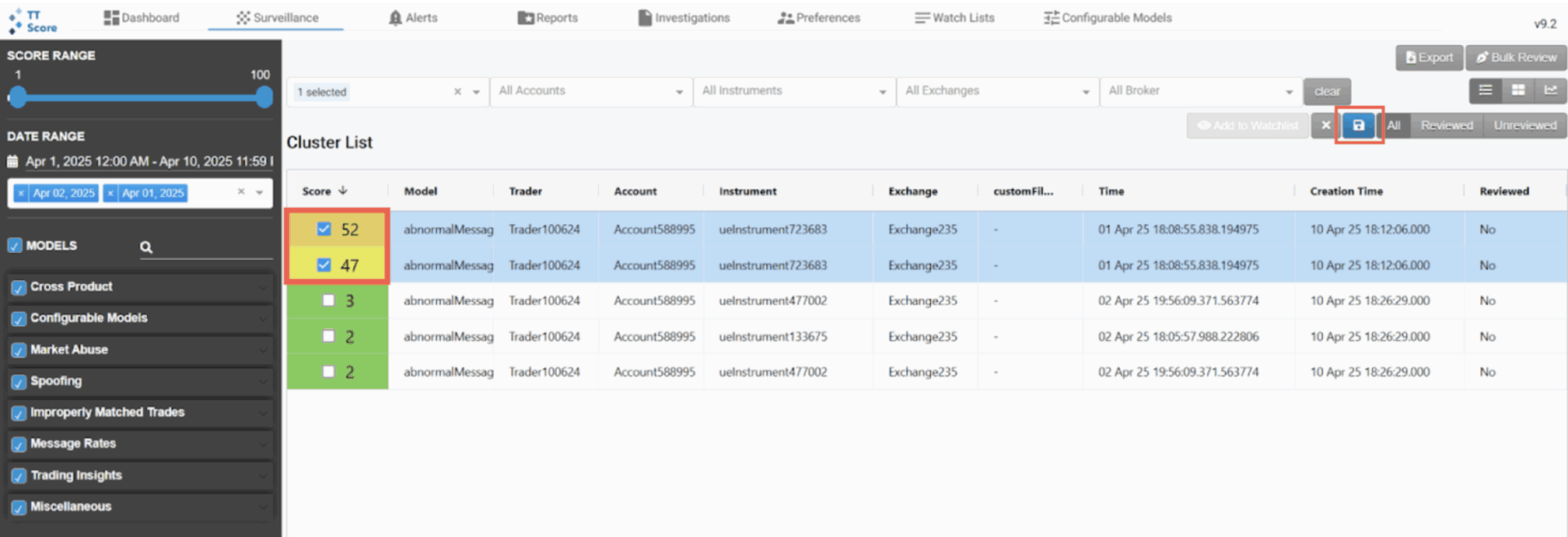

The clusters display in the selected Watch List’s tab.
