










User Setup allows you to generate reports regarding usage data for users that belong to or have been shared with your Company. As a company admin, you can retrieve a separate log that includes all login/logout events per user, including time and date of the event and the user’s IP address. You can also generate a report that shows market data access and any exchange-defined product groups that are enabled per user.
To generate reports, click Reports in the left navigation pane.
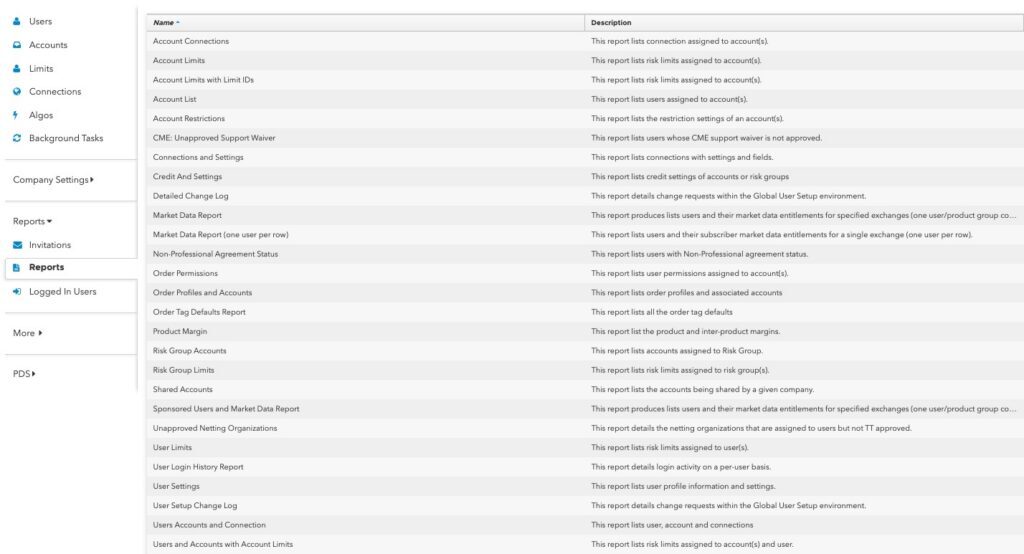
Select one of the following reports:
- Account Connections — Shows the connections assigned to the selected account.
- Account Limits — Shows product limit settings for the selected account(s). Assigned exchange connections and trading environments are also included in this report.
- Account Limits with Limit IDs — Similar to the Account Limits report and includes the unique Limit ID alongside each configured limit.
- Account List — Shows the users assigned to an account and all accounts assigned to a user. Includes users shared to the Company, and accounts not owned by the Company but which have been applied to their users.
- Account Restrictions — Shows the account restrictions settings (Allow/Deny) for all accounts available to a company.
- CME: Unapproved Support Waiver — Shows a list of CME market data users that have sent Support Waiver requests to CME that have not been approved yet.
- Connections and Settings — Shows a list of all connections along with associated settings and fields.
- Credit and Settings — Shows the Credit Settings and Credit Values of accounts or risk groups.
- Detailed Change Log — Shows change requests within the Global User Setup environment.
- Market Data Report — Shows market data access and product groups enabled per user.
- Market Data Report (one user per row) — Shows users and their market data entitlements for a single exchange (one user per row).
- Non-Professional Agreement Status — Displays a list of market data users who have not been verified as having “non-professional” trader status for billing purposes.
- Order Permissions — Shows the Order Permissions enabled on users for assigned accounts.
- Order Profiles and Accounts — Lists order profiles and associated accounts.
- Order Tag Defaults — Report of all order tag defaults within the company.
- Product Margin — Lists the applied values and currency for Product and Inter-Product margin.
- Risk Group Account — Shows the accounts that are assigned to risk groups.
- Risk Group Limits — Shows the Risk Limits that have been set for risk groups.
- Shared Accounts — Shows all accounts that have been shared including the Company the account has been shared to.
- Sponsored Users and Market Data — Lists users and their market data entitlements and includes whether or not the user has been sponsored.
- Unapproved Netting Organizations — This report details the CME netting program participants that are assigned to users but not TT approved.
- User Limits — Shows risk limits assigned to users in your company.
- User Login History Report — Shows user login activity.
- User Settings — This report lists information from the user profile and settings tabs for all users in your company.
- User Setup Change Log — Shows all updates made in User Setup by a Company Admin or user on a per-company basis.
- Users Accounts and Connection — Allows you to quickly identify which user is on a connection.
- Users and Accounts with Account Limits — Shows all Risk Limits assigned to the selected accounts or users.
Downloading generated reports
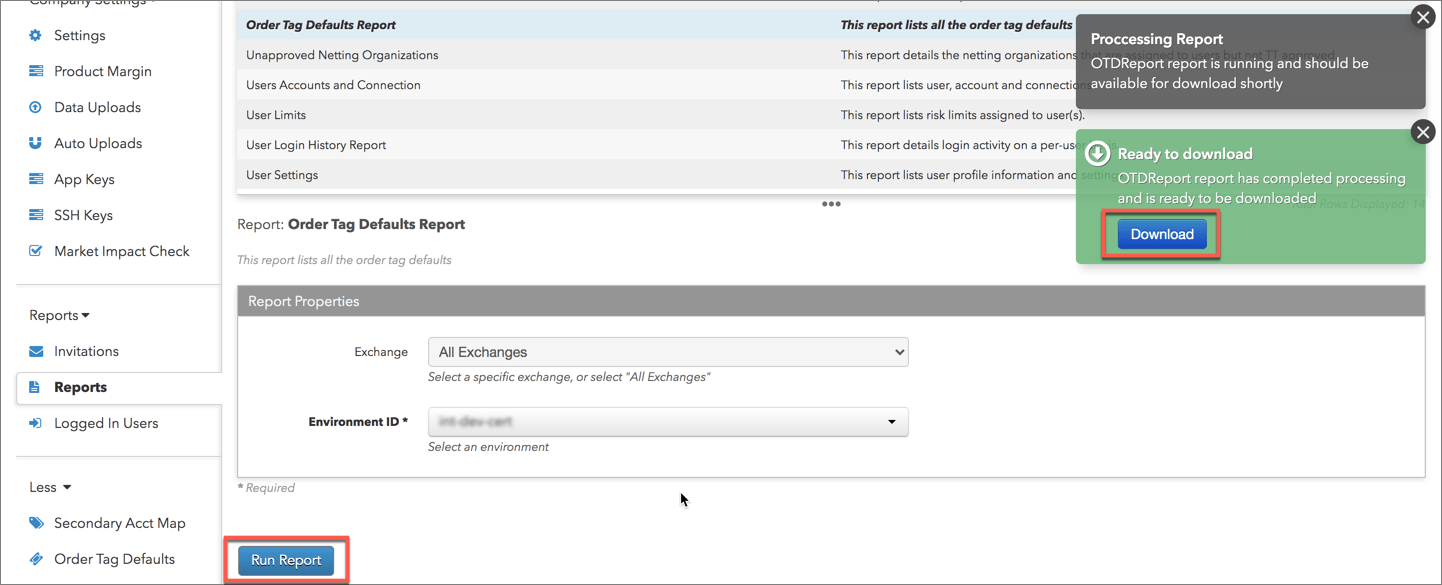
When you click Run Report to generate a report, a pop-up message is displayed to alert you when the report has completed processing and is ready to be downloaded. Click Download in the message to download the report to your browser.
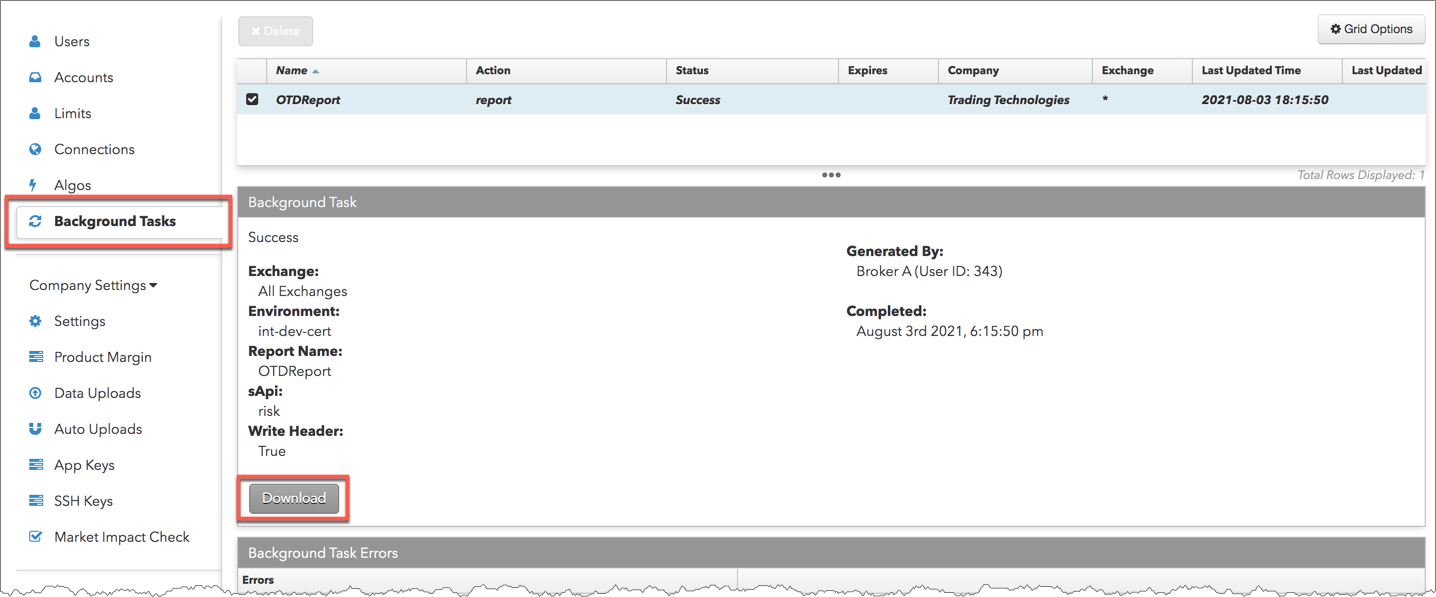
The report can also be downloaded from the Background Tasks tab in the left-navigation pane. To download a completed report, select it in the data grid and click Download.
Generating an Account Limits Report
- In the Reports menu, select Account Limits.
- In the Report Properties section, click the Account field to select a single account or multiple accounts.
The default setting is to audit all accounts (and shared accounts) in your company. You can also filter the report by trading environment or Exchange.
- Click Run Report and click Download in the pop-up message.
The report is downloaded as a .csv file to your computer’s default download folder location.
Generating a Market Data Report
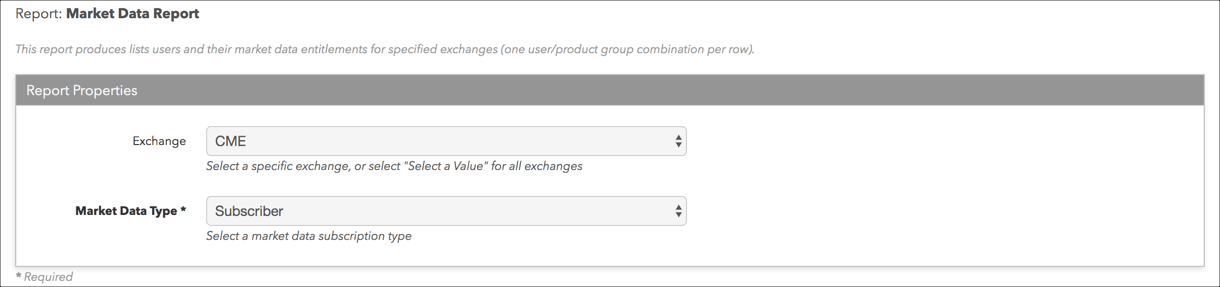
Generates a report based on users or FIX applications subscribed per product group. You can filter the report for subscribers or FIX using the Market Data Type field.
To generate a market data report:
- In the Reports menu, select Market Data Report.
- In the Report Properties section, click the Exchange field to select an Exchange.
If you want the report to include all exchanges, leave this option unset.
- Click Market Data Type and select one of the following:
- Subscriber — Filters the report to show only subscribers of market data per product group, not including FIX applications.
- FIX — Filters the report to show only subscribers of market data via TT FIX per product group.
- Click Run Report and click Download in the pop-up message.
The report is downloaded as a .csv file to your computer’s default download folder location. Open the report to view a list of exchange product groups and/or market data access enabled per user for your company.
In the report, “Market Data Type: 0” indicates subscriber market data, and “Market Data Type: 1” indicates FIX market data.
Generating a Market Data Report (one user per row)
Generates a report with one user per row and shows all product groups and (optionally) netting settings per product group for the user or FIX application. You can filter the report for subscribers or FIX using the Market Data Type field.
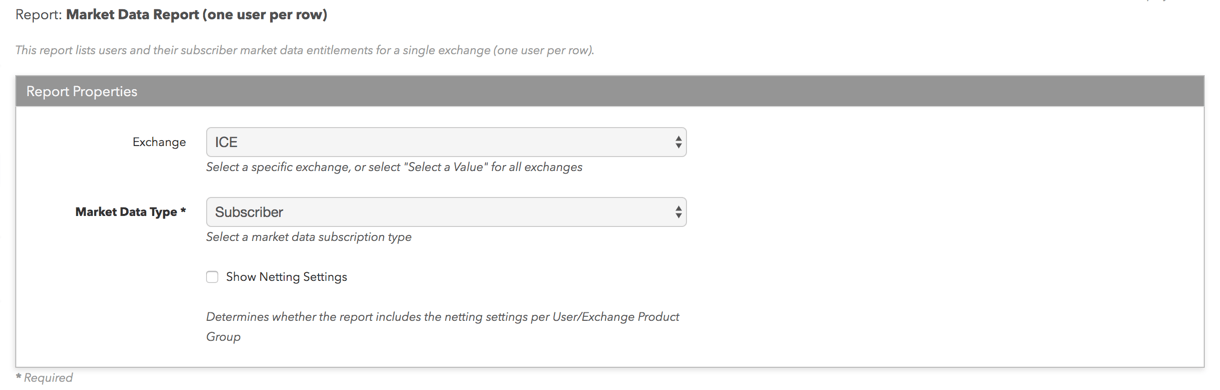
To generate a market data report (one user per row):
- In the Reports menu, select Market Data Report.
- In the Report Properties section, click the Exchange field to select an Exchange.
If you want the report to include all exchanges, leave this option unset.
- Click Market Data Type and select one of the following:
- Subscriber — Filters the report to show only subscribers of market data per product group, not including FIX applications.
- FIX — Filters the report to show only subscribers of market data via TT FIX per product group.
- Optionally, check Show Netting Settings to include netting settings per product group per user.
- Click Run Report and click Download in the pop-up message.
The report is downloaded as a .csv file to your computer’s default download folder location. Open the report to view a list of exchange product groups and/or market data access enabled per user for your company.
In the report, “Market Data Type: 0” indicates subscriber market data, and “Market Data Type: 1” indicates FIX market data.
Generating an Unapproved Netting Organizations Report
- In the Reports menu, select Unapproved Netting Organizations.
- Click Run Report and click Download in the pop-up message.
The report is downloaded as a .csv file to your computer’s default download folder location.
Generating a Non-Professional Agreement Status Report
- In the Reports menu, select CME: Unapproved Non-Professional Status Report.
- Click Run Report and click Download in the pop-up message.
The report is downloaded as a .csv file to your computer’s default download folder location.
Generating an Order Tag Defaults Report
The report includes all order tag defaults per exchange or for all exchanges, and is generated per environment.
- Click Reports in the left navigation pane, and select Order Tag Defaults in the data grid.
- Click Run Report and click Download in the pop-up message.
The report is downloaded as a .csv file to your computer’s default download folder location.
Generating an Order Profiles and Accounts Report
- Click Reports in the left navigation pane, and select Order Profiles and Accounts in the data grid.
- Click Run Report and click Download in the pop-up message.
The report is downloaded as a .csv file to your computer’s default download folder location.
Generating an CME Unapproved Support Waiver Report
- In the Reports menu, select CME Unapproved Support Waiver Report.
- Click Run Report and click Download in the pop-up message.
The report is downloaded as a .csv file to your computer’s default download folder location.
Generating a User Limits Report
Note: The report only lists limits for users that have Apply Limits checked on the Users | Limits tab.
- In the Reports menu, select User Limits.
- In the Report Properties section, click the Exchange field to select an exchange (the default value is All Exchanges).
- Click Run Report and click Download in the pop-up message.
The report is downloaded as a .csv file to your computer’s default download folder location.
Generating a User Login History Report
Note: You can a view an individual user’s login history by clicking Users in the left navigation pane, selecting the user in the Users Grid at the top of the screen, and clicking the user’s Login History tab.
- In the Reports menu, select User Login History Report.
- In the Report Properties section, click the User field to select a User (the default value is All Users in your company.
- Optionally, configure a timeframe for the report and include any Inactive Users.
- Click Run Report and click Download in the pop-up message.
The report is downloaded as a .csv file to your computer’s default download folder location.
Generating a User Setting Report
- In the Reports menu, select User Setting.
- Click Run Report and click Download in the pop-up message.
The report is downloaded as a .csv file to your computer’s default download folder location.
Generating a User Setup Change Log Report
- In the Reports menu, select User Setup Change Log.
- In the Report Properties section, optionally configure a timeframe for the report, the login or username of the person who made the change, transaction ID, IP address, and/or the environment in which the change was made (e.g. Live, Sim, or Delay).
- Click Run Report and click Download in the pop-up message.
The report is downloaded as a .csv file to your computer’s default download folder location.
Generating a Detailed Change Log Report
This report shows all changes made in your company. These changes can also be viewed and filtered on the Change Logs tab in the left navigation panel.
- In the Reports menu, select Detailed Change Log.
- In the Report Properties section, optionally configure a timeframe for the report.
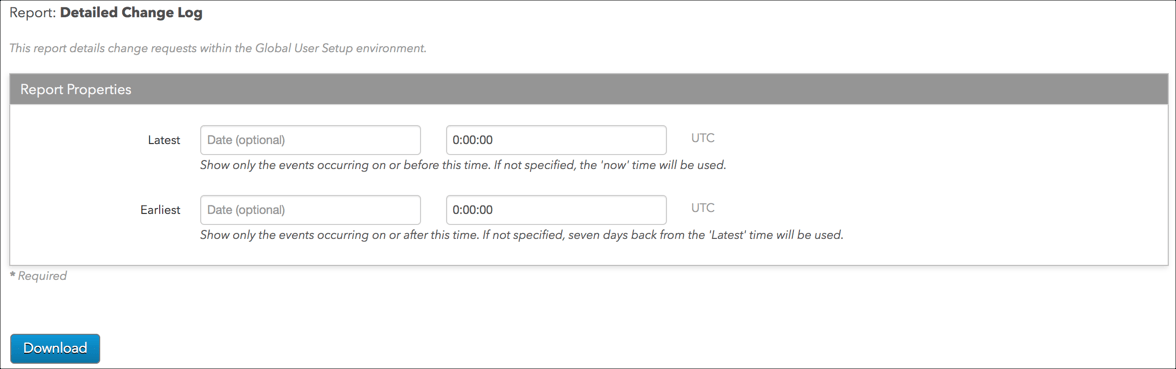
- Click Run Report and click Download in the pop-up message.
The report is downloaded as a .csv file to your computer’s default download folder location.
Note: For a description of each column, refer to Detailed Change Log Column Descriptions.
Generating a Users Accounts and Connection Report
As a company administrator, this report provides you with a single place to find out which exchange connection (iLink, ICE session, etc.) a user may be having trouble with. This allows you to quickly identify which user is on the connection and contact the exchange with the appropriate session details.
Note: The “Users Accounts and Connections” report includes connections owned by your company, as well as shared accounts with connections owned by other companies.
- In the Reports menu, select Users Accounts and Connection.
- In the Report Properties section, select an Exchange.
- Select an Environment ID. This is required for generating the report.
- Click Run Report and click Download in the pop-up message.
The report is downloaded as a .csv file to your computer’s default download folder location.