










Available settings
These settings affect only the selected Audit Query widget. To update the default settings with these value for newly-opened Audit Trail widgets, or to apply them to existing opened widgets, click Defaults.

- Bold font: Sets whether to use bold font for text.
- Row numbers: Displays the row numbers column.
- Ignore global Account List broadcasts: Configures the widget to ignore account selections made in an Account List. When checked (enabled), the widget ignores account selections broadcast by an Account List widget.
- Timestamp precision: Select whether to display timestamps with millisecond, microsecond or nanosecond precision.
- Launch floating order entry on left click on price or quantity: Enables the floating order entry preference to be launched when clicking on price and quantity cells in the grid.
- Display Exch Date/Time values in the timezone of the exchange: By default, exchange dates and times are displayed in the timezone of the user’s workstation. Enable this option to display the values in the timezone of the exchange instead of the local workstation.
- Set Audit Trail columns: Select the columns you want to show.
Audit Trail column descriptions
| Column | Description |
|---|---|
| Account | Account number associated with the transaction. |
| AcctType | Account type code that defines the trader’s relationship with a clearing house |
| AlgoName | For TT synthetic and algorithm orders, the name of the algorithm controlling the order. |
| AltExchAcct | Shows the value of Tag 440 sent to ICE and ICE_L exchanges. |
BBG | Displays the Bloomberg product symbol when this symbology is enabled in the workspace preferences. When the exchange’s symbology is enabled, this column is blank. Note: Bloomberg codes are for display only and are not included in downloads from the Fills widget. Filtering of historical data does not work on the BBG column. |
| Approve | Indicates that a care order has been approved. |
| Broker | The broker ID that is associated with the order. |
| B/S | Whether the transaction represents a Buy or Sell order |
| C.D.I. | Commodity Derivative Indicator. Indication of whether the order is for hedging purposes to reduce risk. |
| Client | Client. Identification of the customer (Short Code). |
| ClientSecondadry | Secondary customer identifier associated with the order. This field can be used for trading on behalf of clients and used for internal reporting purposes. Enter the customer’s legal entity identifier (LEI/Short Code). |
| ClOrderID | Unique identifier for the order assigned by the client and sent to the exchange. |
| Compliance Text |
Text field available to include additional values for compliance. |
| ConnectionID | ID of the connection used to route the order or fill. |
| Contract | The name and contract expiry for the instrument or strategy. |
| Confirmed | Indicates whether a Fill is confirmed (true) or unconfirmed (false). |
| Counterparty | Shows the Participant ID and account number of the counterparty that you submit the order on behalf of. |
| Current User | TT user name of the trader associated with the transaction or owns a staged order. |
| CustOrderHandlingInstr | The “Customer Order Handling Instruction” value set on the account in Setup and sent to the exchange in Tag 1031, which identifies the execution method and source of derivatives trades. |
| Date | Date the transaction occurred or the message was sent.
|
| D.E.A. | Direct Electronic Access. Shows whether or not the order is sent from direct/sponsored access, or from another source. |
| DealDate | The date manually set by the user in the Deal Time field prior to sending the block trade to the exchange. |
| DealTime | The time manually set by the user in the Deal Time field prior to sending the block trade to the exchange. |
| EchoDC_1 | Customer-defined text field that can be populated by FIX client applications. The value is not sent to the exchange, but is visible in the Order Book, Fills, and Audit Trail widgets and on FIX Drop Copy records. |
| EchoDC_2 | Customer-defined text field that can be populated by FIX client applications. The value is not sent to the exchange, but is visible in the Order Book, Fills, and Audit Trail widgets and on FIX Drop Copy records. |
| EchoDC_3 | Customer-defined text field that can be populated by FIX client applications. The value is not sent to the exchange, but is visible in the Order Book, Fills, and Audit Trail widgets and on FIX Drop Copy records. |
| EchoDC_4 | Customer-defined text field that can be populated by FIX client applications. The value is not sent to the exchange, but is visible in the Order Book, Fills, and Audit Trail widgets and on FIX Drop Copy records. |
| EchoDC_5 | Customer-defined text field that can be populated by FIX client applications. The value is not sent to the exchange, but is visible in the Order Book, Fills, and Audit Trail widgets and on FIX Drop Copy records. |
| EchoDC_6 | Customer-defined text field that can be populated by FIX client applications. The value is not sent to the exchange, but is visible in the Order Book, Fills, and Audit Trail widgets and on FIX Drop Copy records. |
| EchoDC_7 | Customer-defined text field that can be populated by FIX client applications. The value is not sent to the exchange, but is visible in the Order Book, Fills, and Audit Trail widgets and on FIX Drop Copy records. |
| EchoDC_8 | Customer-defined text field that can be populated by FIX client applications. The value is not sent to the exchange, but is visible in the Order Book, Fills, and Audit Trail widgets and on FIX Drop Copy records. |
| EchoDC_9 | Customer-defined text field that can be populated by FIX client applications. The value is not sent to the exchange, but is visible in the Order Book, Fills, and Audit Trail widgets and on FIX Drop Copy records. |
| EchoDC_10 | Customer-defined text field that can be populated by FIX client applications. The value is not sent to the exchange, but is visible in the Order Book, Fills, and Audit Trail widgets and on FIX Drop Copy records. |
| End | Shows the end date and time parameter setting for TT Order Types or ADL algos. |
| ExecDec | Execution Decision ID. Indicates the user or firm that submitted the order. Enter a registered ID/Short Code. |
| ExecDecQ | Execution Decision Qualifier. The Order Tag Default qualifier for the ExecDec field as part of MiFID compliance. |
| ExecDecSecondary | Secondary user or firm associated with the order. This field can be used for trading on behalf of clients and used for internal reporting purposes. Enter a registered ID/Short Code. |
| Exch | Name of the exchange. Note: For parent TT order type orders, an asterisk “*” is appended to the exchange name in this column (e.g., CME *) to indicate the intended destination of the submitted parent order. No asterisk appears in the Exch column for the related child orders sent to the exchange. |
| ExeNotional | The executed notional value of the order as it partially fills (e.g., submit an order for 1 CL contract: 1 contract traded * $50/barrel * 1,000 barrels/contract = executed notional value). |
| ClearingAcct | Shows the value sent to the exchange as the clearing account. |
| ExchDate | The date the trading host received/sent the message. The date is displayed based on the timezone of the user’s workstation. |
| ExchTime | The time at which a fill is received by the exchange host or exchange gateway, depending on the practice of the exchange. The time is displayed based on the timezone of the user’s workstation. |
| Exch Latency (μs) | Number of microseconds it takes for an exchange to respond to an order sent by TT. Measured from the time TT submits the order to the time it receives an acknowledgment for the order from the exchange. Note: Valid only in a Live environment. |
| ExchOrderID | ID of the order, supplied by the exchange. |
| ExchTransId | The transaction ID generated by and received from the Exchange. |
| ExecDec | Execution Decision. A Short Code as an indication of who or what algo submitted the order. |
| ExecDecQ | Execution Decision Qualifier. The Order Tag Default qualifier for the ExecDec field as part of MiFID compliance. |
| ExeQty | Executed quantity (sum of fills) of an order |
| ExecType | Identifies the purpose of the execution report (when Message Type is ExecutionReport) |
| Fill Qty | The quantity filled in the order. |
| Fixing Date | Allows users to query/filter by Fixing Date. Note: This value will only be populated for FX Spot instruments. |
| Give Up | Account of the give-up party |
| InvestDec | Investment Decision. A Short Code as an indication of who made the trading decision. |
| InvestDecQ | Investment Decision Qualifier. The Order Tag Default qualifier for the InvestDec field as part of MiFID compliance. |
| LiqProv | Liquidity Provision. Indication of market making. |
| Manual Fill | Type of manual fill: O (Open), C (Close), S (SOD), M (Manual fill), A (Admin fill) |
| Message | Message received from the exchange, if sent |
| Message Type | Type of message sent to or received from the exchange |
| Modifier | The modifier applied to the order. Example: Stop, If Touched, Trailing Stop, Trailing IT, Trailing Limit, Machine Gun |
| O/C | Type of position you are establishing with the order. |
| OMAOrderID | ID that uniquely identifies the OMA (Order Management Algo) order associated with the transaction. |
| OrdQty | Total order quantity |
| Organization | The value of the “Organization” custom field included on the order or configured for the user in Setup. Typically used for identifying traders that are managed by your firm but are not direct employees. |
| OrigDate | Date the order was originally submitted. |
| Originator | TT User ID of the person who submitted the order or staged order. |
| OrigTime | Time the order was originally submitted. |
| P/A | Whether a Brokertec order is passive (PA) or agressive (AA). |
| Parent ID | TT-generated ID that uniquely identifies a parent order. The ID is also associated with all of its child orders. For example, if you submit a TT Iceberg order, the ParentID of each child order will contain the TTOrderID of the parent Iceberg order. |
| P/C | Indicates whether an options contract is a Put (P) or a Call (C). |
| Price | Price of the order or fill. |
| Product | Name of the product being traded. |
| ProductType | Type of product (e.g. Futures, Options). |
| ProfileName |
Displays the applied order profile for the order or fill. Only profiles that were configured in Setup will populate in this column. Locally created profiles will not appear. Note: The “ProfileName” column in the Order Book displays the order profile ID (e.g., <109>) when the profile name is not available to the user. In Setup, Profile IDs for your company are listed in the data grid “ID” column on the More | Profiles tab. The column is hidden by default and can be shown using the “Grid Options”. |
| Route | Routing destination for the order, such as TT SIM or Algo SE. |
| SharedAccountName |
The ID of the account shared with a company (e.g., an account shared with an Introducing Broker by a Carry Broker.) |
| SMP ID | Displays the value of the Self Match Prevention ID used to conduct a match at the exchange. Note: This field only applies to the self-match prevention functionality performed at the exchange. It does not contain information related to the TT Platform’s Self-Match Prevention (TT SMP) functionality. For an overview of TT’s support for self match prevention and the Avoid Orders That Cross (AOTC) functionality, refer to the Order Cross Prevention section of the Setup help. |
| Source | Displays the name of the widget or application that originally placed an order. For child orders, this column displays the origin of the child order itself and not the parent. |
| Settle Date | The official settlement date for FX products. For some exchanges this value may differ from the Trade Date depending on the trading session which the contract settles. |
| Staged | Shows “Staged” to identify parent staged orders and fills. This column is blank on other orders and fills. |
| StagedOrderID | Shows the staged order identifier on the parent care order and all related child orders and fills. |
| StageMsg | Text message, typically execution instructions, included with the staged order. |
| Status | The current status of the exchange:
|
| Strike | Displays the strike price of the options contract. |
| SynthStatus | The status of the parent synthetic order. |
| TextA | Displays an optional, user-defined text value from the Setup app, Order Profiles, or entered in the TextA free-form text field in the Order Ticket. This value remains on the order in the TT system. If accepted or required by an exchange, the value in this column may be routed to the exchange for clearing and back office purposes. |
| TextB | Displays an optional, user-defined text value from the Setup app, Order Profiles, or entered in the TextB free-form text field in the Order Ticket. This value remains on the order in the TT system. If accepted or required by an exchange, the value in this column may be routed to the exchange for clearing and back office purposes. |
| TextC | Displays a read-only, customer-defined text value set by FIX client applications. The value is not sent to the exchange. |
| TextTT | Displays an optional, user-defined text value from the Setup app or entered in the TextTT free-form text field in the Order Ticket. The value displayed in this column remains on submitted orders for tracking purposes in the TT system, but is not routed to the exchange. You can show or hide the Text TT text box for a selected working order in the Order Toolbar. You can add or modify the text that displays in the TextTT column for the selected order. In the Position Manager widget, you can now edit the TextTT column for Local Fills and Admin Fills. However, this is not available for Admin SODs. Note: For Autospreader orders submitted by an ADL algo, the value is populated with the order tag of the parent algo order. |
| TIF | Time In Force for the order. |
| TT Latency (μs) | Number of microseconds TT took to respond to a quote or fill. Shows both hedge latency and requote latency. Valid only in a Live environment. Note: If (Q) is displayed, it indicates a queued request. This means there was an in-flight request to the exchange when Autospreader received an additional price update. Autospreader queued this request until it received the acknowledgment from the exchange for the in-flight request. |
| TTOrderID | TT-generated ID that uniquely identifies the order associated with the transaction. |
| Time | The time the order action occurred. This value is updated after each order action.
|
| TotNotional | The total notional value of the order (e.g., submit an order for 1 CL contract: 1 contract traded * $50/barrel * 1,000 barrels/contract = total notional value). |
| Trade Date | The official trade date for FX products. For some exchanges, this value may differ from the Settlement Date depending on the trading session which the contract settles. |
| TrdgCap | Trading Capacity. Indication of a user dealing on own account, trading in a matched principal trading capacity, or trading in any other trading capacity. |
| TrigPrice | Price at which to enter an order (Shown only when an order has an associated Trigger price, such as a TT Stop or TT If-Touched order) |
| TT SMP ID | Displays the value of the TT Self Match Prevention ID used to conduct a match within the TT Platform. Note: This differs from the exchange self match prevention ID provided in the SMP ID field. For an overview of TT’s support for self match prevention and the Avoid Orders That Cross (AOTC) functionality, refer to the Order Cross Prevention section of the Setup help. |
| TT SMP Instruction | Instruction provided to the TT platform as to whether to cancel the resting or incoming (aggressing) order in the event of a self-match. Note: This field only applies to the TT Platform Self-Match Prevention (TT SMP) functionality. It does not contain information related to exchange-provided self-match prevention. For an overview of TT’s support for self match prevention and the Avoid Orders That Cross (AOTC) functionality, refer to the Order Cross Prevention section of the Setup help. |
| Type | The type of instrument or options strategy. |
| UndQty | Undisclosed quantity of a disclosed quantity order (e.g. Iceberg. TT Iceberg, Time Sliced) |
| UniqueExecID | TT-generated execution ID for fills. Sent in the form of a short-form GUID, no more than 22-characters in length. |
| UTC Date |
The date the trading host received/sent the message. The date is displayed in Coordinated Universal Time (UTC) instead of the timezone of the user’s workstation. |
| UTC Time |
The time at which a fill is received by the exchange host or exchange gateway, depending on the practice of the exchange. The time is displayed in Coordinated Universal Time (UTC) instead of the timezone of the user’s workstation. |
| WrkQty | Working quantity of the order |
The Audit Query widget includes the same columns as the Audit Trail widget.
Filtering columns
If a column is filterable, a drop-down arrow appears when you hover on the column header.

To filter the column, click the arrow to select one or more values and click OK.

When a column is filtered, the column header is highlighted and the filter icon is displayed. To clear a filter, click the icon and select Clear Filter.
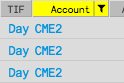
When filtering the Product column, you have the option to use Search or Market Explorer to select products. The product type is displayed in parentheses next to each product in the list.

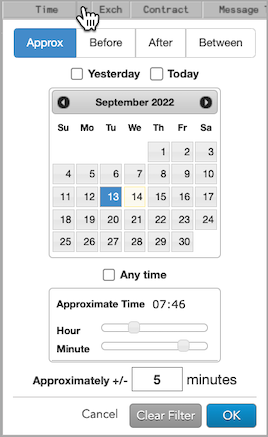
When filtering the Date or Time column, you can specify a date or date range and a time or time range. The changes you make set the filtering criteria for both columns. You can use the following modifiers for more precise filtering:
- Approx: Filters based on a single date and for a number of minutes around a specified time.
- Before: Filters based on a single date before a specified time.
- After: Filters based on a single date after a specified time.
- Between: Filters based on a range from a specific date and time to a specific date and time.
- Yesterday: Sets the date to the previous day.
- Today: Sets the date to the current day.
- Anytime: Removes the time window limitation set by Approximate Time.
Staged Order Status
Refer to the following table for a description of each staged order status that may appear in the Status column.
|
Status |
Description |
|---|---|
|
Available |
An unclaimed care order without a currently assigned execution trader (owner). |
|
Claimed |
A care order claimed by an execution trader (owner), but with no child orders submitted. |
|
Working |
Working care order and child order(s) without any fills |
|
Partially Filled |
Working care order that is partially filled |
|
Filled |
Filled care order |
|
Pending Cancel Approval |
The care order is pending approval or rejection of a cancellation request by the originator. No related child orders can be submitted. |
|
Pending Change Approval |
The care order is pending approval or rejection of a change request by the originator. No related child orders can be submitted. |