Blocktrader
LME Cross Orders
The TT® platform supports LME Cross orders using the TT Blocktrader widget. You can submit the following orders on LME:
- Cross
Blocktrader display for LME
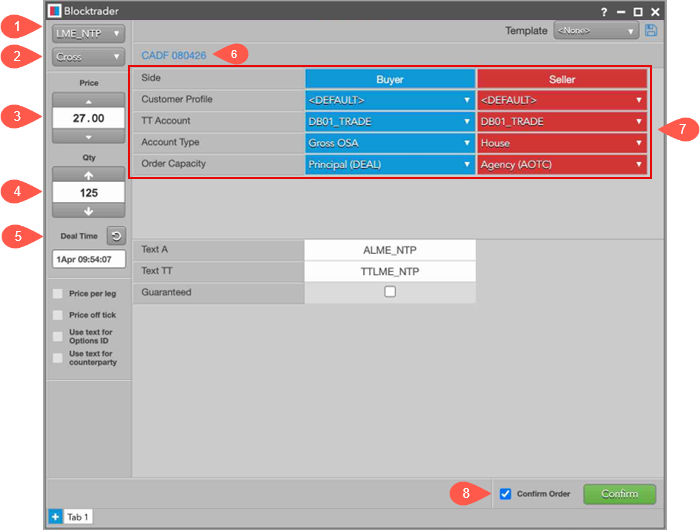
The components are:
- Exchange — Lists the exchanges with OTC trade reporting supported on TT.
- Trade Type — Lists the OTC trade types supported for the selected exchange. Currently for LME, this can only be “Cross”.
- Price — Sets the price for the Cross trade. You can also use the up and down arrows to set the price.
- Quantity — The total trade quantity.
- Deal Time — The exact time for the deal.
- Instrument — Allows you to search for and select the instrument being traded. For LME, this can be a futures instrument or a spread instrument defined by the exchange.
- LME block trade fields — Allows you to complete the fields required by the exchange.
- Confirm Order and Submit — Allows you to confirm the order before submitting. When Confirm Order is checked, clicking Confirm will allow the user to check the details of the trade before clicking Submit.
Common LME Blocktrader Trade Fields
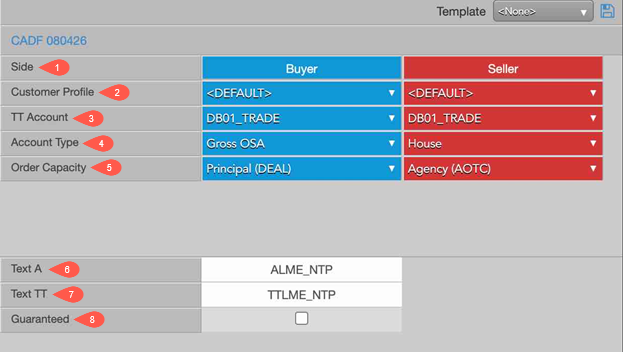
The following list shows the Blocktrader fields that are common when submitting block orders on LME.
- Side — Sets the Buyer or Seller. Select "Buyer" or "Seller" to set each side of the trade.
- Customer Profile — A drop-down list of available order profiles. This is an optional field. Only customers with order profiles defined in Setup appear in the Customer Profile list.
- TT Account — Sets an optional account for the Buyer or Seller. This account will be used for the Buyer or Seller instead of the one set in the Account drop-down. All accounts assigned to the user are listed in the drop-down menu. Maps to client_info_s in the exchange API.
- Account Type — Sets the exchange account code for the trade. Valid values are:
- Client ISA
- Client OSA
- Gross OSA
- House
- Order Capacity
- Agency (AOTC)
- Principal (Deal)
- Riskless Principal (MTCH)
- Text A — Any text that a user intends to send to the exchange can be added here.
- Text TT — Free text field.
- Guaranteed — If the flag is checked, the trade will be guaranteed by LME. Else if there is a better price available in the market, then the Cross trade will be cancelled.
Note The exchange does not allow the * and % characters to be used as part of the account number.
Note This field is meant for TT internal purposes only and is not sent to LME.
Submitting Cross Orders on LME
Before submitting a trade, the user should have access to submit Block orders. Refer to User Account Permissions for more information.
- Open the Blocktrader widget and select "LME_NTP" from the Exchange drop-down.
- Select the trade type from the Trade Type drop-down.
- Cross
- Use the Instrument drop-down at the top of the widget to select the instrument.
- Under the Trade Type drop-down, set the Quantity and Price for the trade.
- Set the LME block trade fields in the center of the widget:
- Determine if the Buy side should be prioritized or the Sell Side. The prioritized side should be on the left side.
- Select the Customer Profile for both sides. If no profile is selected, the default profile is used.
- Select the TT Account for both sides for executing the trade.
- Select the Account Type for both sides of the trade.
- Select the Order Capacity for both sides of the trade.
- Enter the values as needed by trader on Text A.
- Enter the values as needed by trader on Text TT.
- If the trader wants a guaranteed trade, they should select the checkbox for Guaranteed.
- Click Confirm.
- Review your selections for accuracy.
- Click Submit.
Note This field is meant for TT internal purposes only and is not sent to LME.
The fields will be locked for review.