Goldman Sachs Commodity Blocks (GSCB)
Adding a GSCB Connection
Prerequisites
Clients must contact the Goldman Sachs Commodity trade desk to obtain the necessary credentials for executing block trades.
- email: gs-ecommod@gs.com
- phone: (US) 212-357-6510
Adding a GSCB Connection
To add a GSCB connection:
- Click Connections in the left navigation panel.
- Click +New Connection
- Configure the settings in the General Settings section:
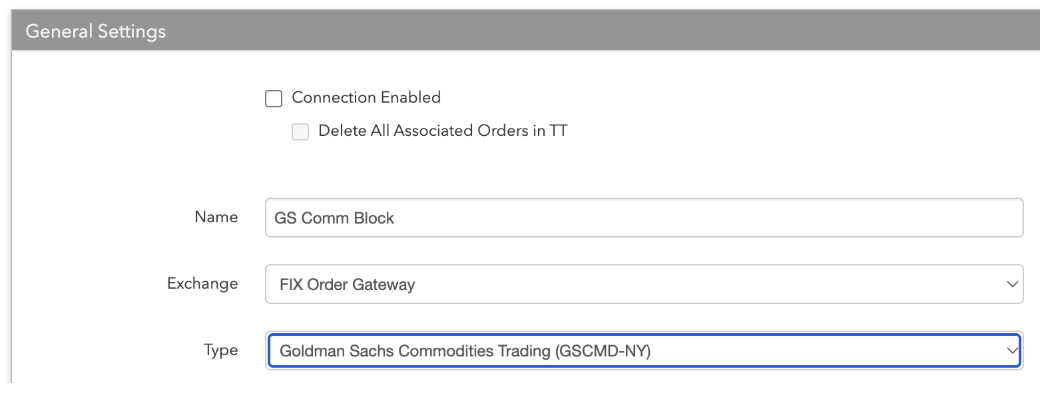
- Connection Enabled: Check this setting to activate the connection. Uncheck to deactivate the connection.
- Name: This is a required field for creating a connection.
- Exchange: Select "FIX Order Gateway".
- Type: Select "Goldman Sachs Commodities Trading (GSCMD-NY)".
Configure the settings in the Additional Settings section.
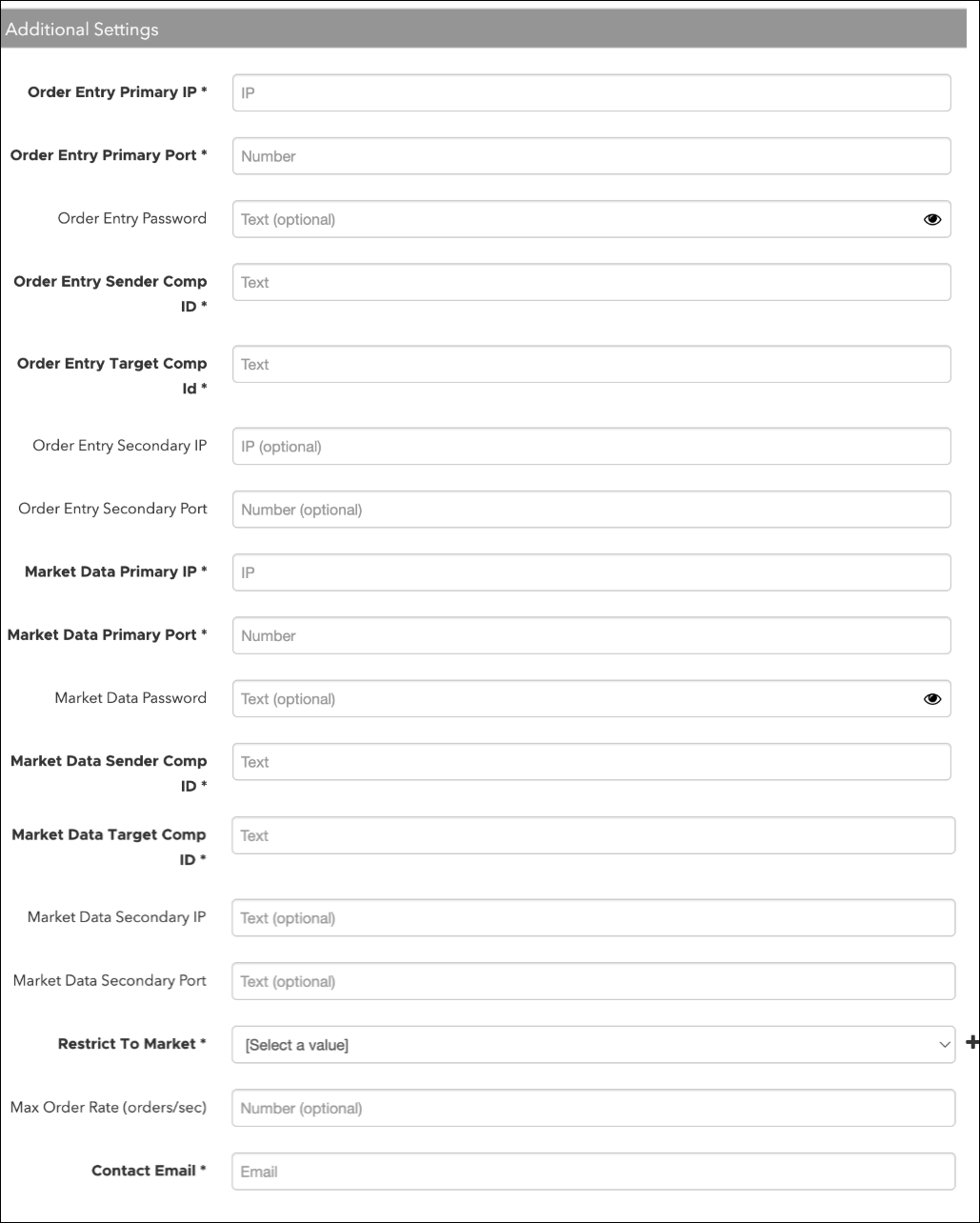
- Order Entry IP — Sets the exchange-provided IP address for submitting orders to the exchange. This is required.
- Order Entry Port — Sets the exchange-provided port for submitting orders to the exchange. This is required.
- Order Entry Password — This is not required.
- Order Entry Sender Comp ID — Identifies the name of the firm that sends messages to the exchange for the order session. This is required.
- Order Entry Target Comp ID — The ID of the firm receiving messages from the exchange host for the order session. This is required.
- Order Entry Secondary IP — This is not required.
- Order Entry Secondary Port — This is not required.
- Market Data IP — Sets the exchange-provided IP address for receiving market data from the exchange. This is required.
- Market Data Port — Sets the exchange-provided port for receiving market data from the exchange. This is required.
- Market Data Password — This is not required.
- Market Data Sender Comp ID — Identifies the name of the firm that sends messages to the exchange for the market data session. This is a required field.
- Market Data Target Comp ID — The ID of the firm receiving messages from the exchange host for the market data session. This is a required field.
- Market Data Secondary IP — This is not required.
- Market Data Secondary Port — This is not required.
- Max Order Rate — Sets the maximum number of orders per second that a user can enter per connection. This limit cannot exceed the exchange-defined order rate maximum.
Contact Email — Optionally, add a best contact email that TT can use to contact your firm if needed.
-
Click Create. You can select the connection in the data grid and review the connection settings in the Settings tab.
-
Click the Accounts tab to assign an existing account to the connection. Multiple accounts can be added to a single connection.
See also: Creating a New Account
Note You cannot assign a GS Commodity Block connection to an account if that account also has a connection to one or more of the markets configured in the "Restrict To Market" list.
Note The connection will not become active until at least one account is assigned.
- Click Save Changes.
Configure the following Cboe (GSCB Exchange) settings per connection:
Restrict To Market - The list of markets to which block trading is restricted. This is required.